 Pace


Got the league invite. Now what?
This is the driver's side. You'll join the league with the code, tell it which name is yours and check the calendar and standings. On race day, you just race with Pacedex open. It takes about 5 minutes. In the screenshots, the yellow outline shows where to click.
- Pacedex on your PC (Windows). How to install →
- An e-mail address. The Pacedex account is free and that's all it asks for.
- The invite from the league owner: a 6-character code, or a link.
Where the invite comes from
The league owner does this, on their own PC. We show it so you know what to ask for.
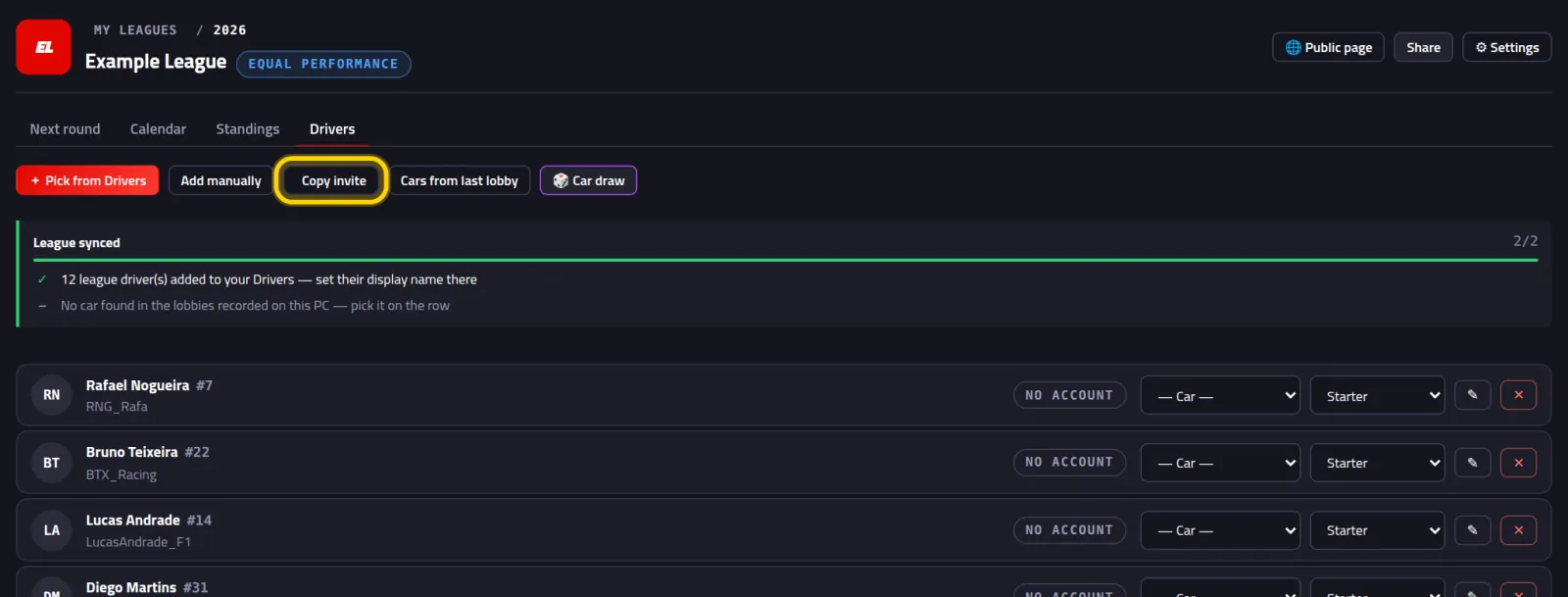
The owner clicks Copy invite
It's in their league, on the Drivers tab. It copies a ready-made line with the league name, the code and the link.
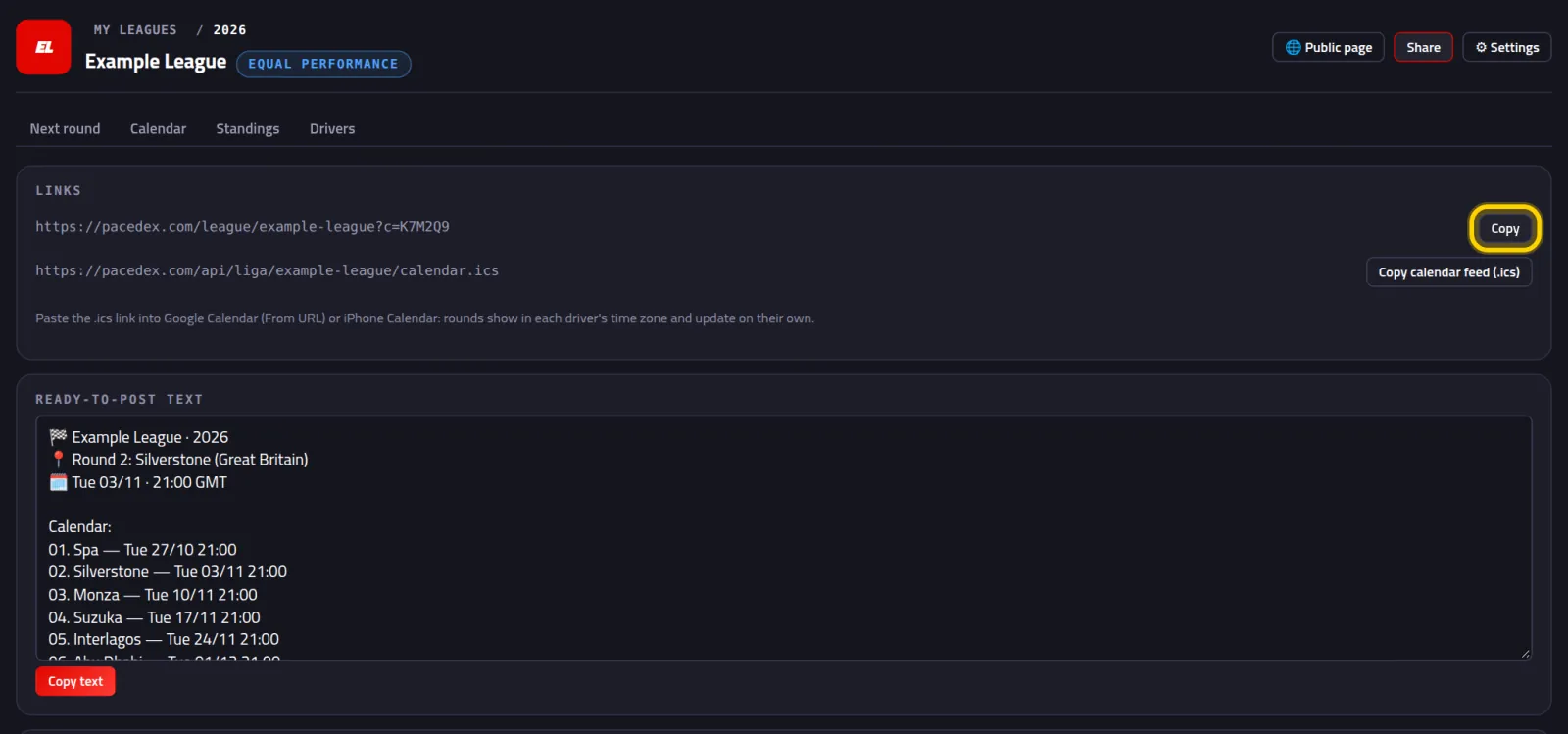
Or sends the league link
Under Share, the first link already carries the code at the end (?c=K7M2Q9). The ready-to-post text for the group has the code too.
In the group you get something like: Pacedex invite code: K7M2Q9.
Join the league
Now it's your turn, on your PC.
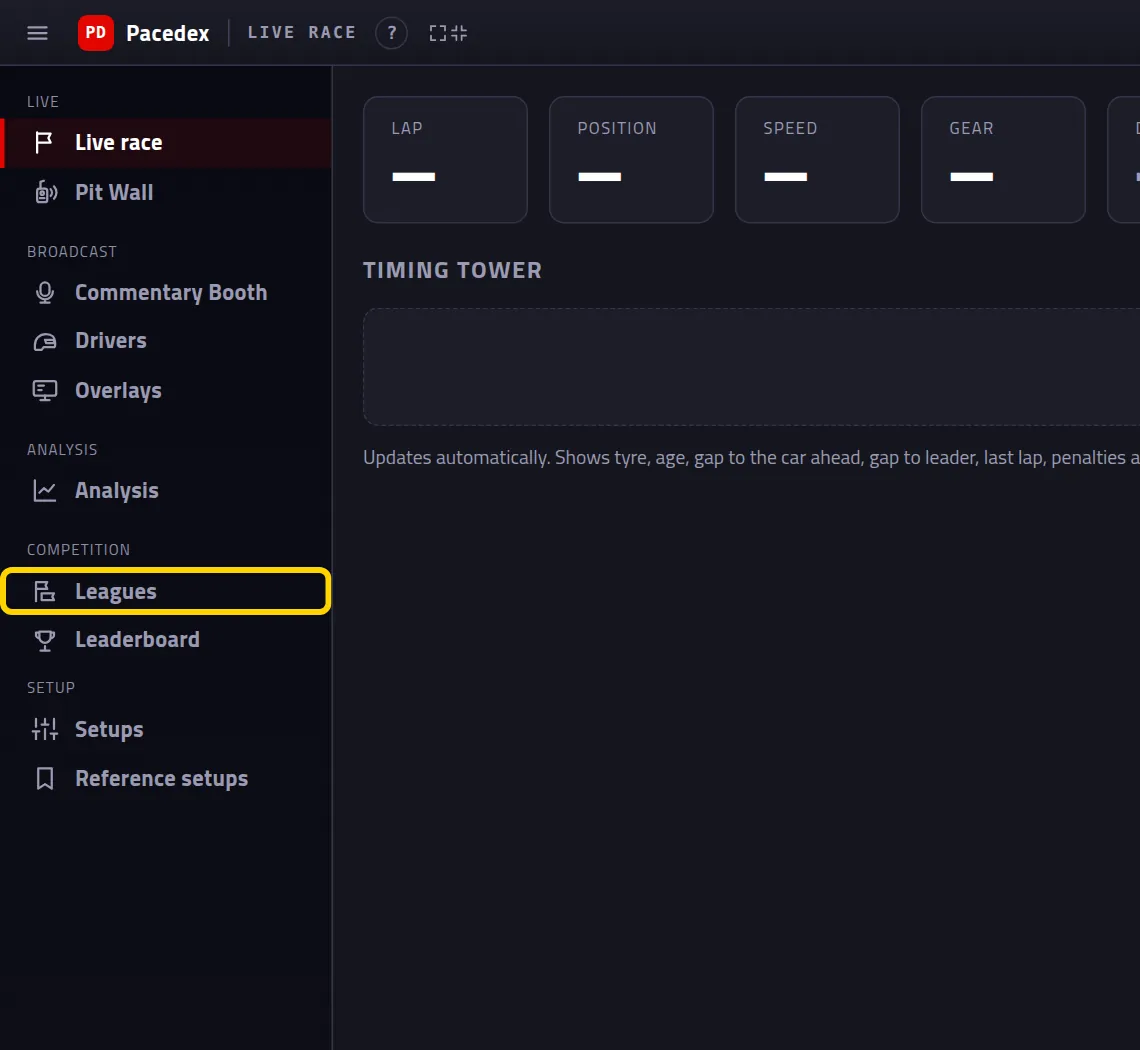
Click Leagues in the left menu
It's in the Competition group.
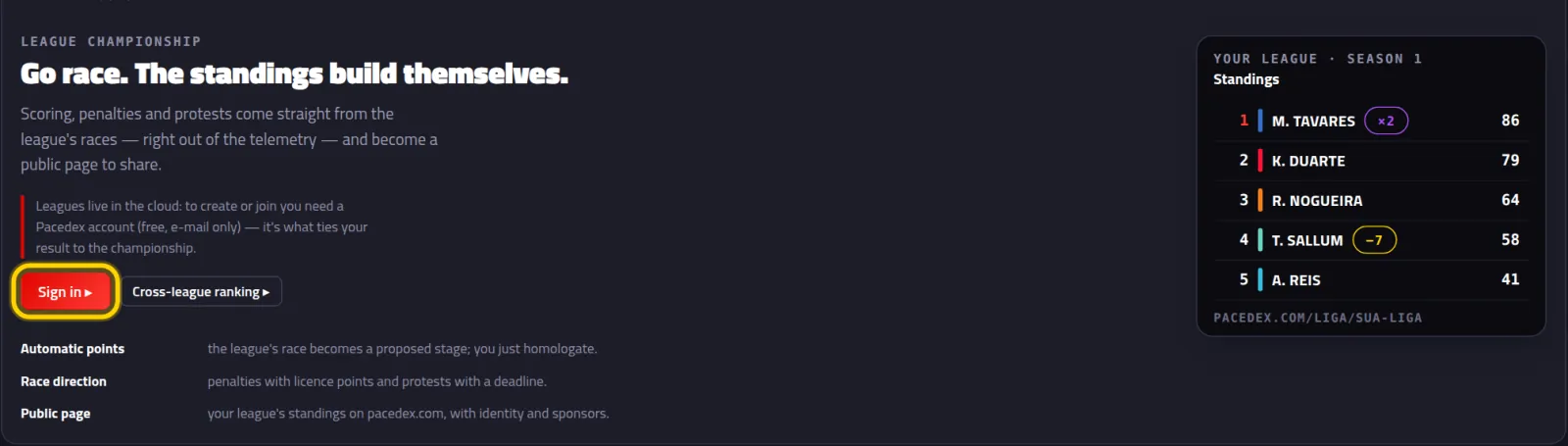
No account? Click Sign in ▸
Leagues live online, and the account is what ties your result to the championship. Already signed in? Skip to step 5.
Type your e-mail and click Send code
The app opens Pacedex account (optional), in Settings.

Copy the code from the e-mail and click Sign in
A 6-digit code lands in your inbox. Nothing there? Check spam.
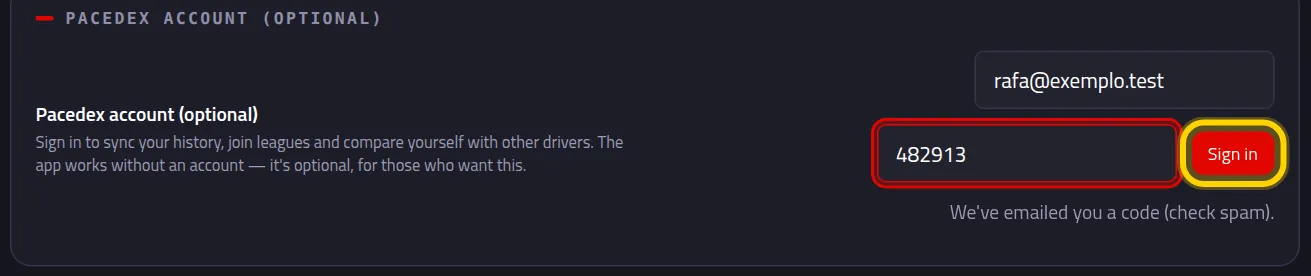
You'll see Signed in: followed by your e-mail.
Go back to Leagues, paste the code and click Join
The box sits next to Join with a code. Paste just the code, e.g. K7M2Q9 — not the whole invite message.
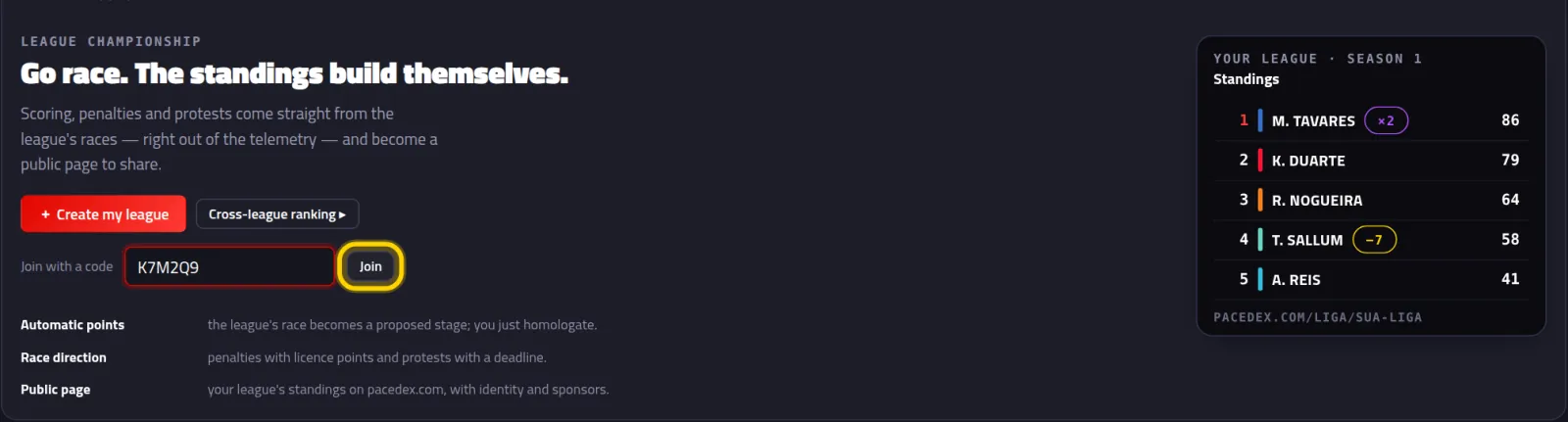
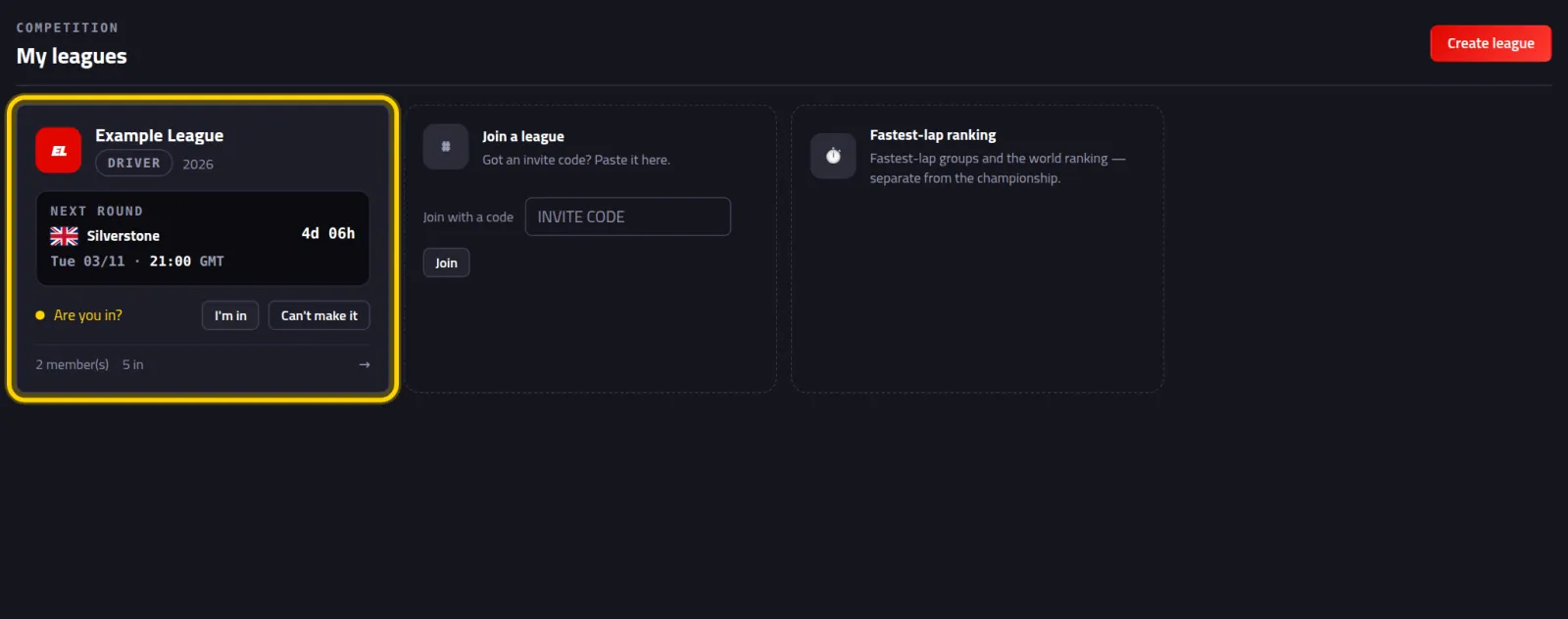
That's it — you're in!
The league shows up as a card, with the Driver badge and the next round. Click the card.
Open the Drivers tab and click This is me on your name
The owner has already added the league's drivers. Find your name (your gamertag is underneath) and click the button on that row.
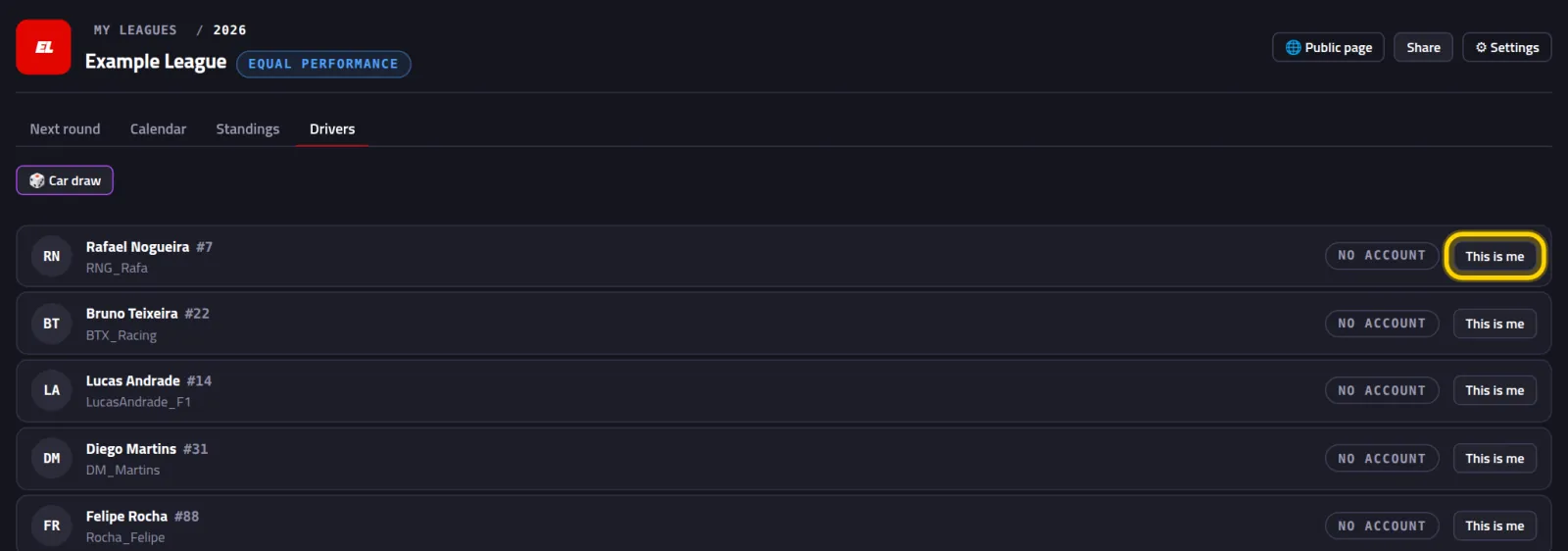
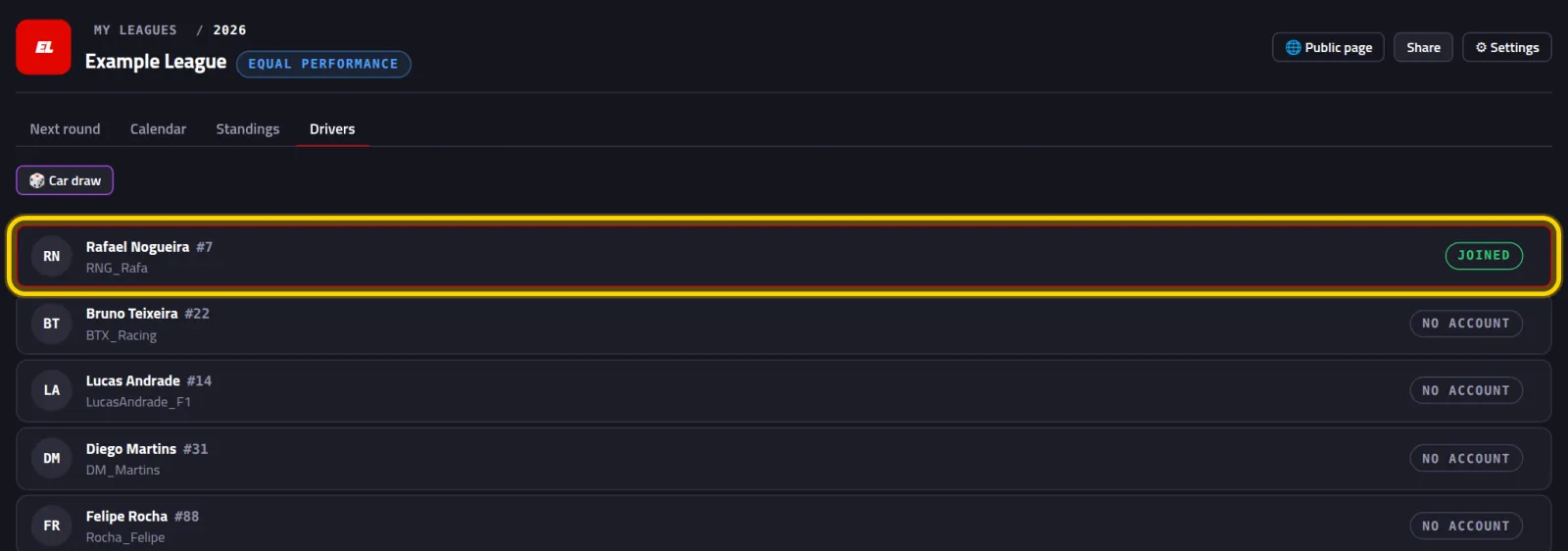
Your row gets highlighted and the badge goes from No account to Joined.
Calendar and standings
Everything about the league is one click away on its card.
On Next round, click I'm in
Here's the track, the day and the league's start time. If you live in another time zone, your own time shows right below (your time). There's also a countdown and who's confirmed.
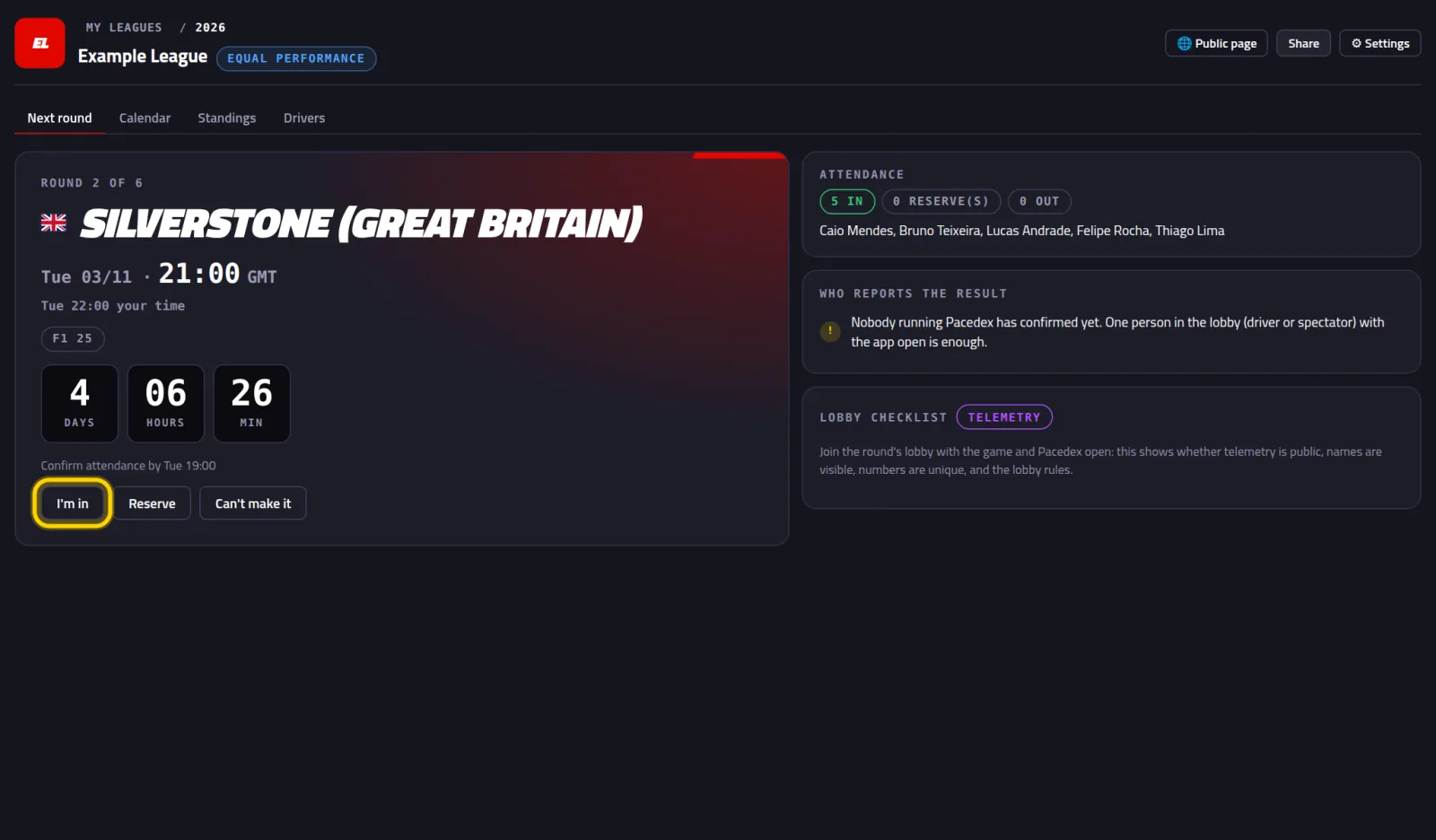
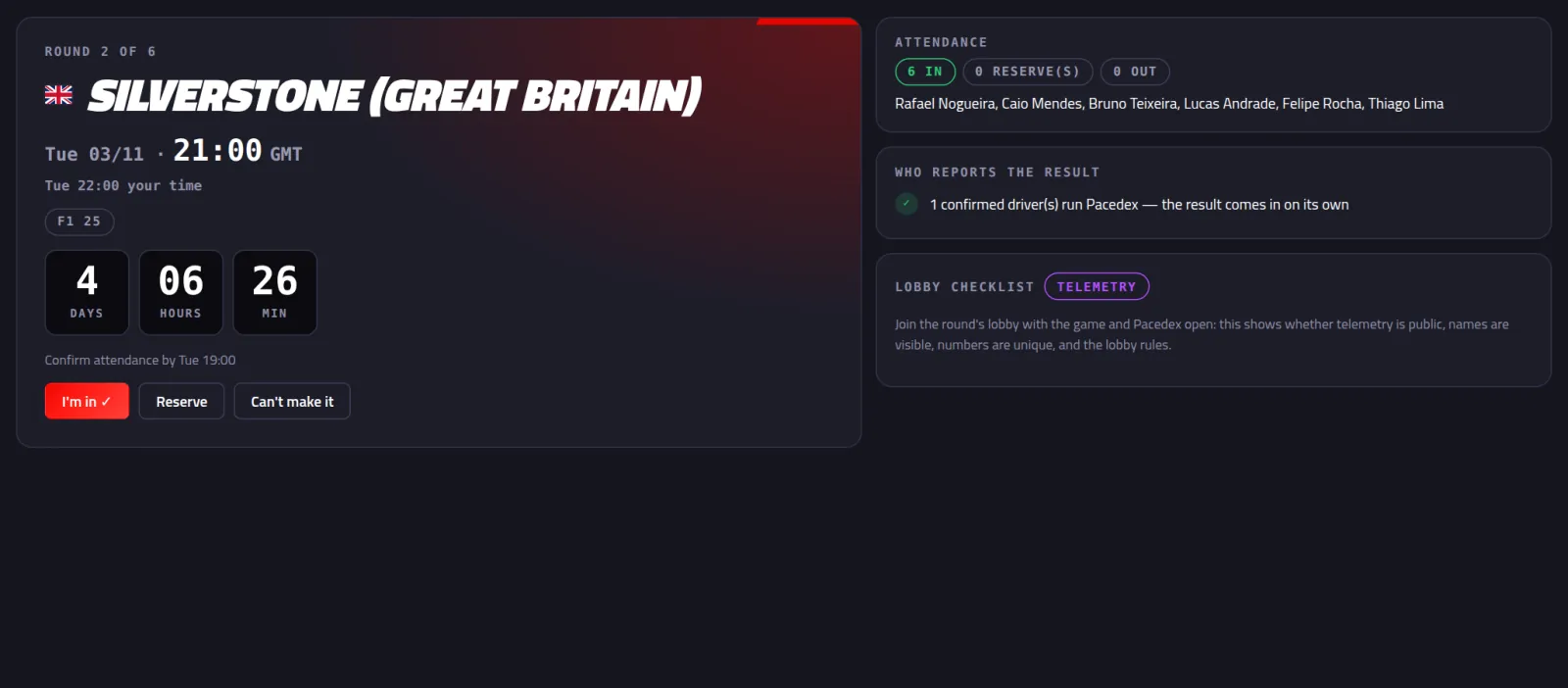
Your name goes on the Attendance list. Under Who reports the result, you count as someone who'll race with Pacedex open.
Open the Calendar
Every round, in the league's time. Rounds with a result show the Official badge and the winner.
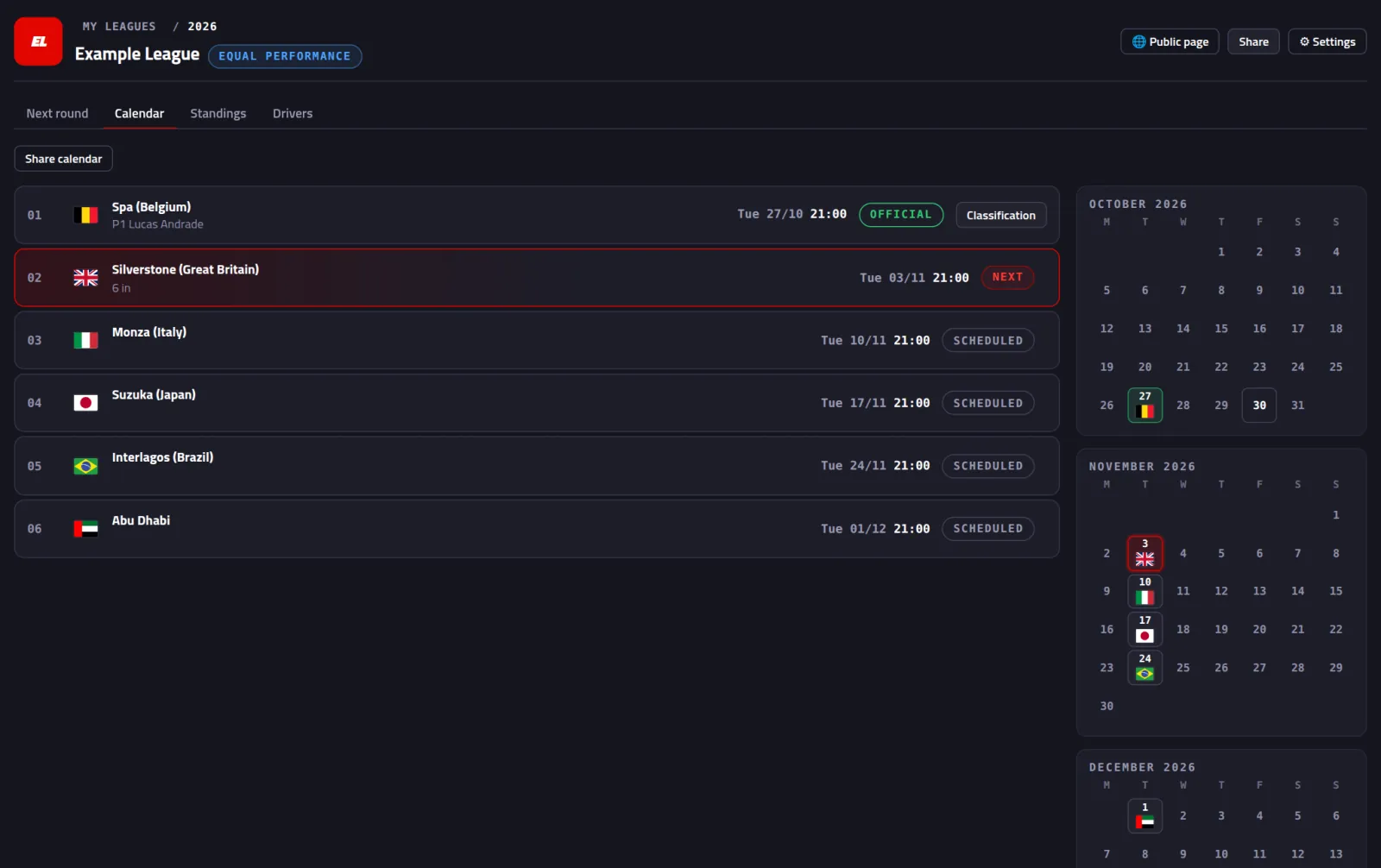
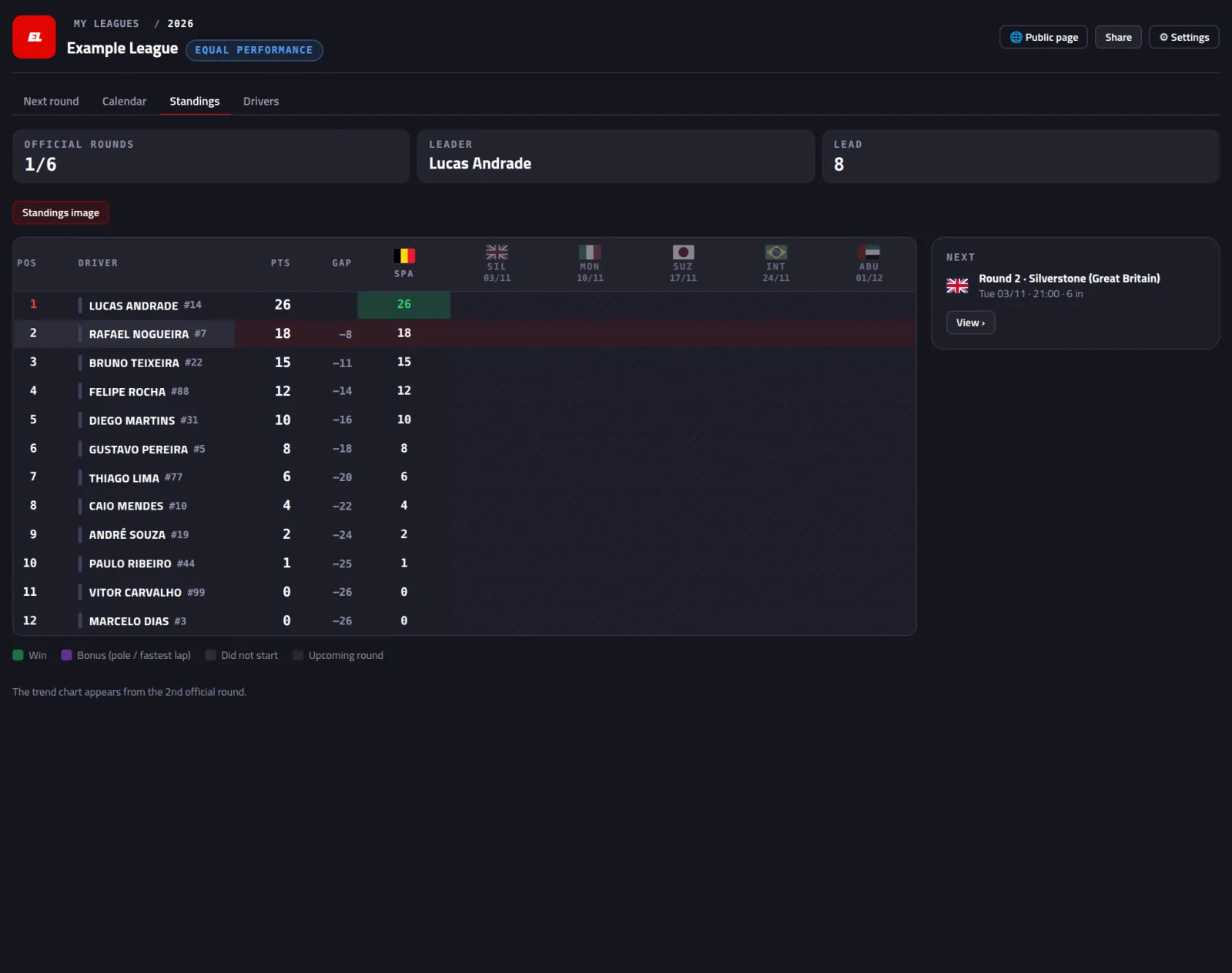
Open the Standings
Points per round, the leader and the gap. Your row is highlighted.
On race day
You don't have to send anything. Your result lands on its own when three things line up:
- It's the round's track (the one on the calendar).
- The time fits: the race starts between 1 h before and 4 h after the round's start time.
- Pacedex is open on the PC of at least one league member in the lobby (you, another driver or a spectator). Leave it open until the chequered flag.
And your in-game gamertag has to match your entry in the league (the grey name under yours on the Drivers tab). Changed your gamertag? Tell the owner.
After the flag, look for Result ready
A yellow strip with the podium appears on Next round. Click View.

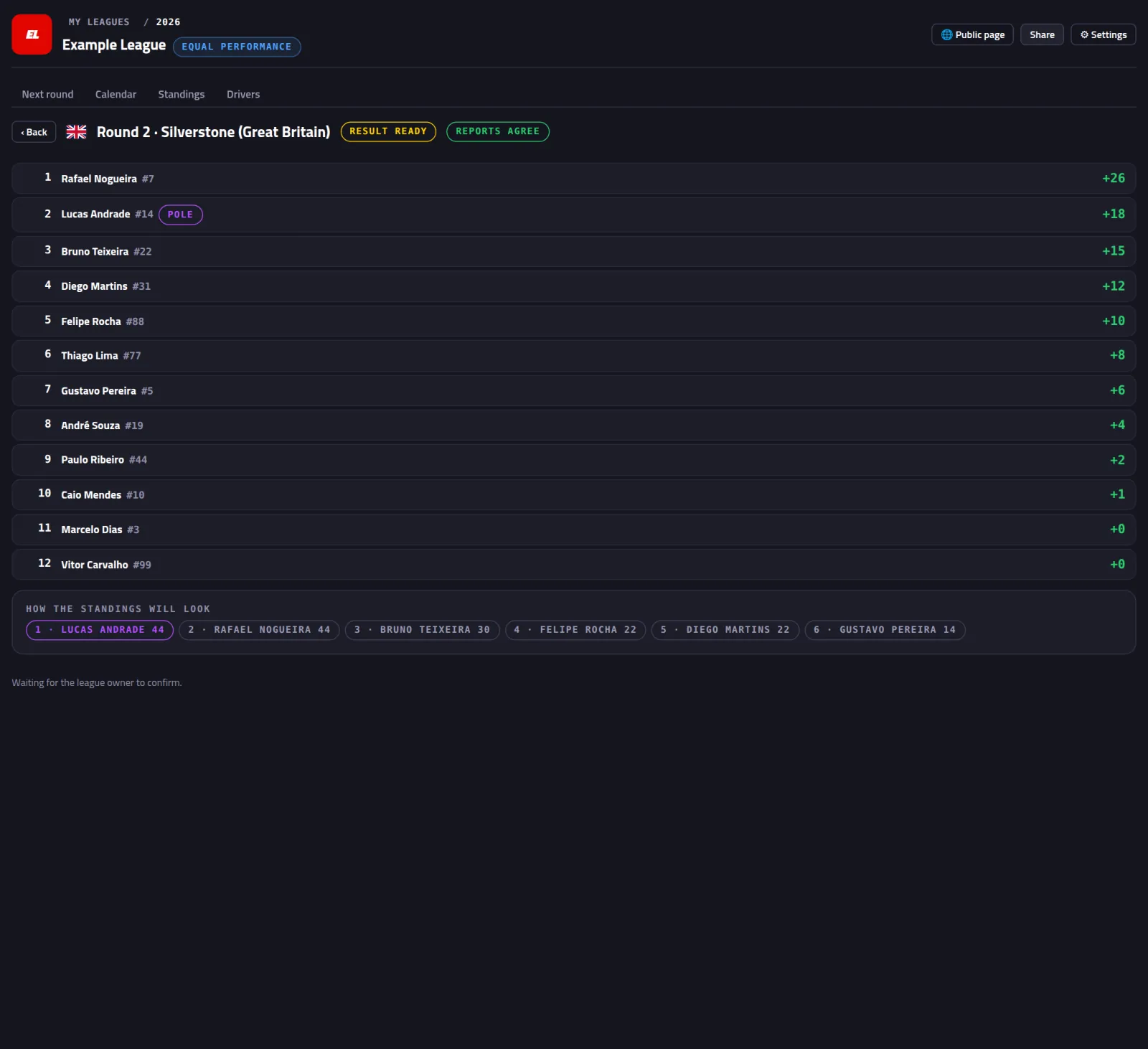
You see the order, everyone's points and How the standings will look. At the bottom: Waiting for the league owner to confirm.
The owner confirms
Review and confirm shows up on their PC. They check it and confirm. Penalties are their call.

Open the Standings again
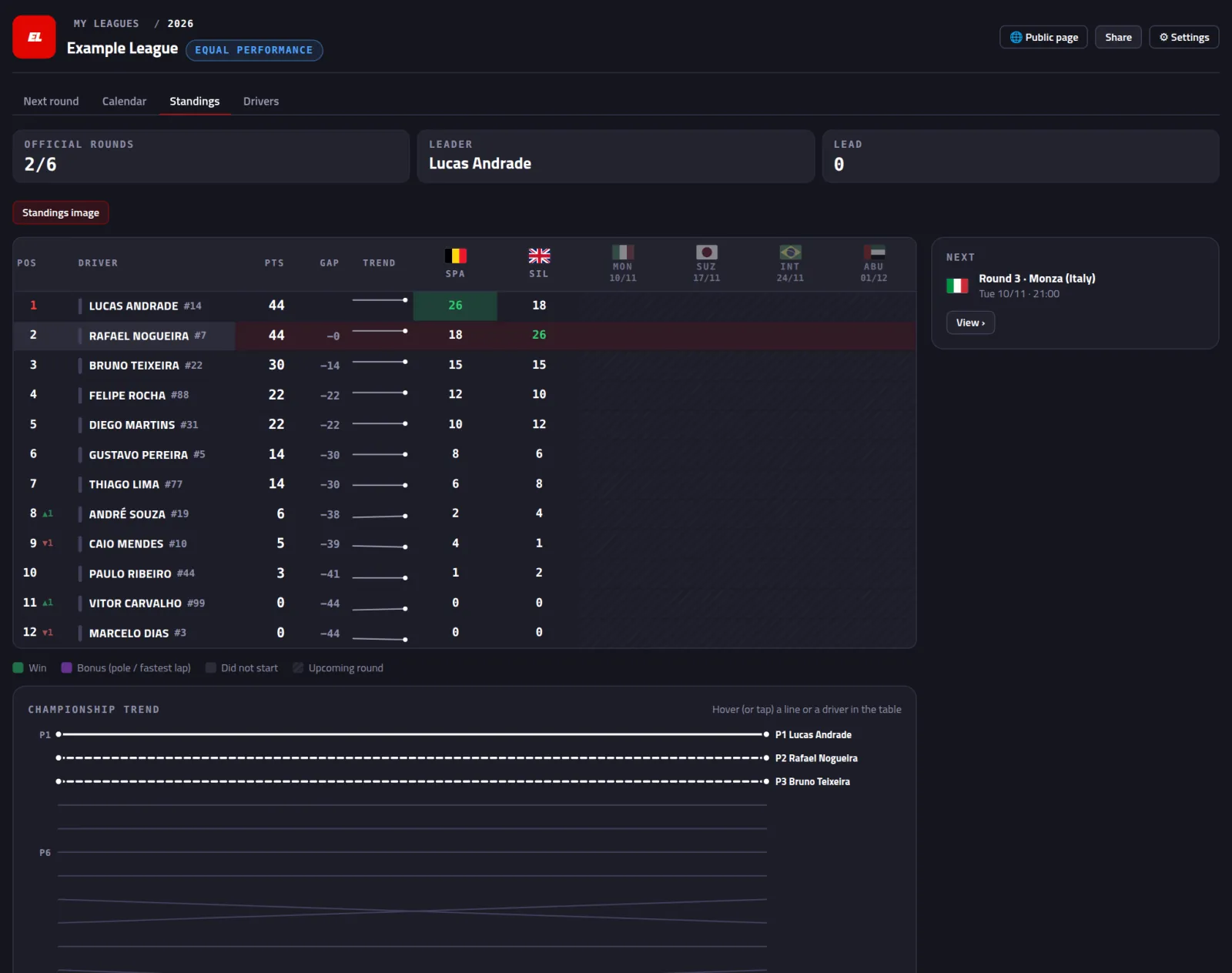
The new round is there, with your points.
The league page, to send to your friends
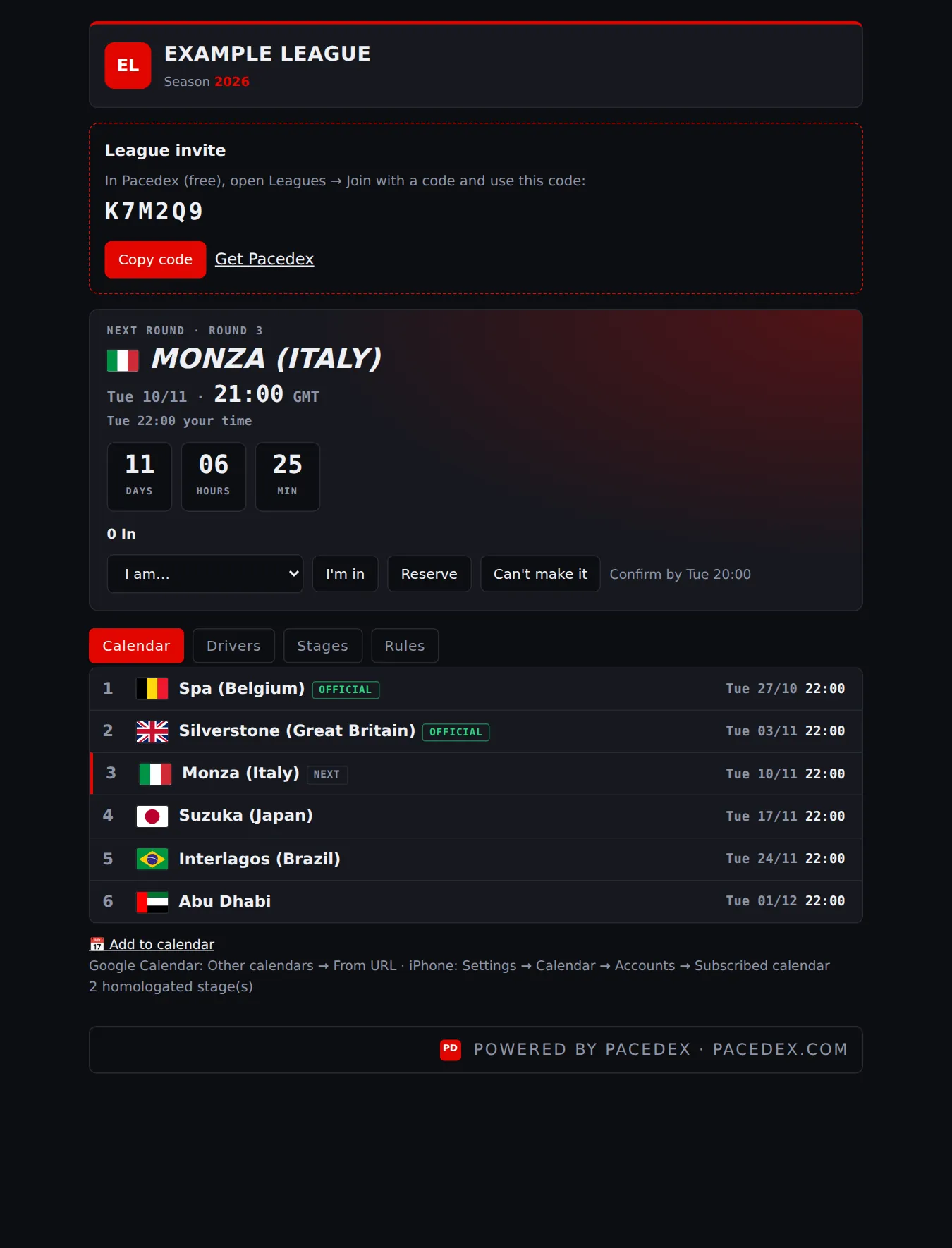
Open the link the owner sent
It's a web page: it opens on your phone, nothing to install. It shows the invite with the code, the next round in your time, the calendar, the drivers and the rounds. In the app, the Public page button opens the same page.
Something went wrong?
- Code not found. Check the code with the owner, character by character. They see the right one under Copy invite, on the league's Drivers tab.
- There's no code box. You're not signed in yet: Sign in ▸, on the Leagues screen (Part 2, step 2).
- My race didn't show up. It's almost always one of these: it wasn't the round's track; the race started outside the window (1 h before to 4 h after); nobody from the league had Pacedex open; or Pacedex was closed before the flag. Nothing is lost: the owner adds the race by hand from the Calendar (Link race if someone recorded it, or ✎ By hand). How the owner does it →
- I came in as a guest, with no points. Your in-game gamertag didn't match your entry. The owner sorts it out when confirming (Who is it?) and can add the new gamertag to your entry.
- I'm not in the standings. Standings only list drivers on the league's Drivers list, and only Official rounds count. Check that your name is on the Drivers tab and that the owner has confirmed the round.
Next steps
New to Pacedex? Turn on the game's telemetry before the first round — that's what makes your result land on its own.
Looking for a league or drivers?
Leagues post open seats and invite codes in #🏆-leagues on our Discord. It's also where you ask anything and share setups.