 Pace


Your league, plus a race you already ran
One step at a time, with Pacedex's real screen at every step. You'll bring in your drivers, create the league, draw the cars (if you want to), add the race that already happened and see the standings. It takes about 10 minutes. In the pictures, the yellow outline shows where to click.
- Pacedex on your PC (Windows). How to install →
- A Pacedex account. It's free and only needs an e-mail address.
- Your driver list: gamertag, number and name. A file, a spreadsheet or a piece of paper all work.
Bring in your drivers
You only do this once. After that, the drivers work for the league, the broadcast and the radio.
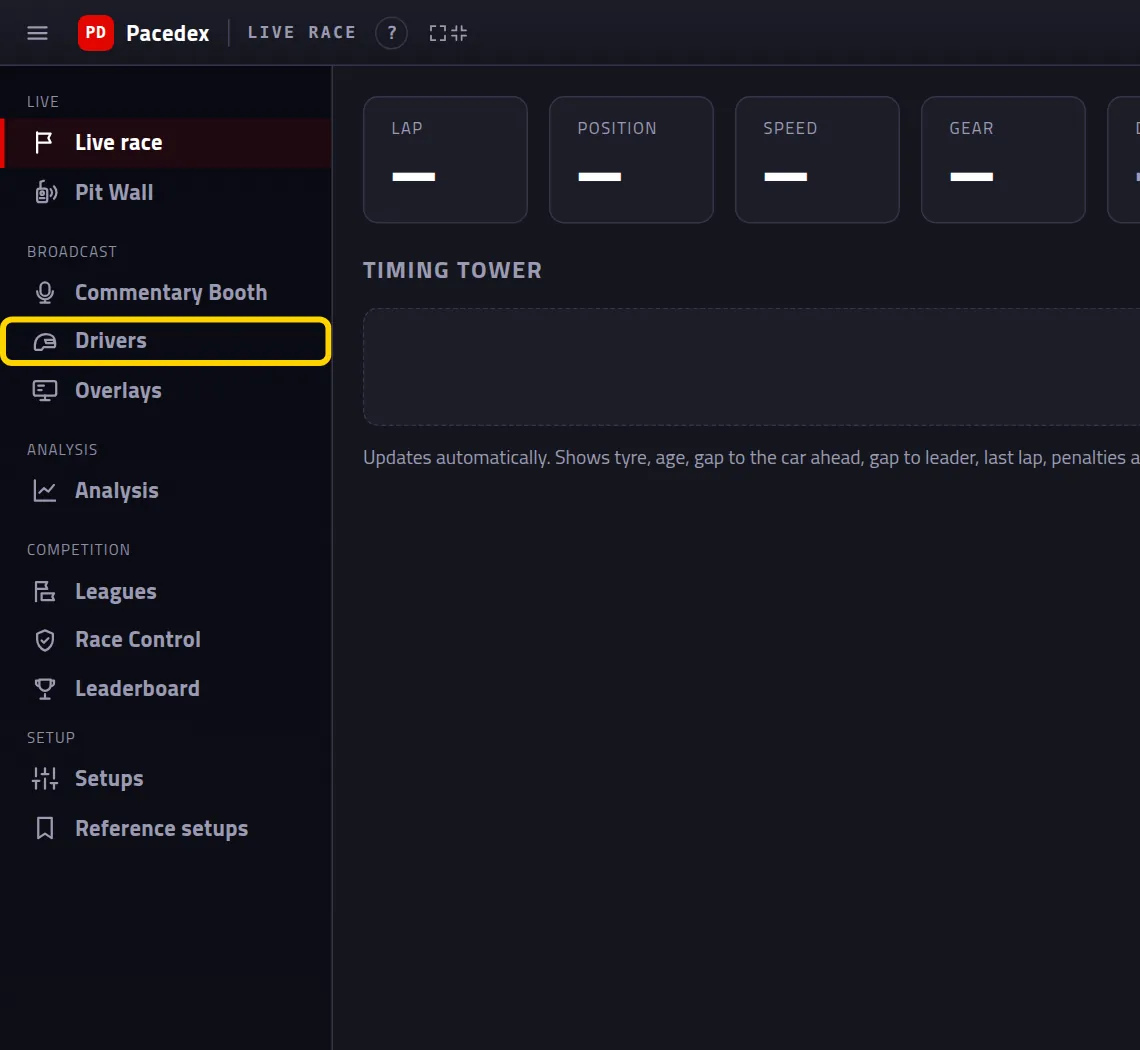
Click Drivers in the menu on the left
It's in the Broadcast group, next to a helmet.
Click Import list
The button is at the top, on the right.

A box opens to bring the list in.
Paste the list
Click Rather paste? Paste the list text here and paste. One line per driver: gamertag, number and name, separated by ;
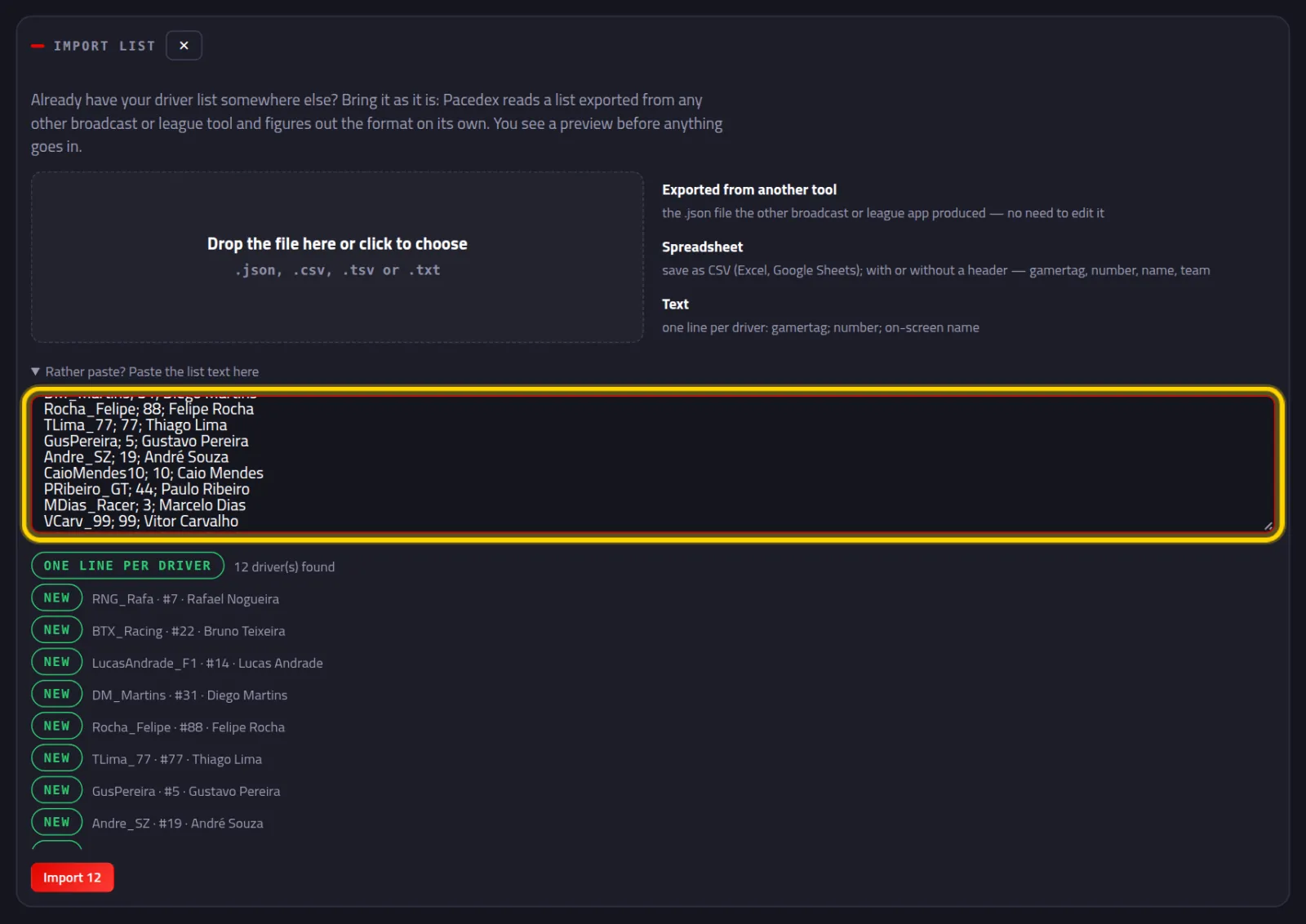
A list of names shows up. Each one has a green NEW tag.
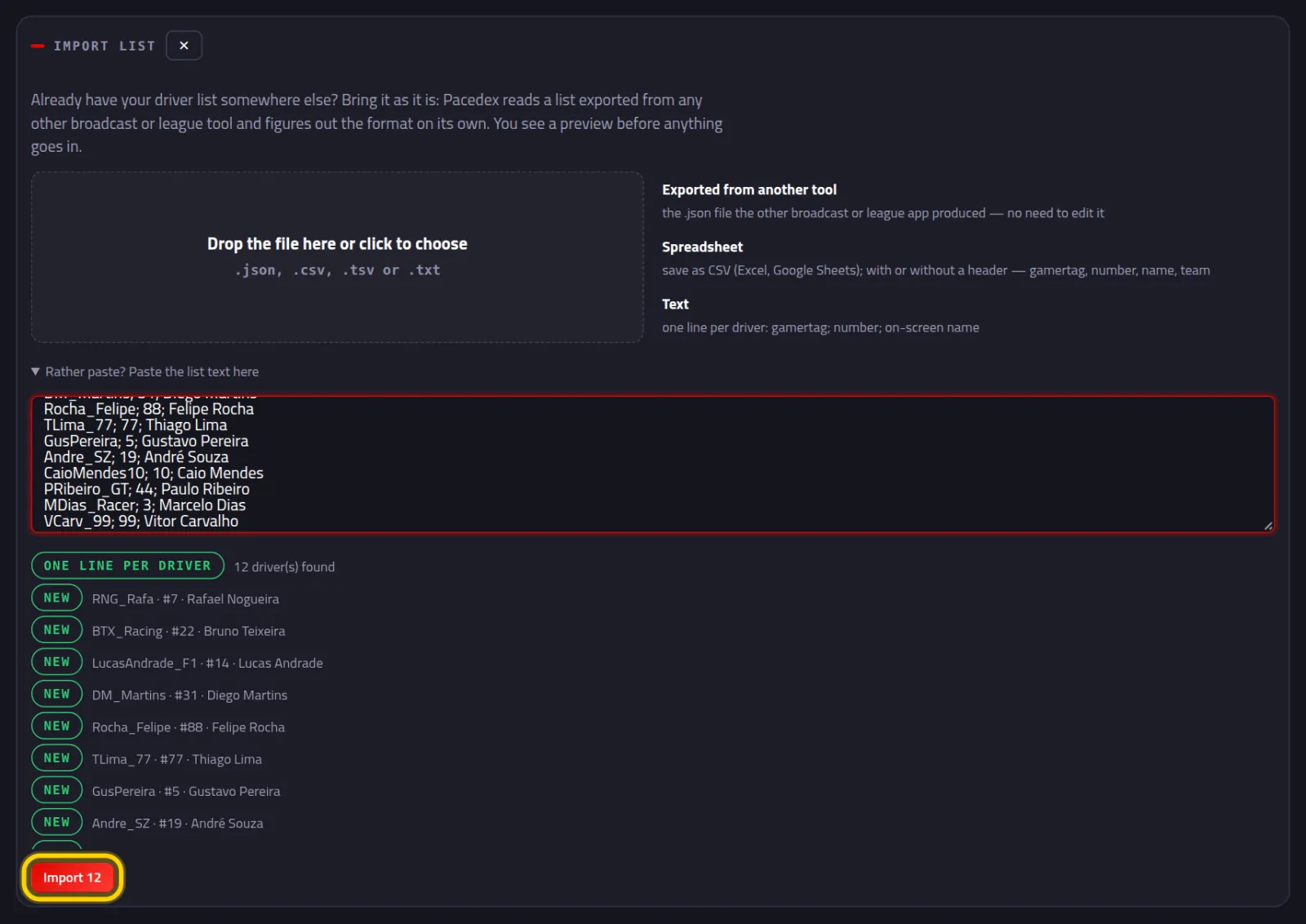
Click the red Import 12 button
The number is how many drivers it found in your list.
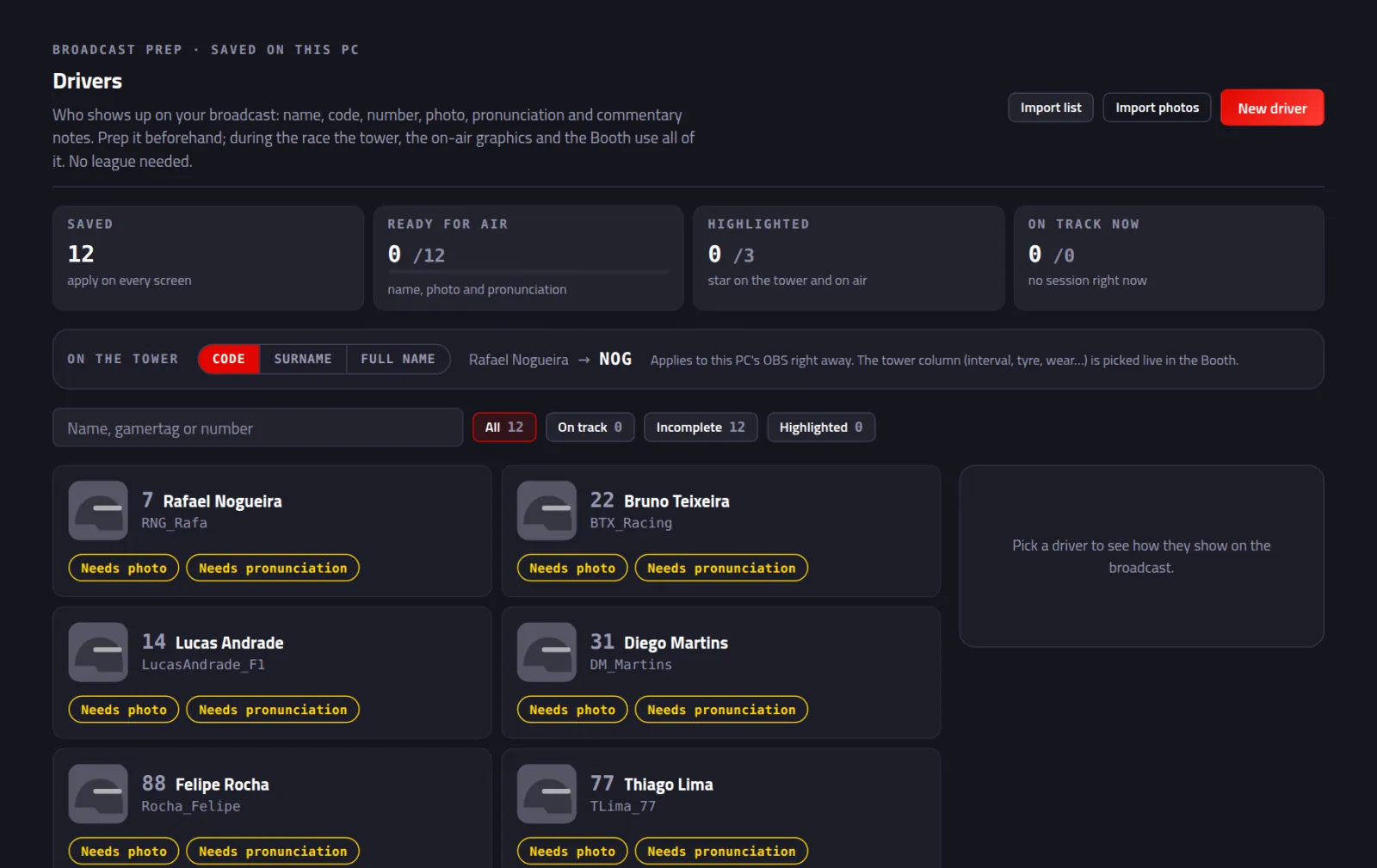
Every driver becomes a card, with number, name and gamertag.
Create the league
Name, calendar and drivers. Three screens.
Click Leagues in the menu on the left
It's in the Competition group.
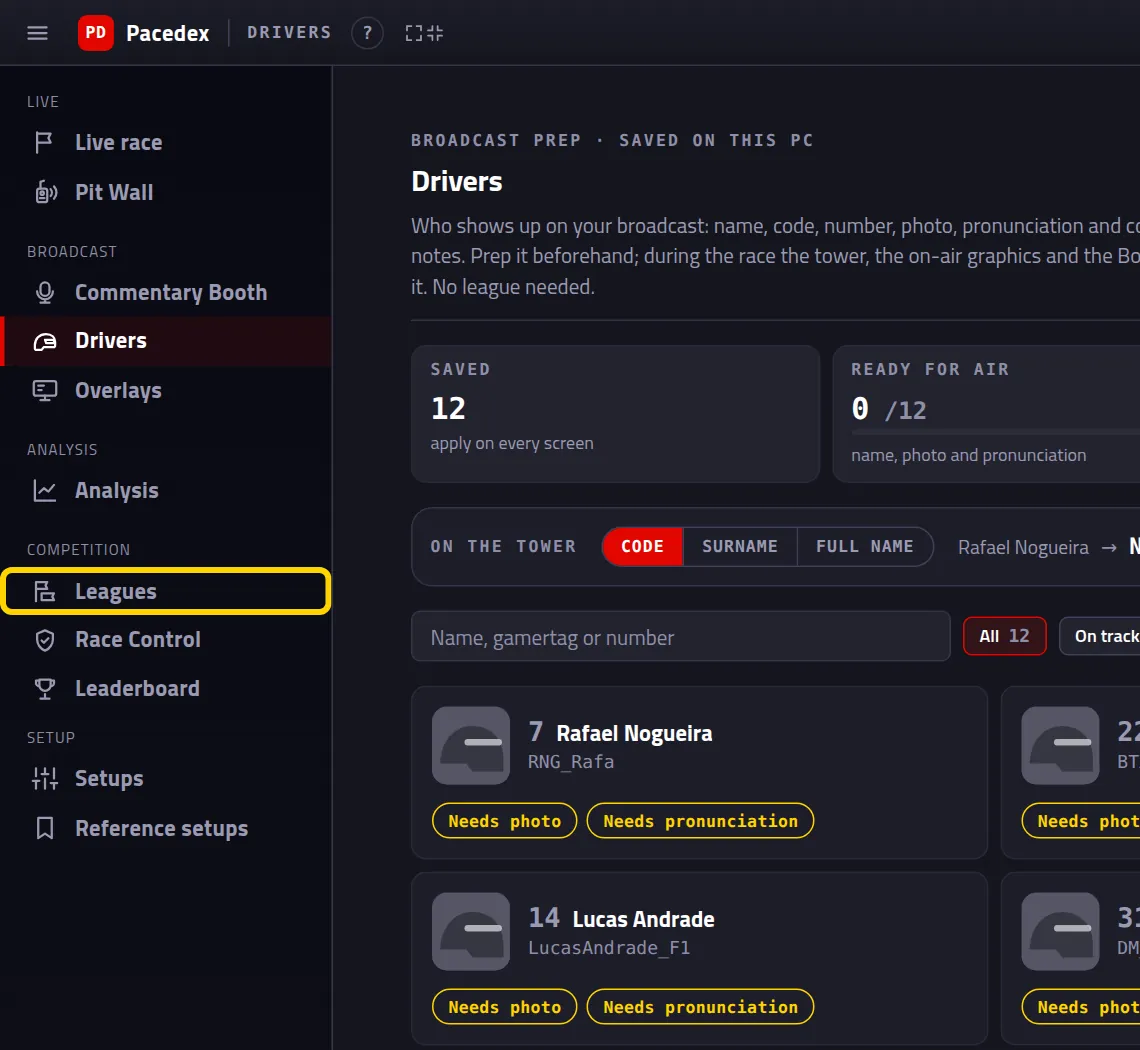
Click the red + Create my league button
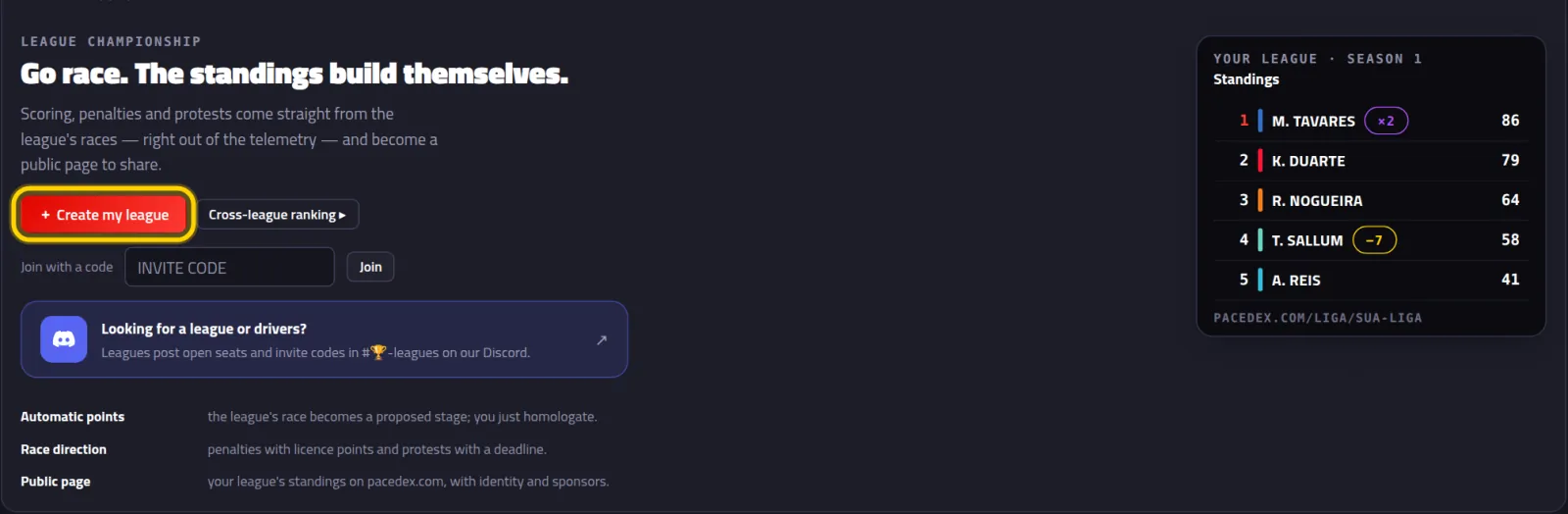
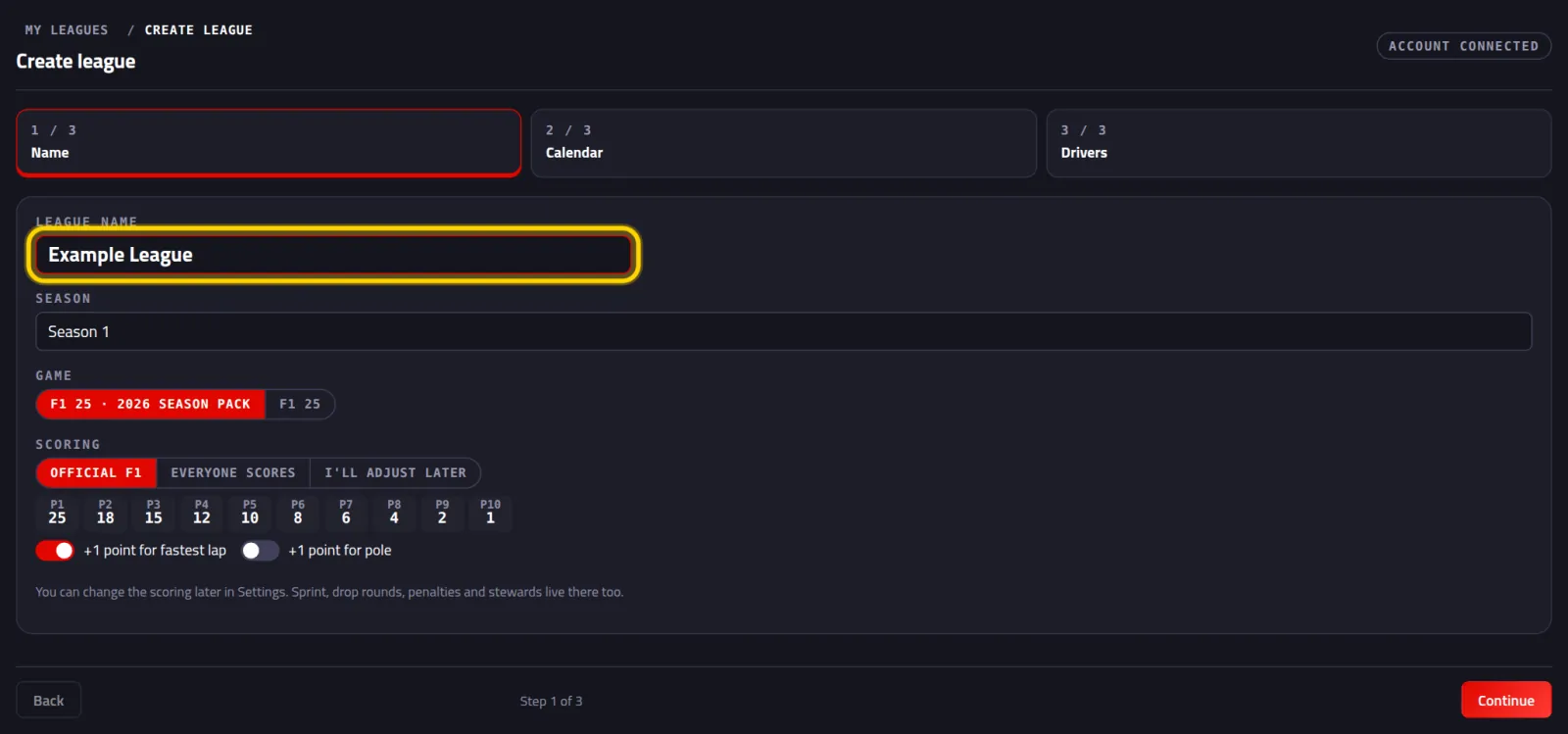
Type the league's name and click Continue
Below it, pick the Game. Scoring starts as Official F1. You can change it later.
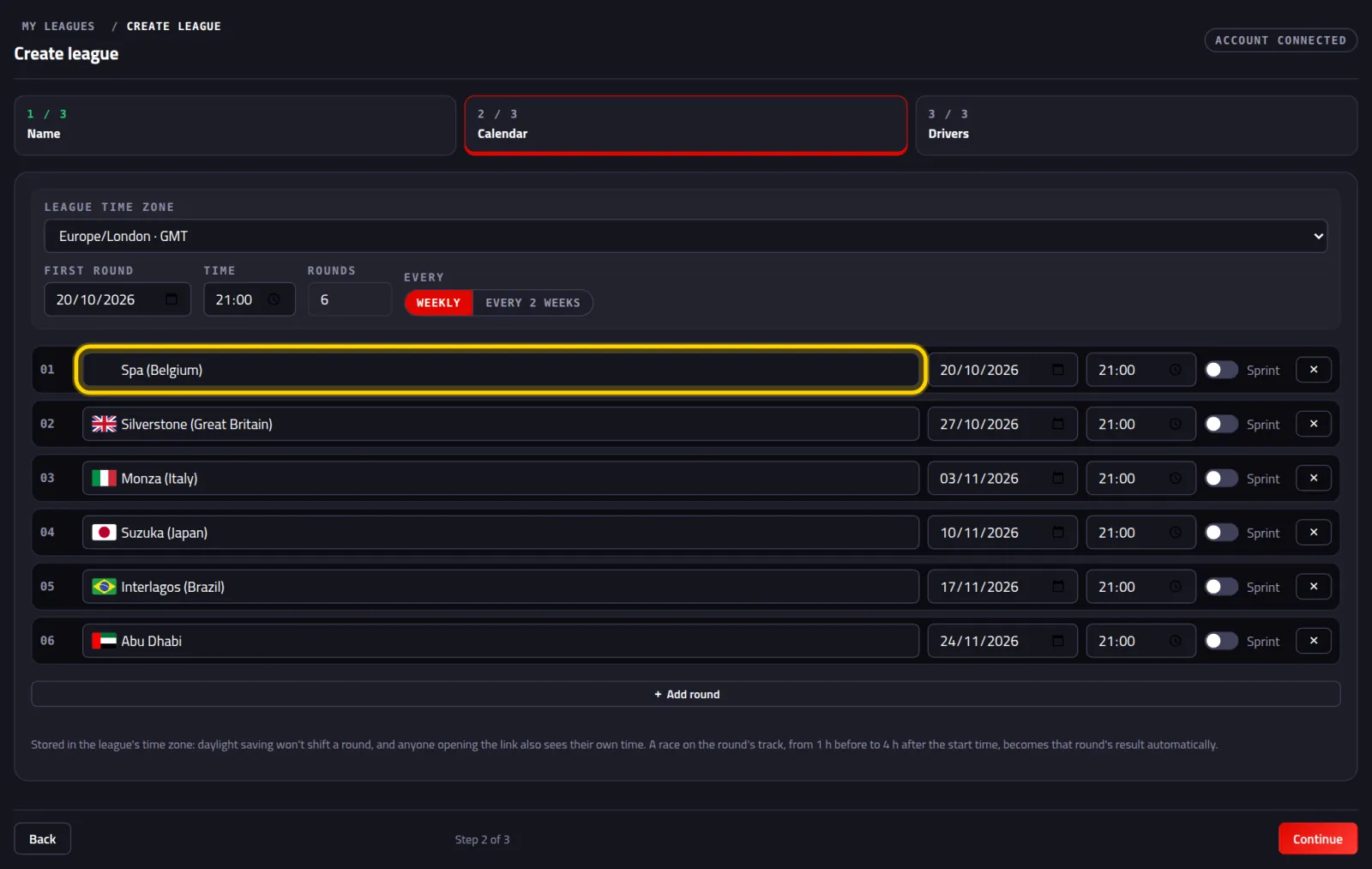
Enter the date of the first race
In First round, pick the day. It can be a day that's already gone — that's how the race you already ran gets in. Then the Time, how many Rounds, and Every (weekly or every 2 weeks).
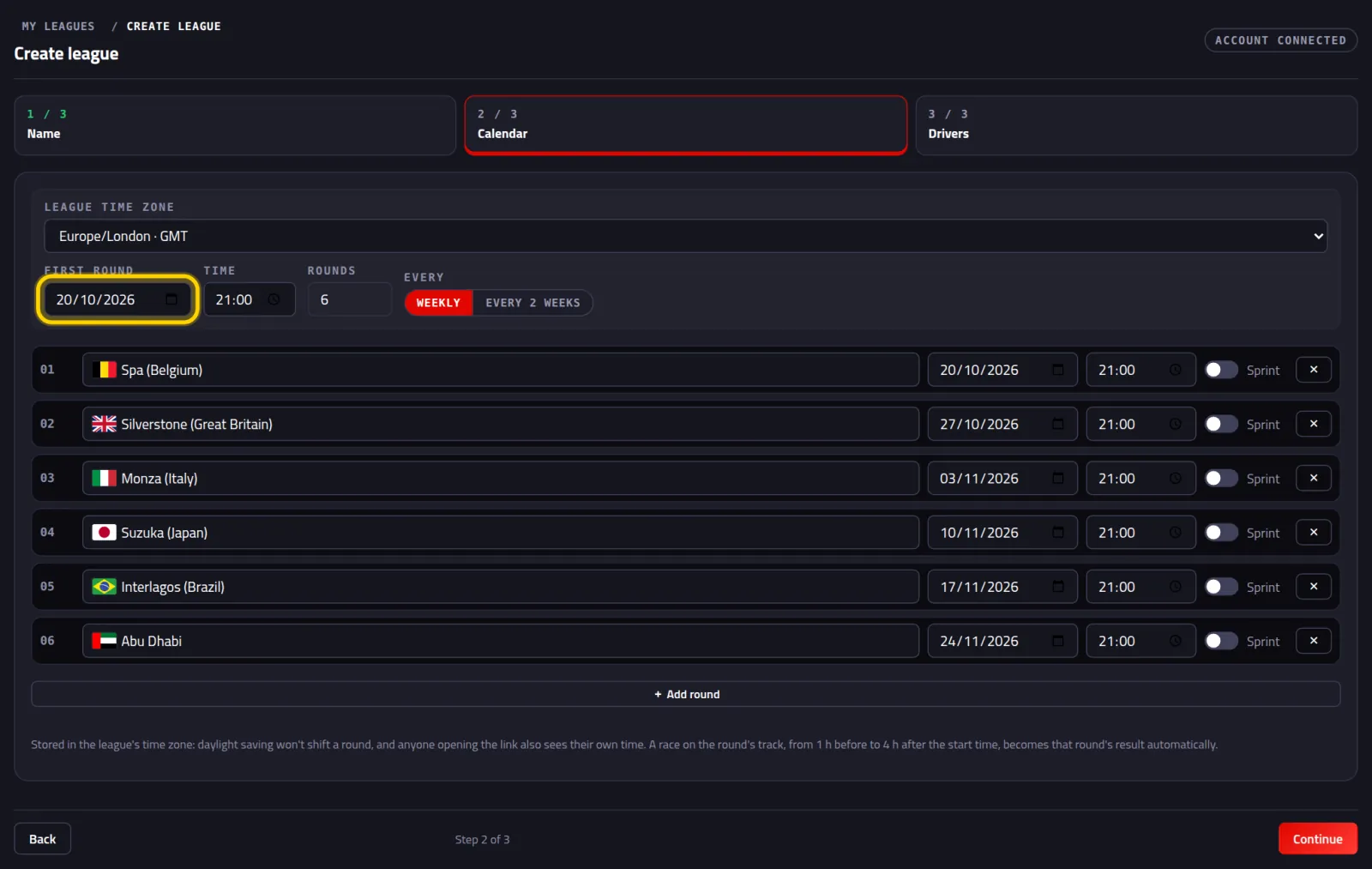
The rows appear by themselves, one per round.
Pick the track for each round
Click the field on the row, type the track's name (for example, Spa) and pick it from the list. Do it on every row. Then Continue.
Tick the box next to every driver in the league
The drivers you imported are here.
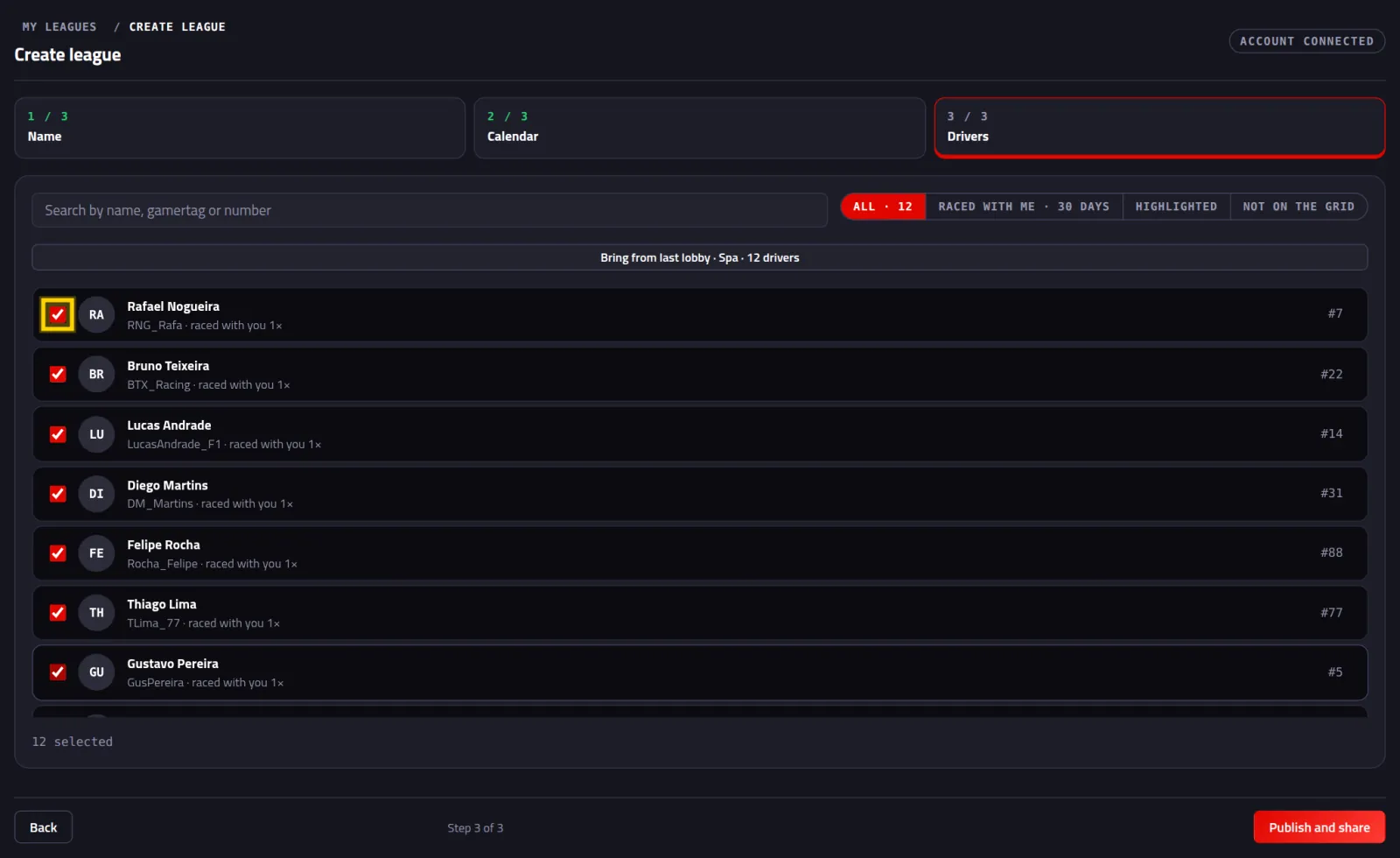
Underneath, it shows how many you ticked, for example 12 selected.
Click the red Publish and share button
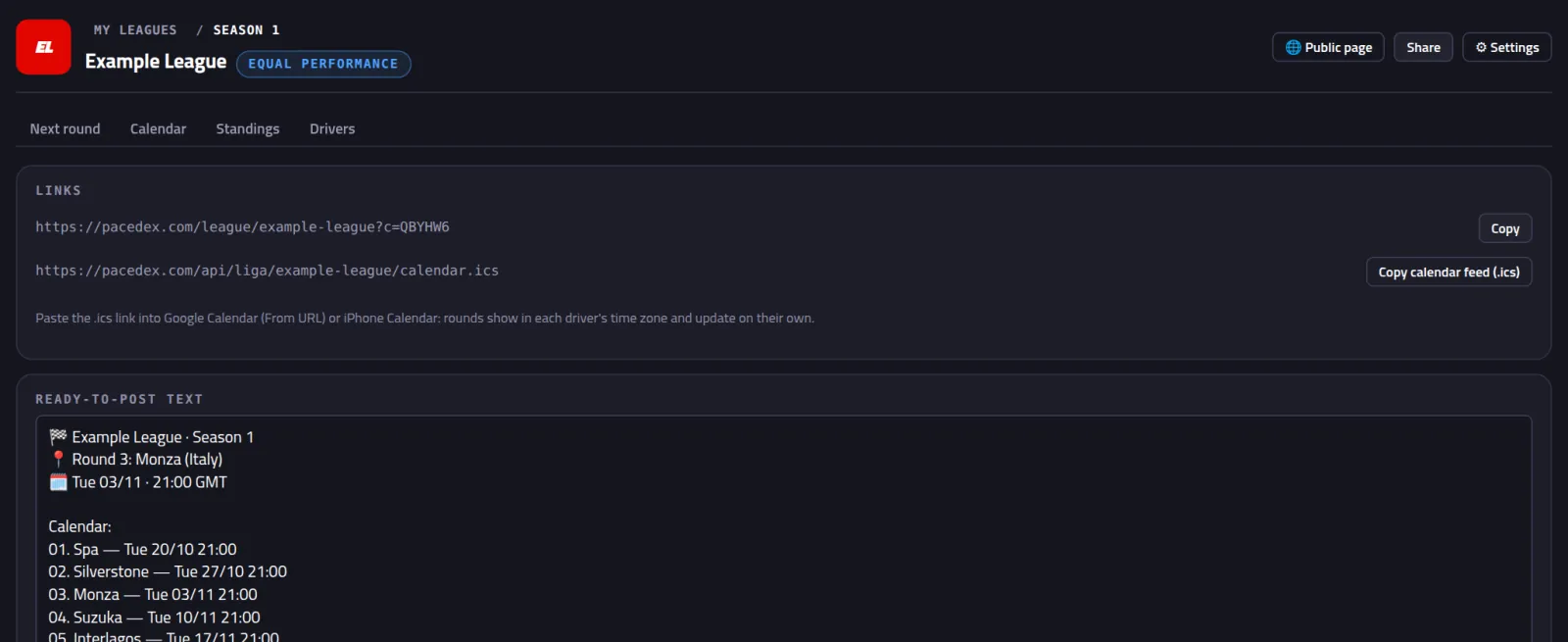
Done, the league exists! You get the invite code and the Share screen, with the league's link.
Draw the cars
The start-of-season ritual: Pacedex draws each driver's car, one name at a time, and the league sees when it happened and which attempt counted. Not doing a draw? Skip to Part 4.
In your league, open the Drivers tab and click 🎲 Car draw
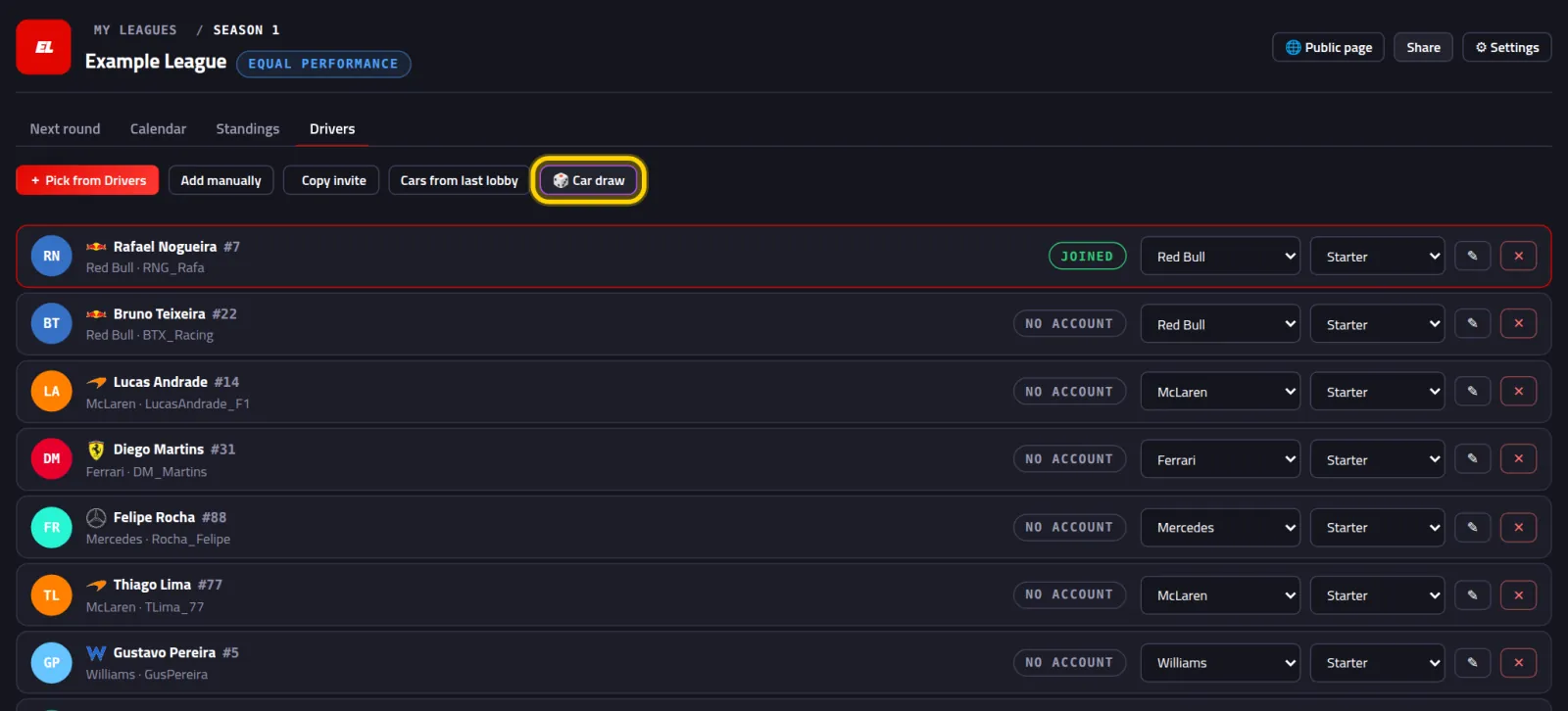
The draw screen opens, with the list of who's in.
Pick the Game, the teams and the Format
Under Game: F1 25 · 2026 Season Pack has 11 teams (Audi and Cadillac included); F1 25 has 10.
Under Teams in the draw, click a team to leave it out. It gets crossed out. Say your league has 20 drivers on the 2026 Season Pack: take Cadillac out.
Under Format: 2 per team or 1 per team.
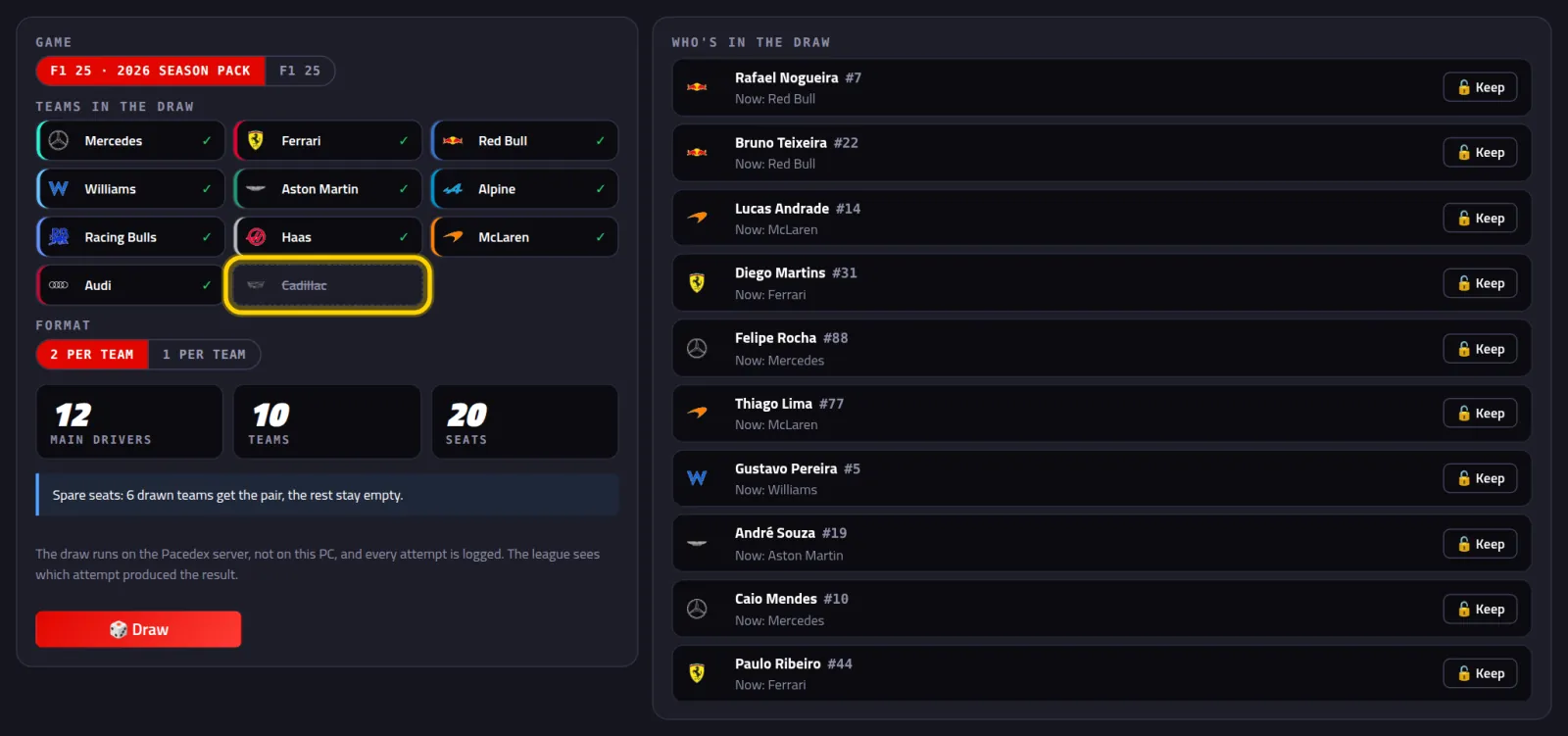
The boxes do the maths: main drivers, teams and seats.
Click 🎲 Draw. Then click it again
The first click only gets it ready: the button turns yellow and says Tap again to draw — it gets logged. The second click draws.
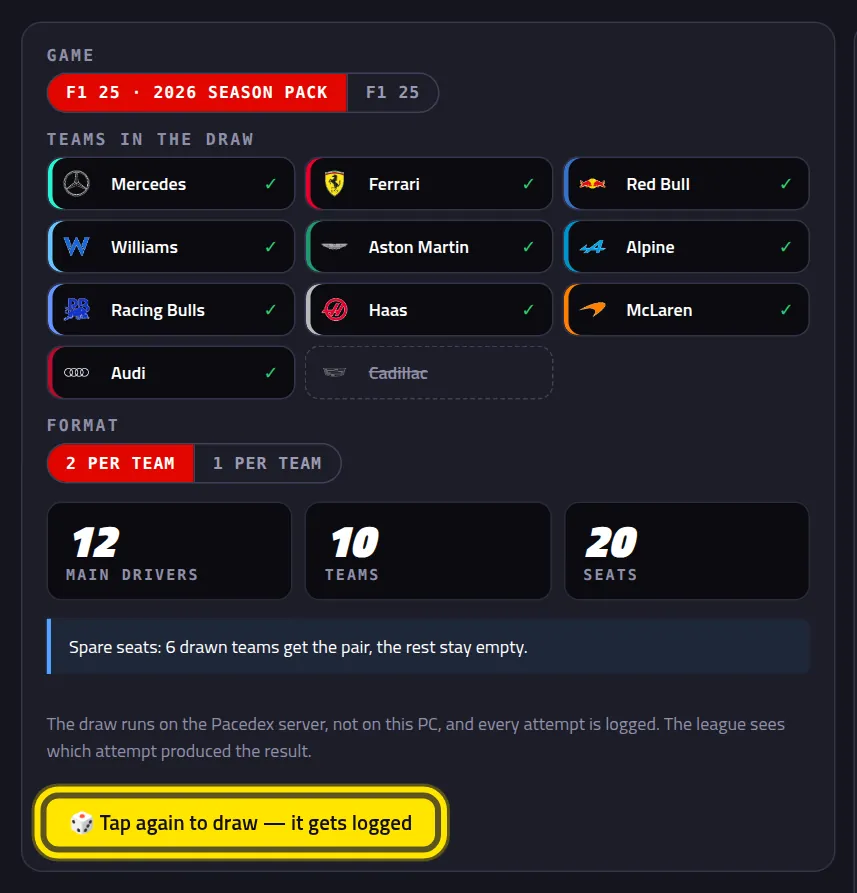
Watch the names come out, one by one
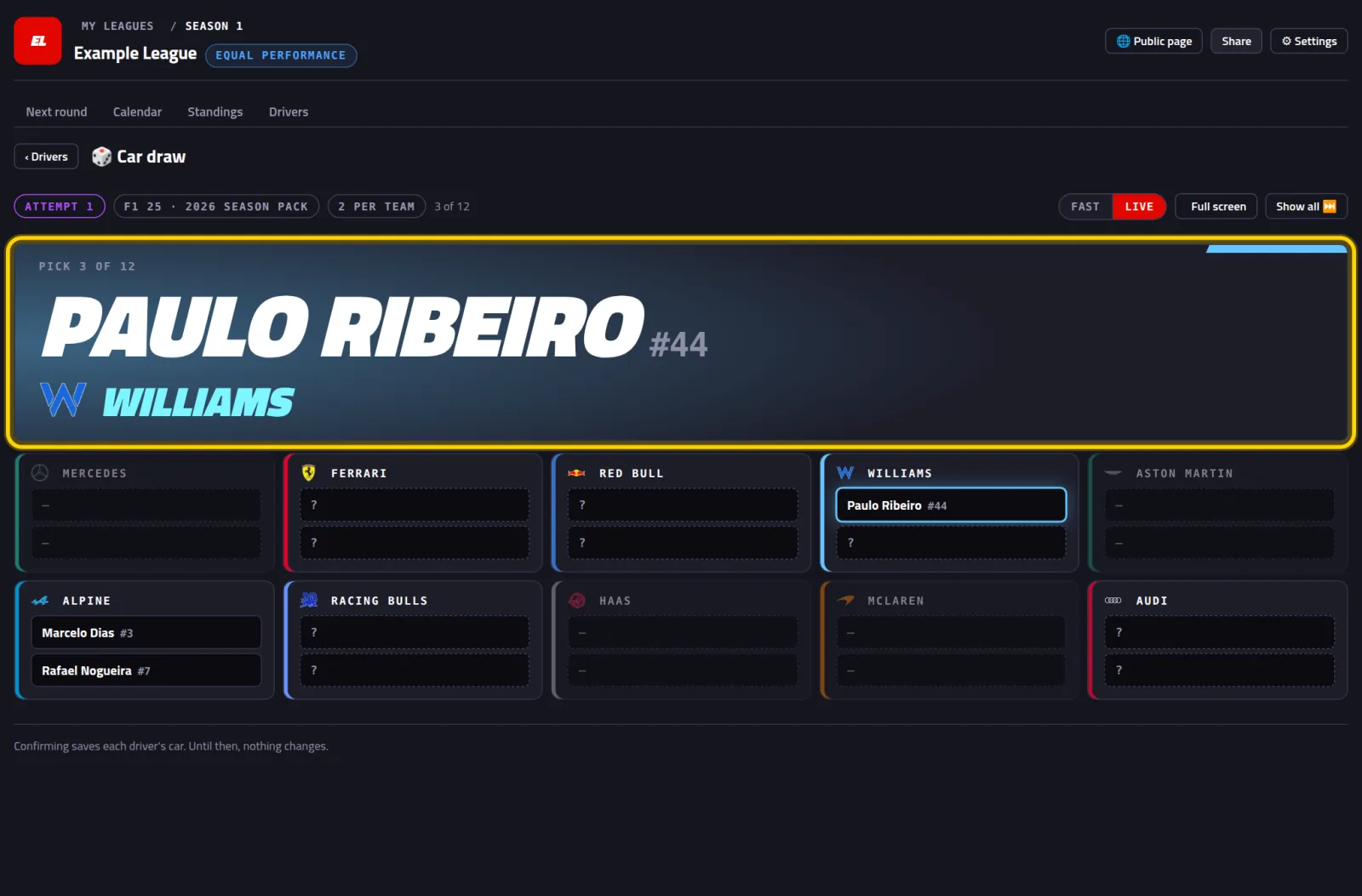
Each name shows up BIG, with the team, its colour and logo. Below, the team board fills up.
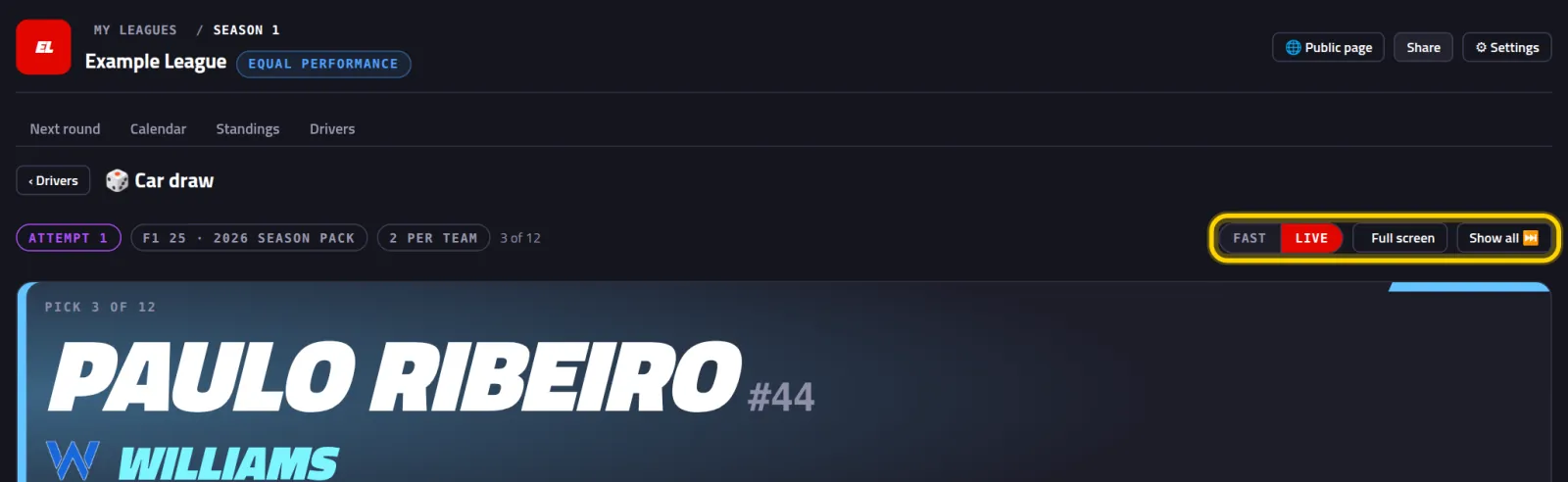
Pick the pace. Showing it on stream? Full screen
Live is on by default: there's time to read and react to every name. Fast is for checking. Full screen leaves just the draw on screen (Esc exits). Show all reveals the rest at once.
Don't like it? 🎲 Draw again (two clicks here too)
On the first click the button says Tap again: this becomes attempt 2. The second takes you back to the setup. Then it's step 3 again.
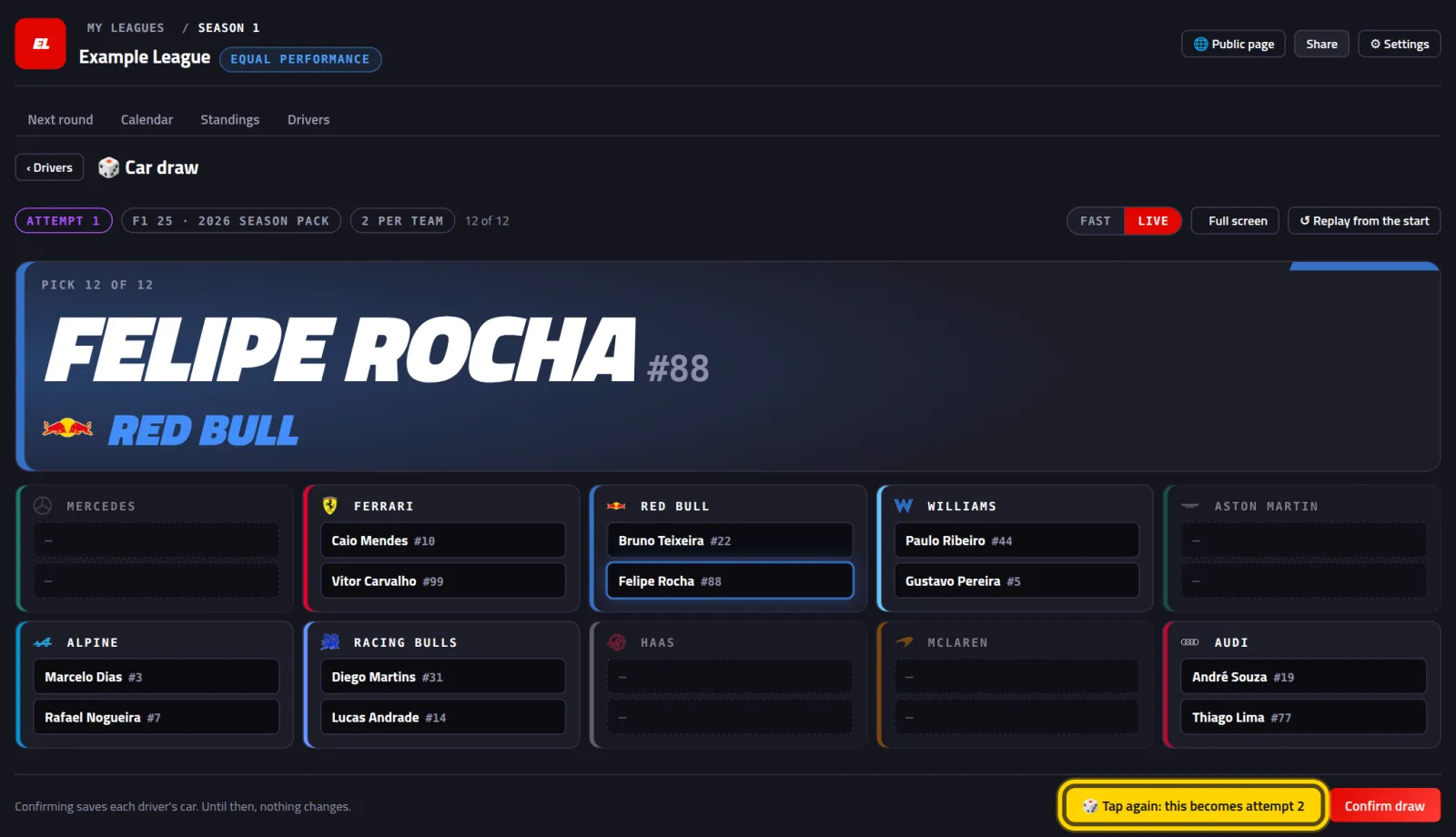
Click the red Confirm draw button
Bottom left, Pacedex reminds you which attempt this is. Until you confirm, nothing changes.
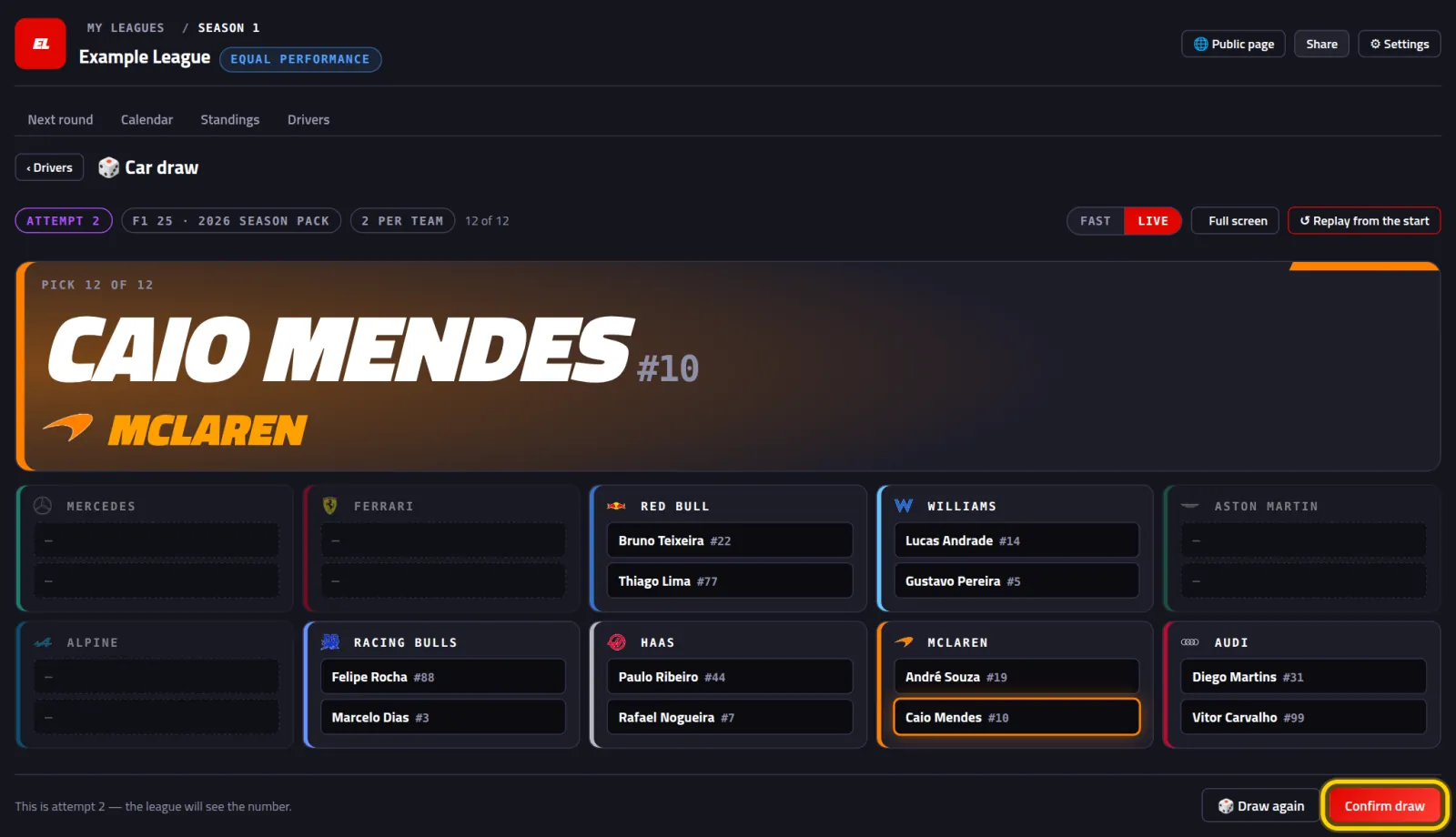
You'll see the message Draw confirmed: every driver is now in their new car.
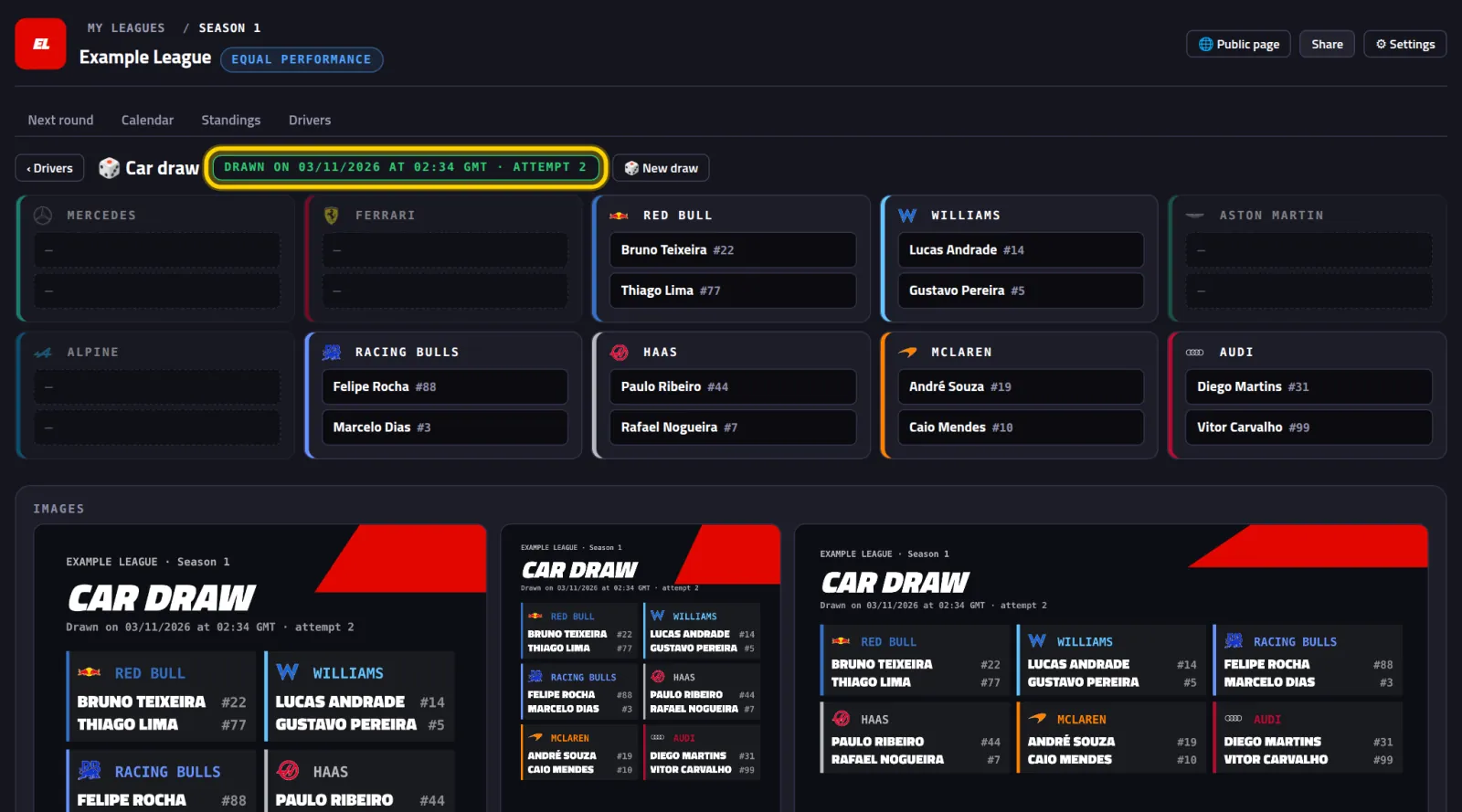
Done: the result is official, with date, time and attempt
The green tag says when the draw happened and which attempt it came from.
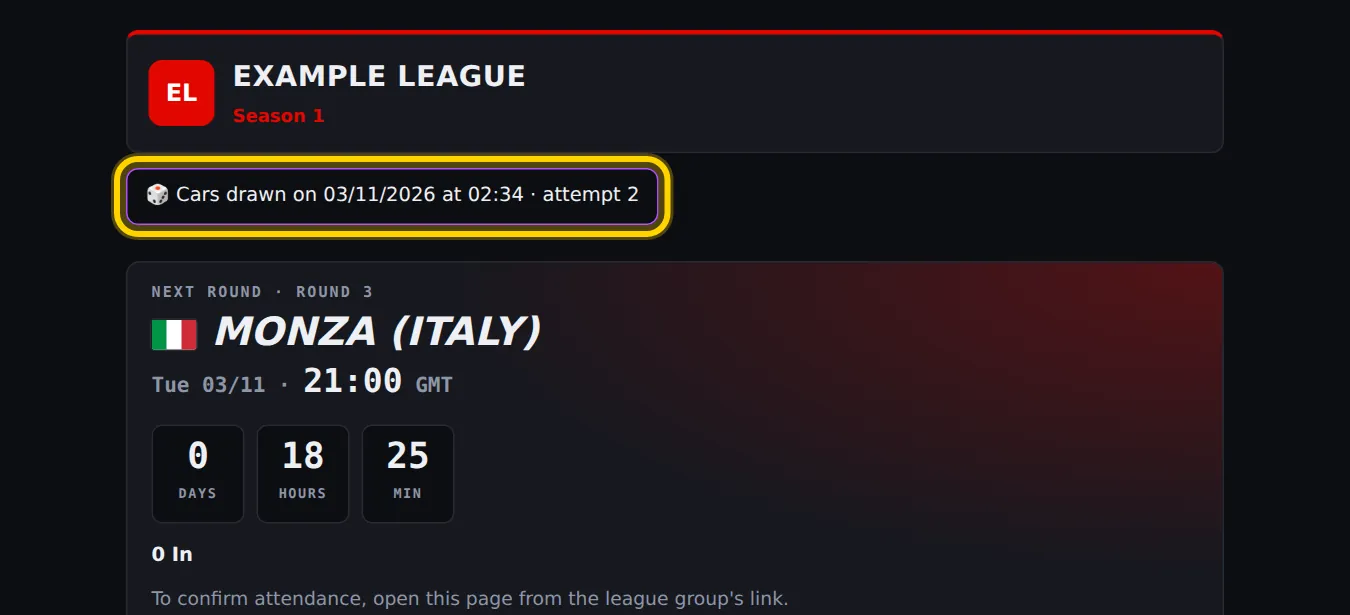
The league's Public page shows everyone the same tag. That's what keeps the draw transparent.
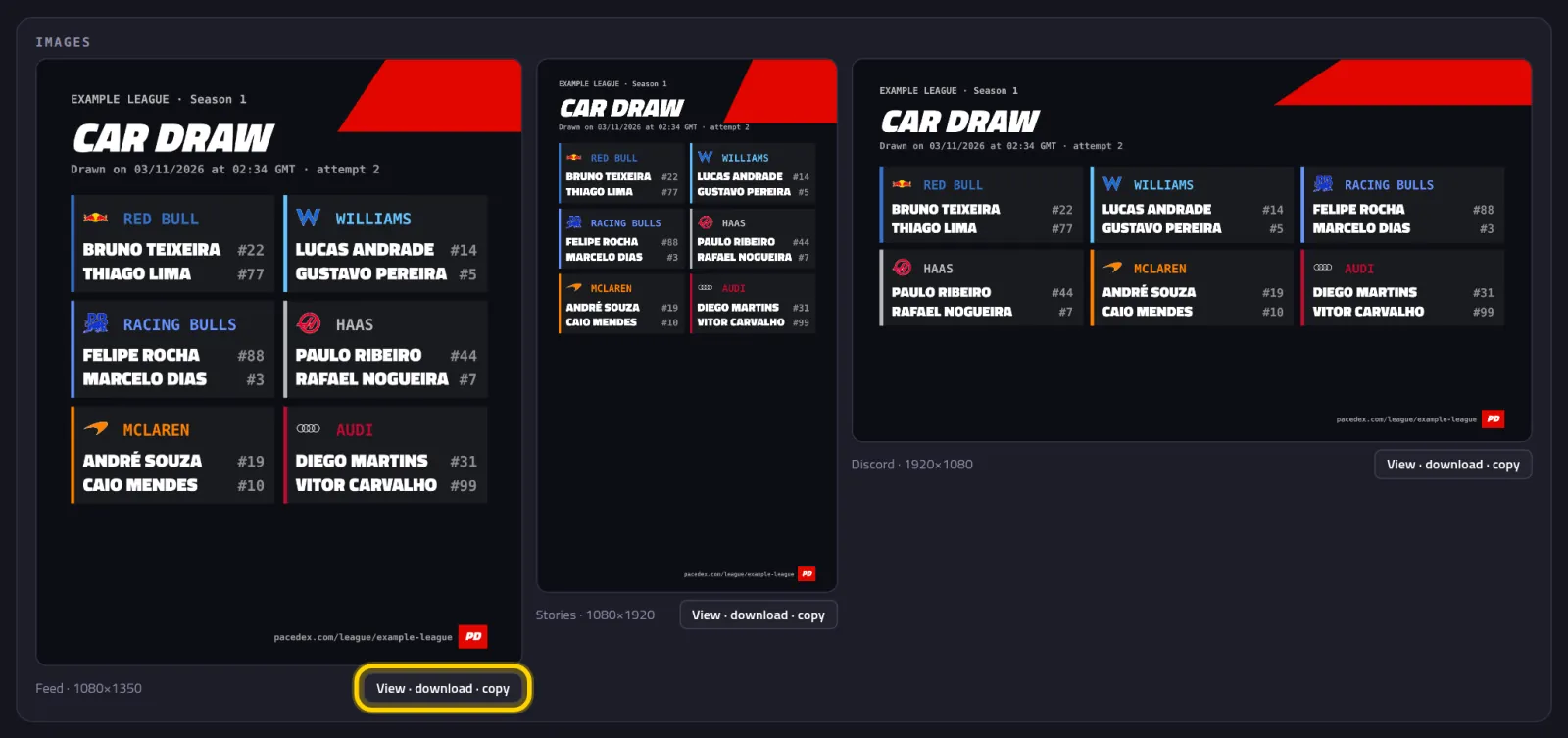
Send the picture to the group: click View · download · copy
Under Images there are three sizes: Feed · 1080×1350, Stories · 1080×1920 and Discord · 1920×1080. All of them carry the date and time of the draw.
Add the race that already happened
One question first: did anyone in the lobby have Pacedex open during that race? A driver or a spectator, either works.
Path A · The race was recorded
Do this on the PC where Pacedex recorded the race.
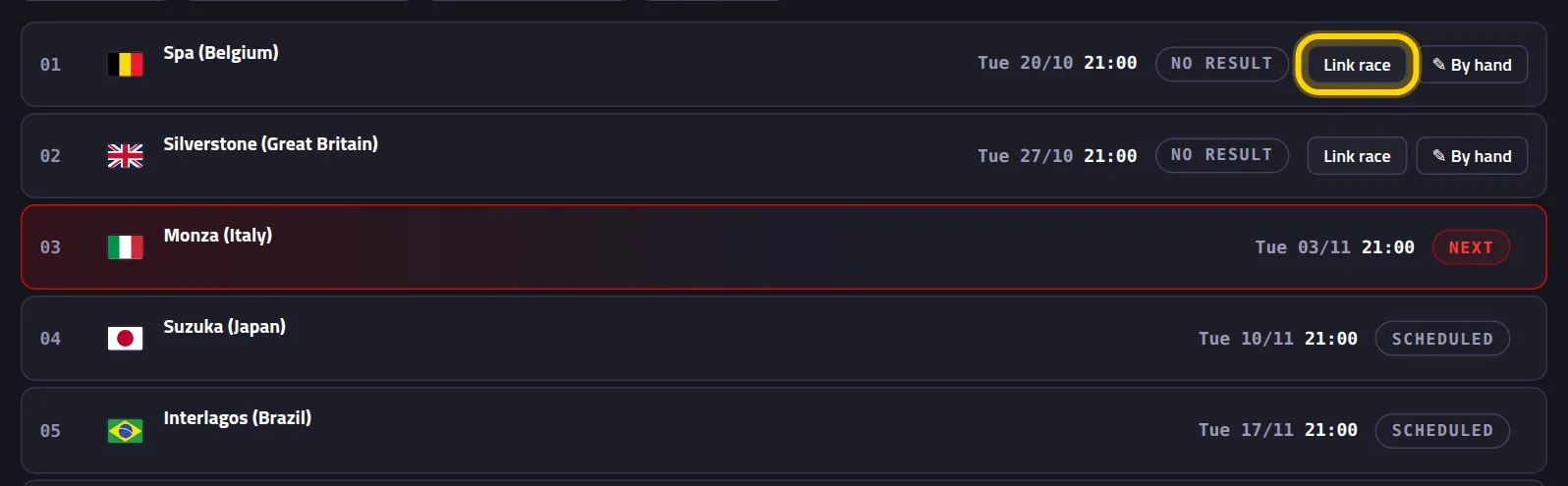
Open the Calendar tab and click Link race
The round that's already gone says No result. The button is on that row.
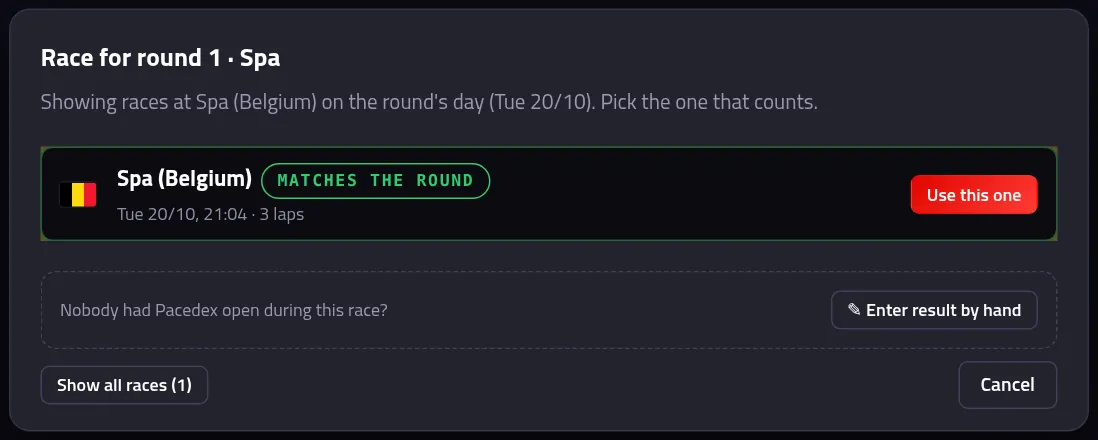
Click Use this one
The window shows the races on that track on the round's day. The right one has the green matches the round tag.
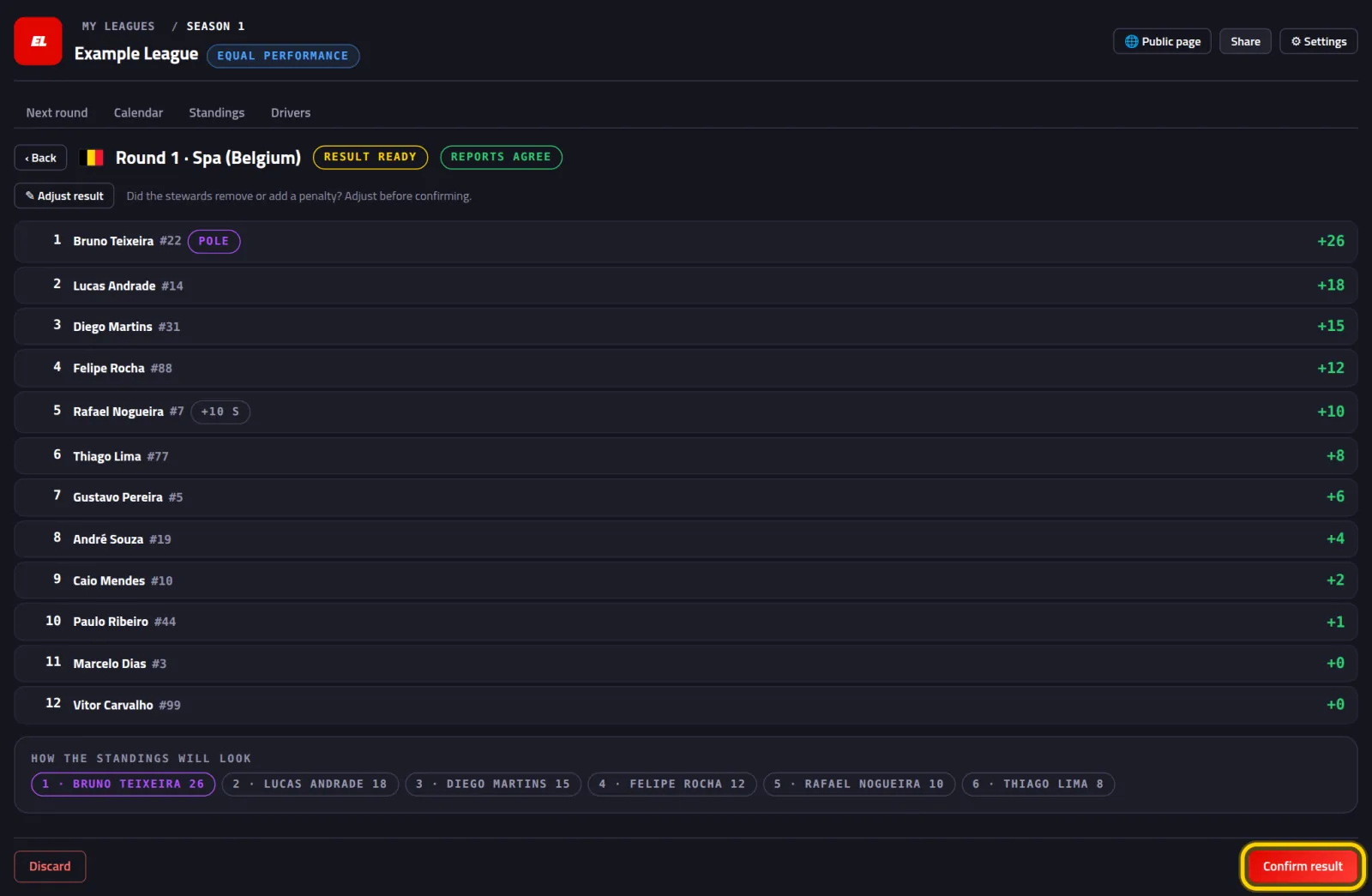
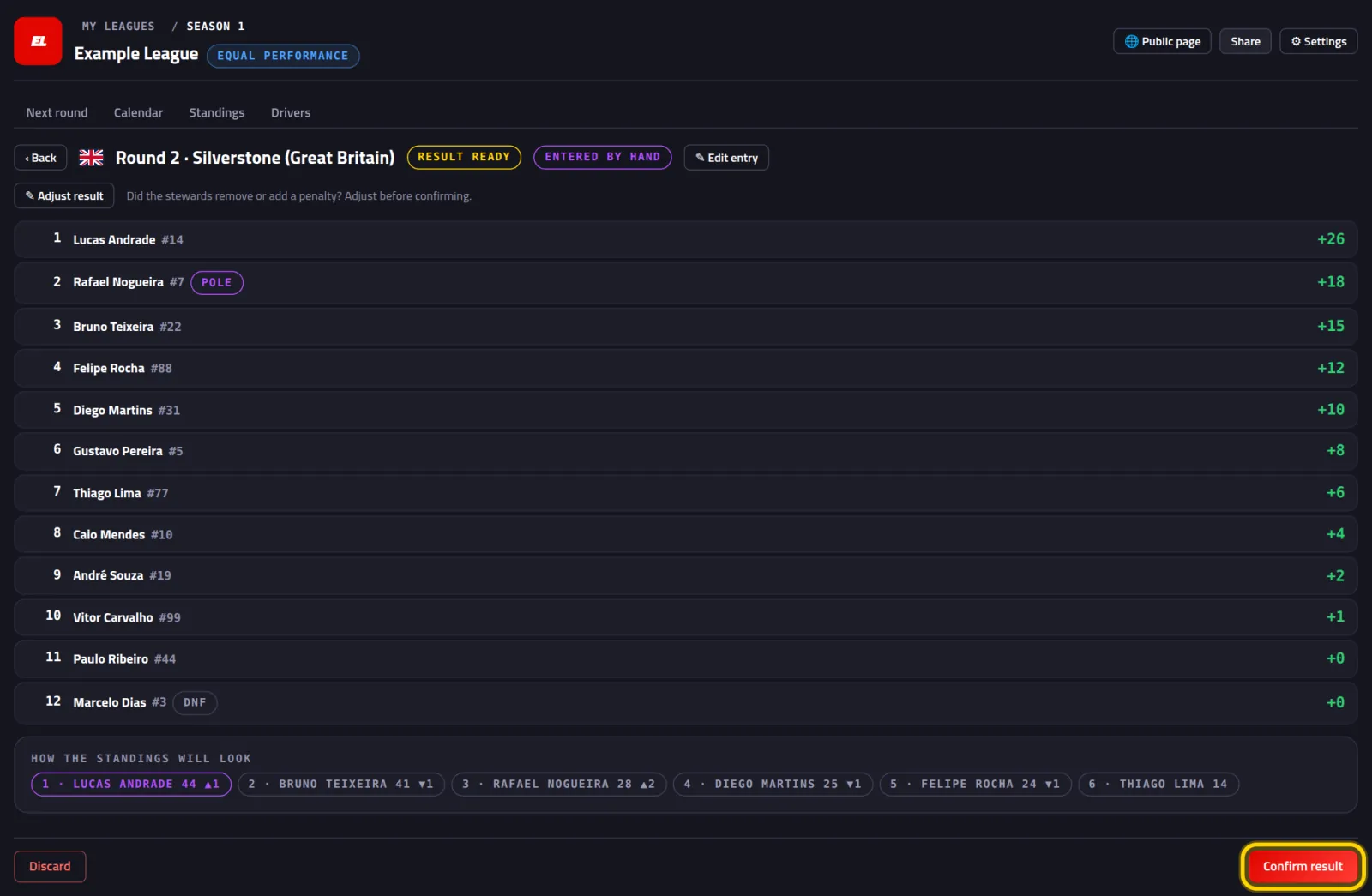
Check it and click Confirm result
You see the finishing order, each driver's points (+25, +18…) and How the standings will look. Nothing counts until you confirm.
You get the message Result is official — standings updated.
Path B · Nobody recorded it: enter it by hand
All you need to know is who finished where. A screenshot of the game's final results helps.
In the Calendar, click ✎ By hand on the round
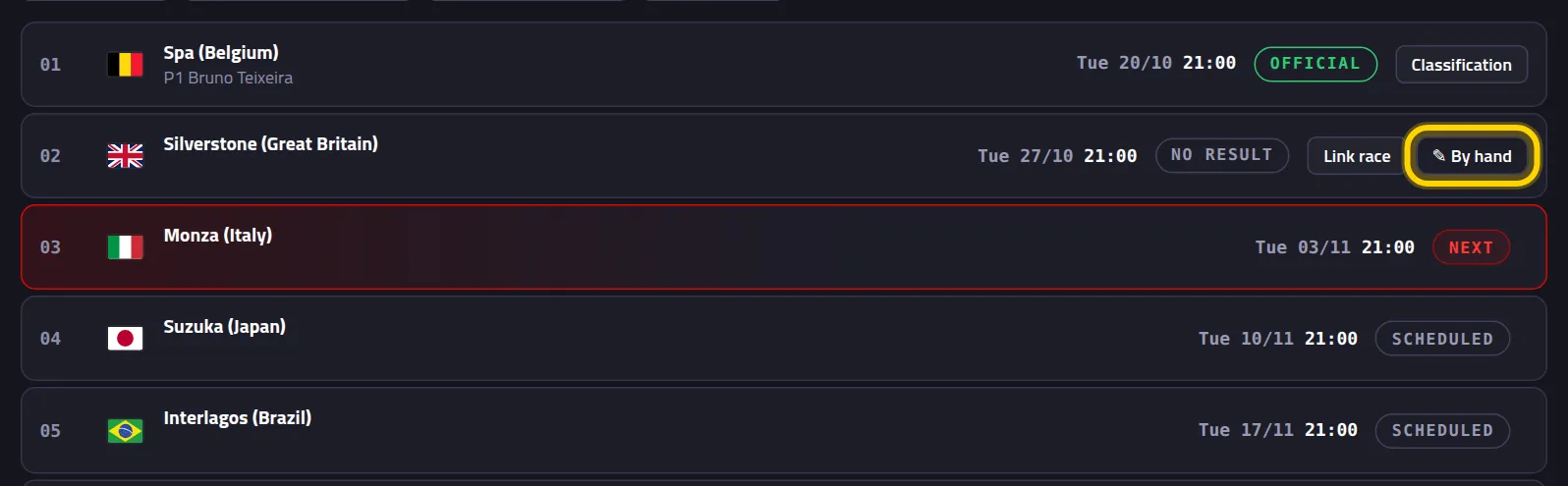
Click the winner
On the left, under League grid, every driver is a button. Click the one who won.
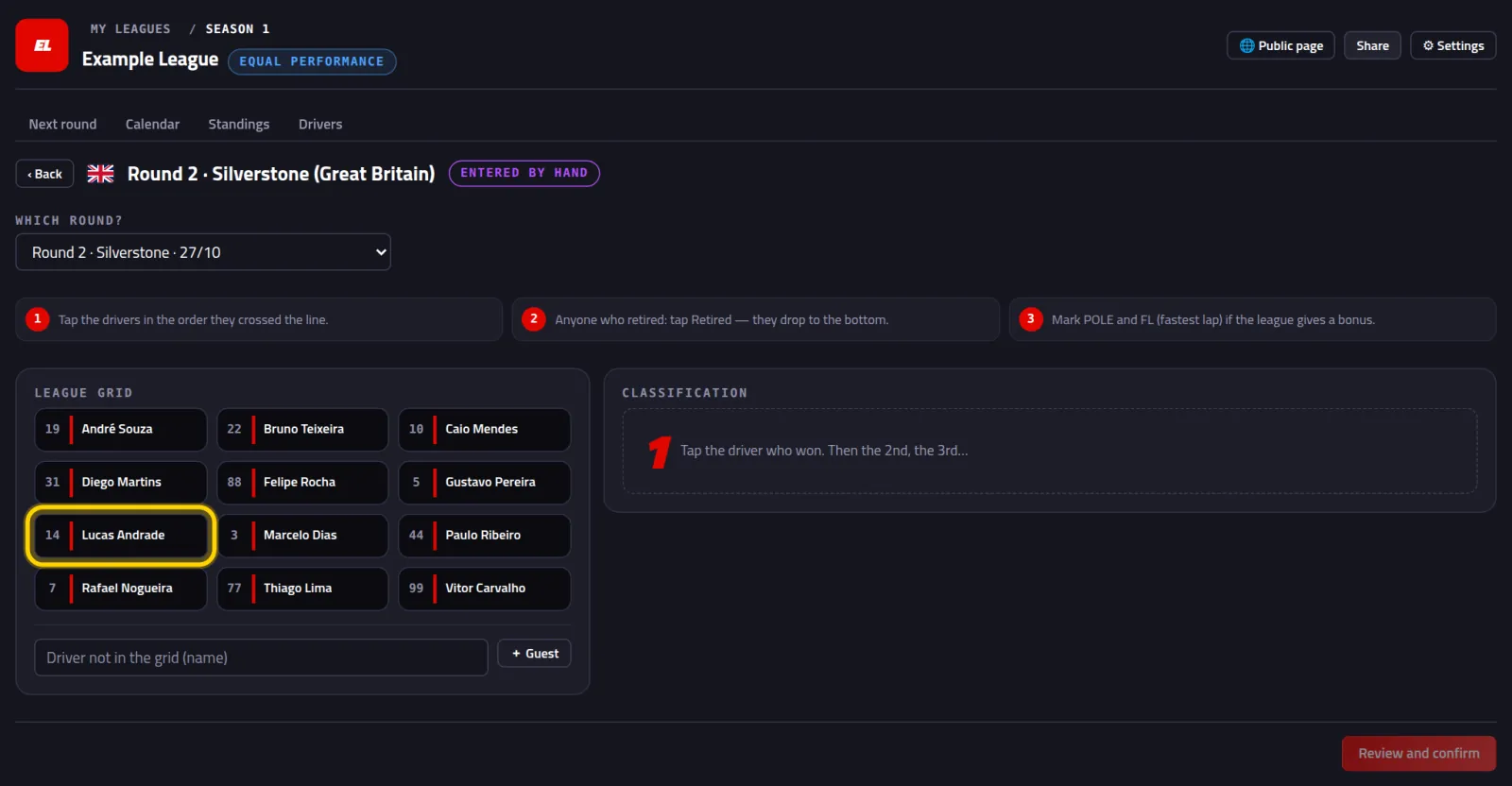
They jump into the Classification on the right, in 1st.
Now click 2nd, 3rd… all the way to last
Go in the order they crossed the line.
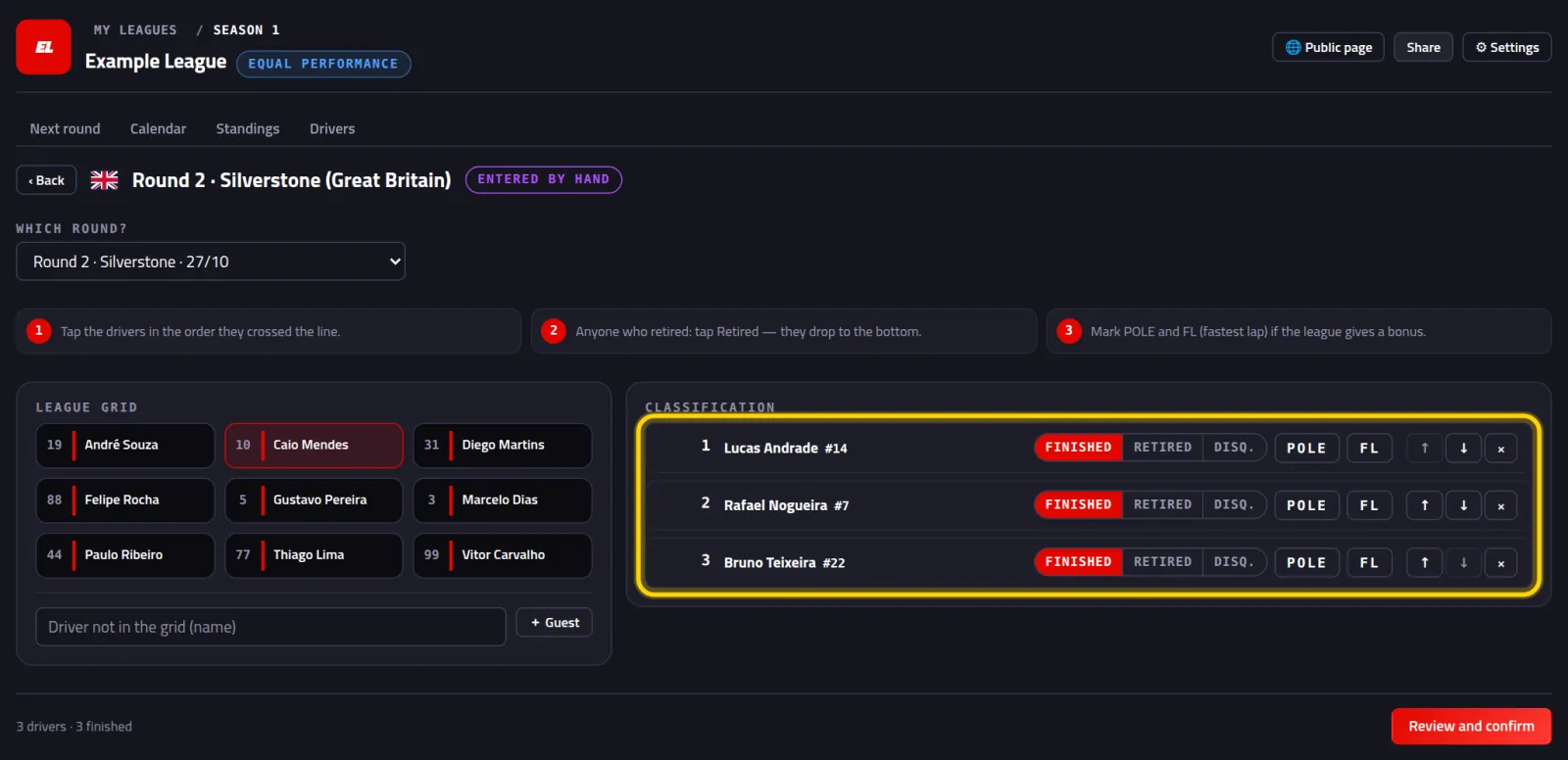
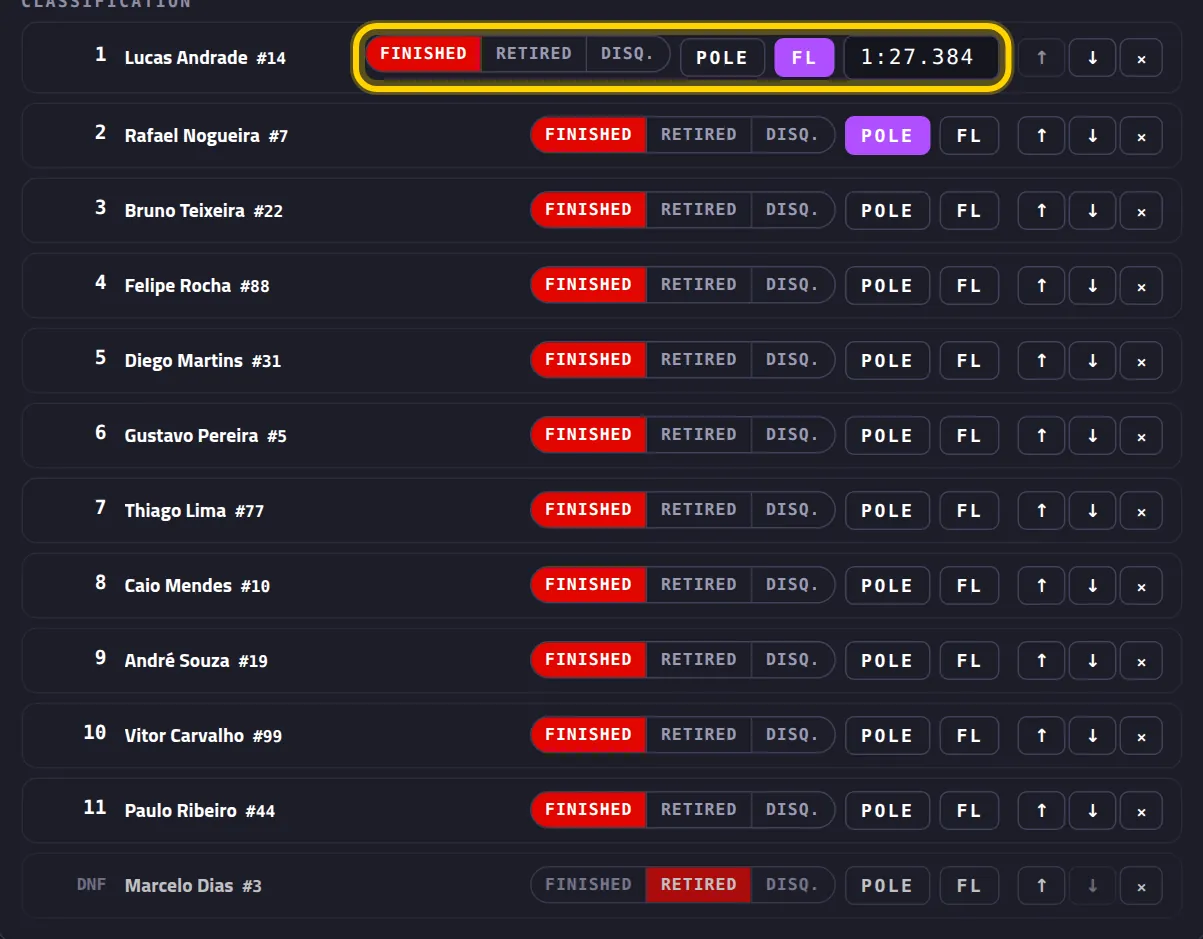
Someone retired? Click Retired
It's on their row. They drop to the bottom on their own. Disqualified is Disq.
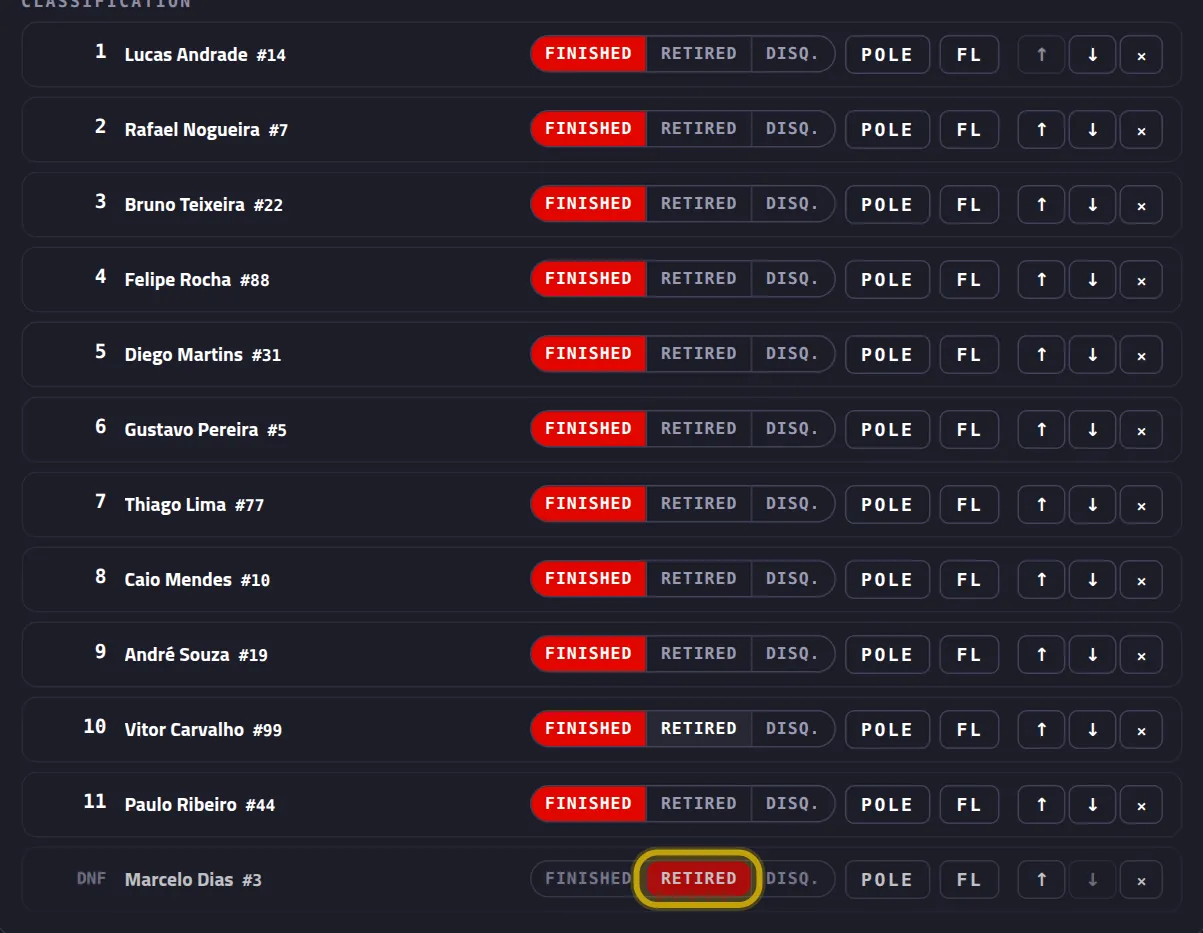
Mark POLE and FL
Click POLE on whoever started 1st. Click FL on whoever set the fastest lap and type the time, for example 1:27.384.
Click Review and confirm, then Confirm result
It's the same check screen as in Path A. The round gets the Entered by hand tag.
See the standings and send them to the group
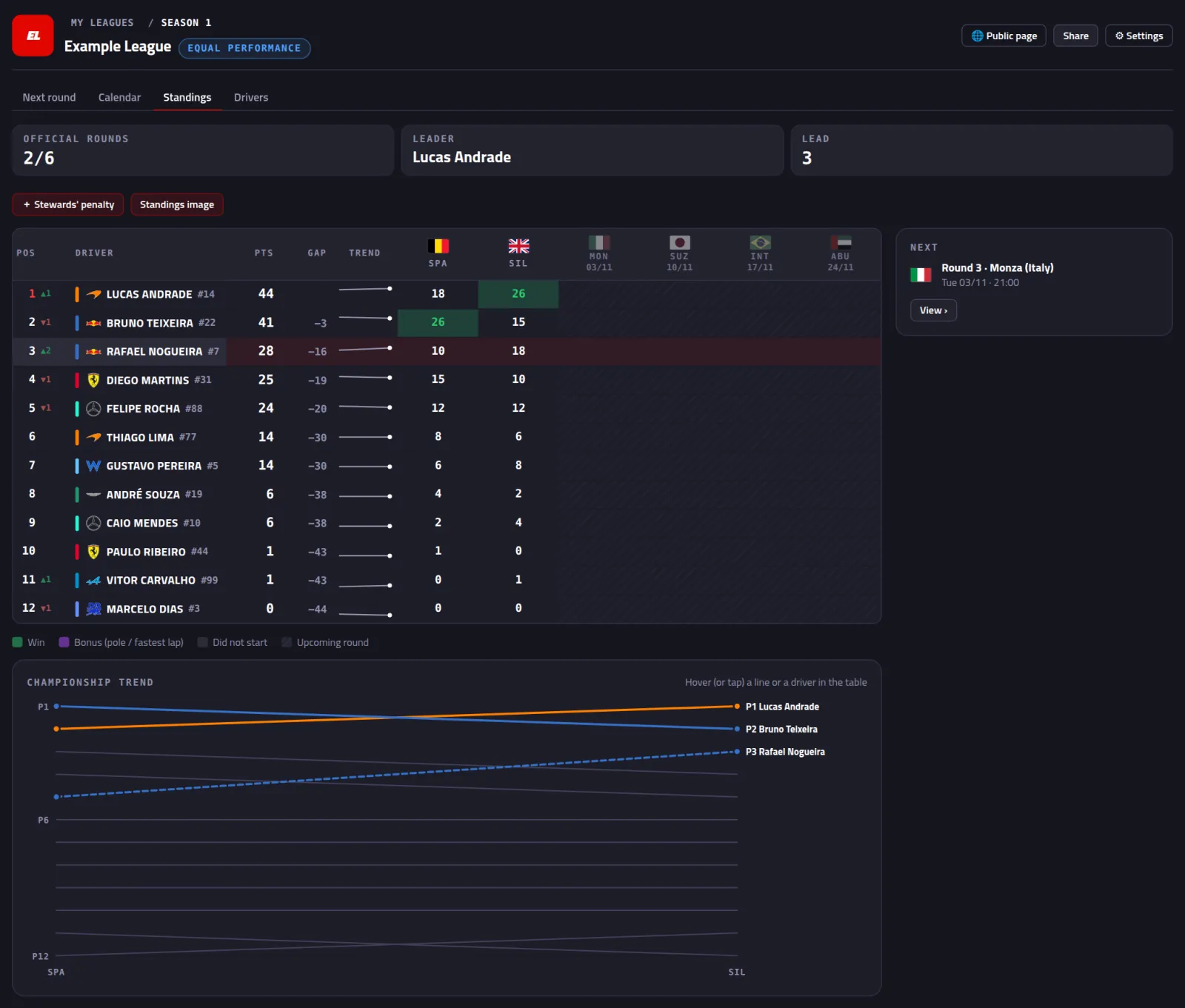
Open the Standings tab
Points for every round, who's leading and the gap to the leader. The Standings image button makes a picture ready to paste in your group.
Click Share, then Copy
Share is at the top right. It has the link to the league's page, a ready-to-post text (Copy text) and calendar images.
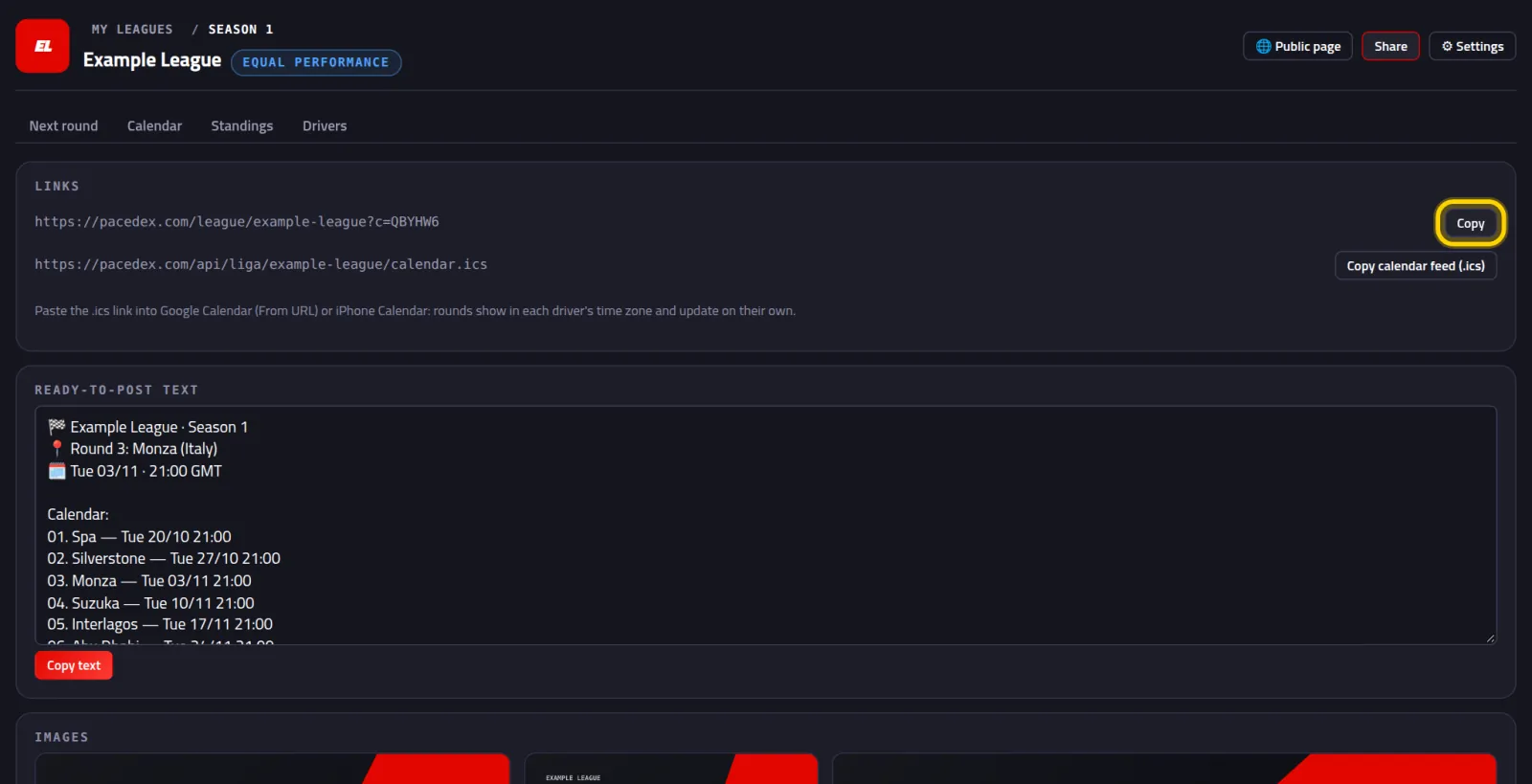
Paste the link in your group. Anyone who opens it sees the standings and the calendar, and can say if they're coming.
Other ways to put drivers in the league
- On the league's Drivers tab: + Pick from Drivers (the ones you imported in Part 1), Add manually (one at a time) or Copy invite (the driver joins on their own with the code).
- Bring from last lobby: in step 6 of Part 2, it ticks everyone from the last race you recorded.
- Let the race fill it in: if the league starts empty, when you check a result Pacedex shows who raced and asks whether to add them.
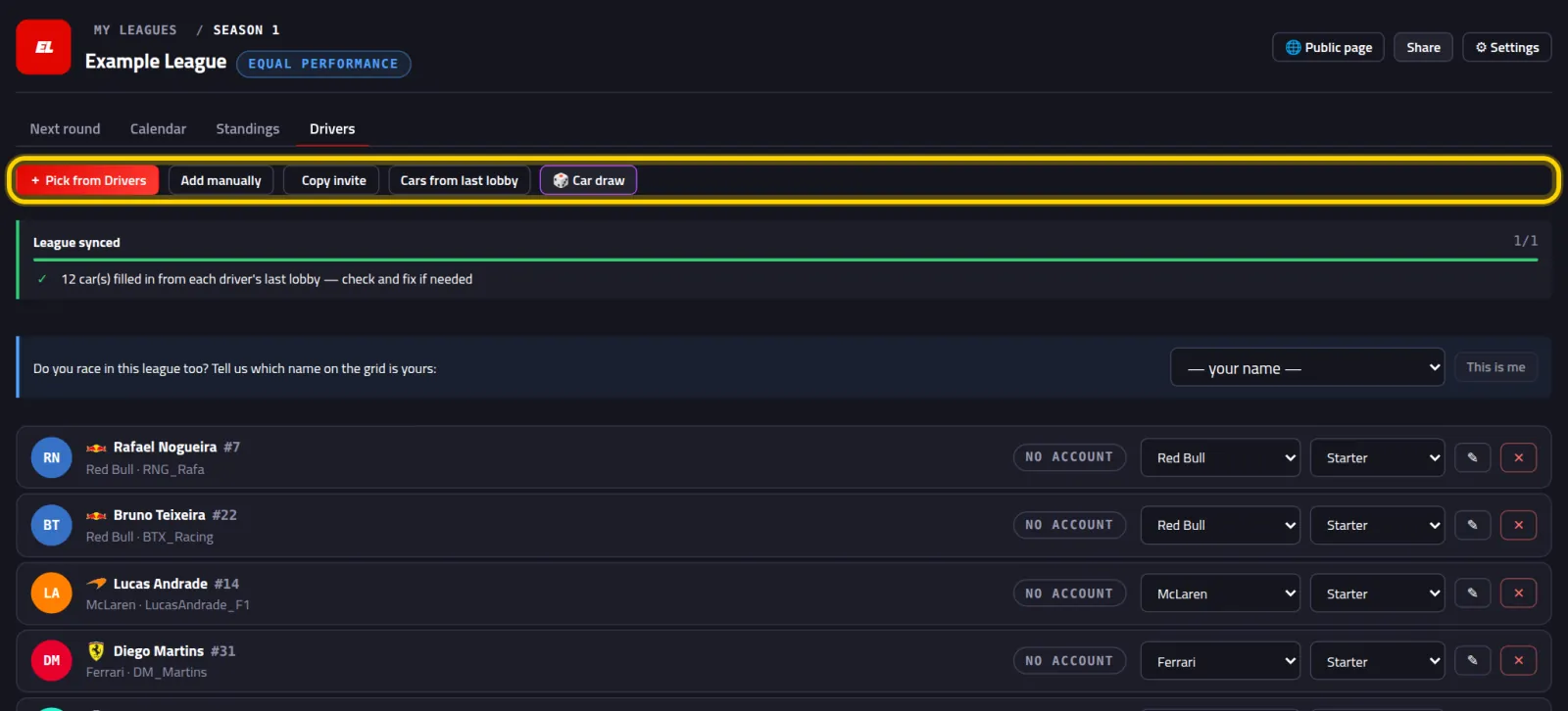
Do you race in the league too? In the blue strip above the grid, pick your name and click This is me. Your attendance and results are tied to your account, and the strip goes away.
Ready for the next round
From now on, races land on their own: a race on the round's track, from 1 h before to 4 h after the start time, becomes that round's result. You just confirm.
Free download · Windows →Looking for a league or drivers?
Leagues post open seats and invite codes in #🏆-leagues on our Discord. It's also where you ask anything and share setups.