 Pace


Your first race: from download to the engineer on the radio
One step at a time, with Pacedex's real screen at every step. You'll install it, switch the game's telemetry on, check that it works and drive your first laps with the race engineer in your ear. It takes about 5 minutes. In the pictures, the yellow outline shows where to click.
- A Windows PC (10 or 11).
- F1 24, F1 25 or the F1 25 2026 Season Pack. On PC, or on PlayStation/Xbox with the PC on the same network.
- Headphones or speakers, to hear the engineer.
Install
You only do this once. Updates arrive later with one click.
Click Free download on pacedex.com
It's the red button at the top of the site. The file Pacedex-Setup.exe lands in your Downloads folder.
Open the file. Windows warned you? Click More info, then Run anyway
A blue screen may say Windows protected your PC. That's normal for a new app. It's not a virus.
Microsoft Defender SmartScreen prevented an unrecognized app from starting.
More infoClick Next, Next… and Finish
No admin password needed. Leave the boxes as they are.
Pacedex opens by itself at the end.
Open Pacedex
The dashboard opens in its own window. A small PD icon also sits next to the clock, at the bottom right of Windows.
Look at the first screen: Let's get you on track
An assistant opens over the dashboard and asks where you play.
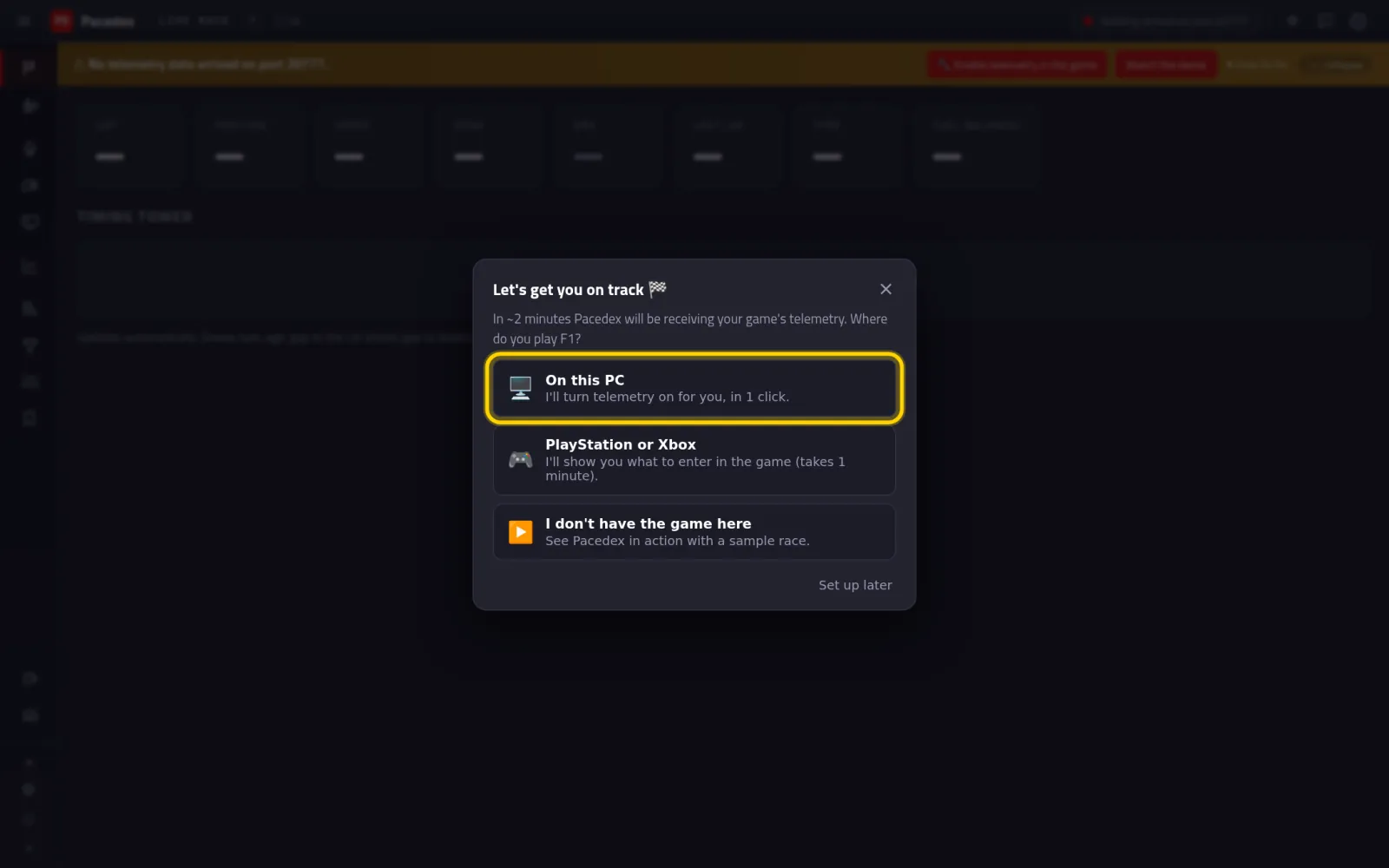
Three choices: On this PC, PlayStation or Xbox and I don't have the game here.
See it working, without the game
A sample race runs in the dashboard. It's the quickest way to see that Pacedex works. Want to go straight to the game? Skip to Part 4.
In the assistant, click Set up later
A yellow bar appears at the top: No telemetry data arrived on port 20777. That's expected — the game isn't sending anything yet.
Click the red Watch the demo button

Watch the dashboard fill up, then click Stop
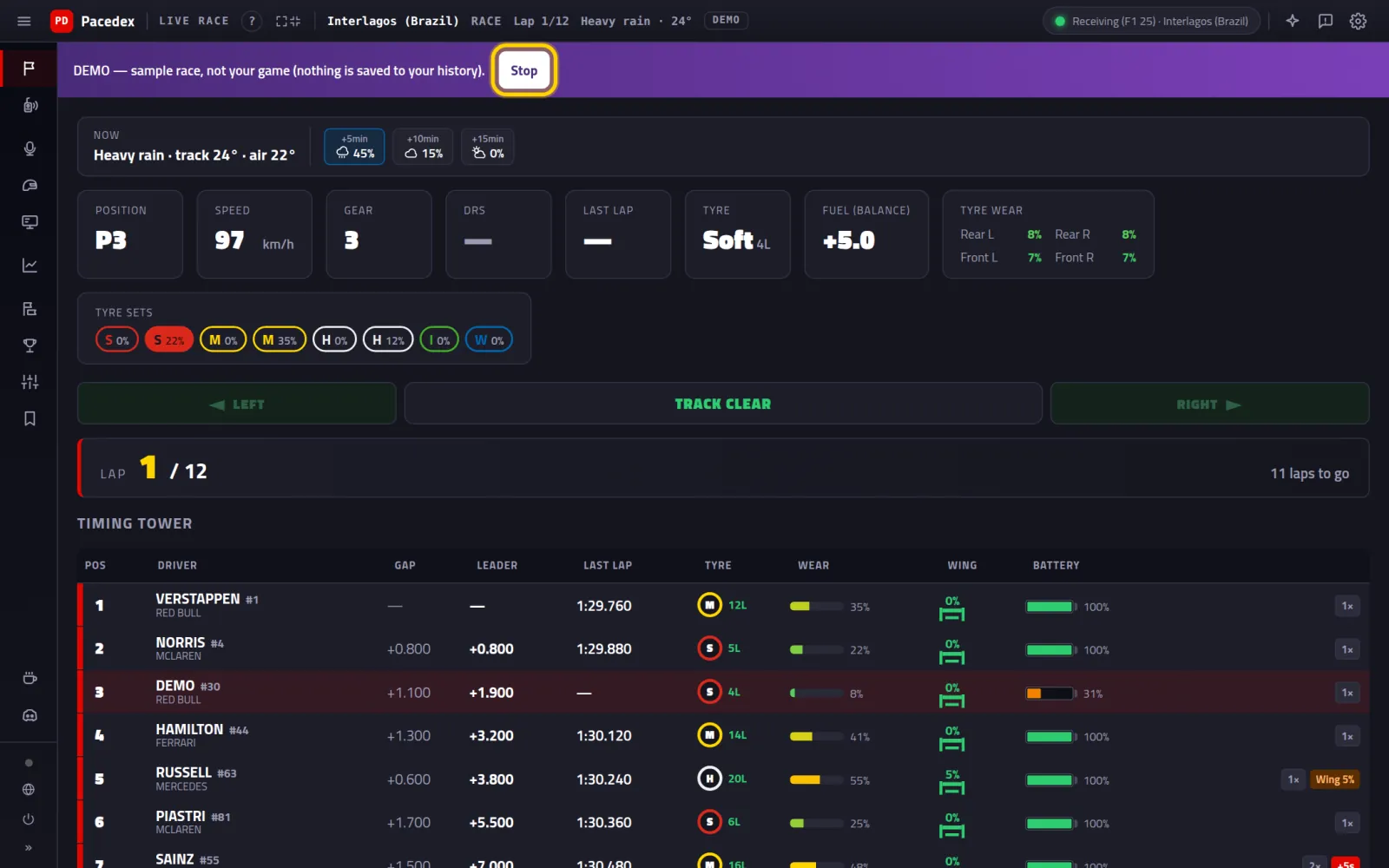
A purple DEMO bar, the weather, your car, the tyres and the Timing tower with 20 cars. Nothing from the demo is saved to your history.
Switch the game's telemetry on
The F1 game ships with telemetry off. On PC, Pacedex switches it on for you. Close the game first.
In the assistant, click On this PC
Is the assistant gone (you watched the demo, or closed it)? Click the gear at the top right (Settings), then Game connection, then Connection assistant.
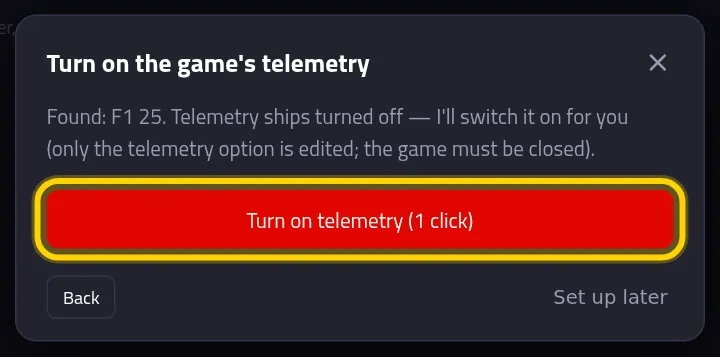
Click the red Turn on telemetry (1 click) button
Pacedex has found your game, for example Found: F1 25.
See Now open the game and hit the track
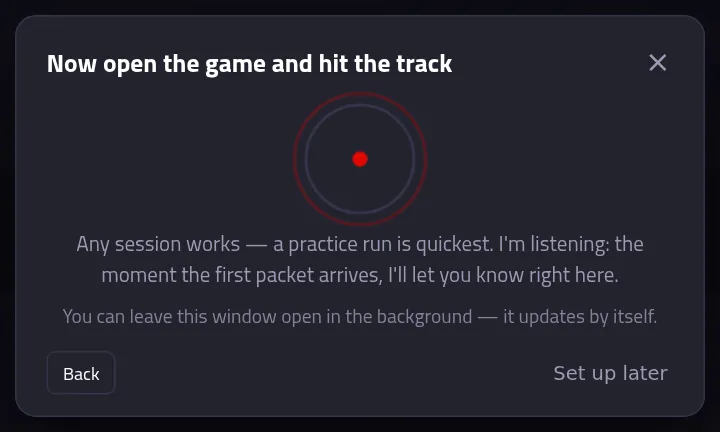
A radar keeps listening. Leave this window open. Now go to the game.
Other ways to switch it on
- From the yellow bar: when Pacedex finds the game with telemetry off, the bar shows the 🔧 Enable telemetry in the game button. Same thing, one click (with the game closed).
- Inside the game, by hand: Settings → Telemetry Settings. Set UDP Telemetry to On, UDP Port to 20777 and UDP Format to your game's year. Full guide →
- On PlayStation or Xbox: in the assistant, choose PlayStation or Xbox. It shows the PC's IP to type into UDP IP Address in the game. Console and PC must be on the same Wi-Fi or router.

Hit the track
The game only sends data while you're on track. In the menus, nothing goes out.
Open F1 and go into any session
Practice, time trial, a race — anything works. A practice session is the quickest.
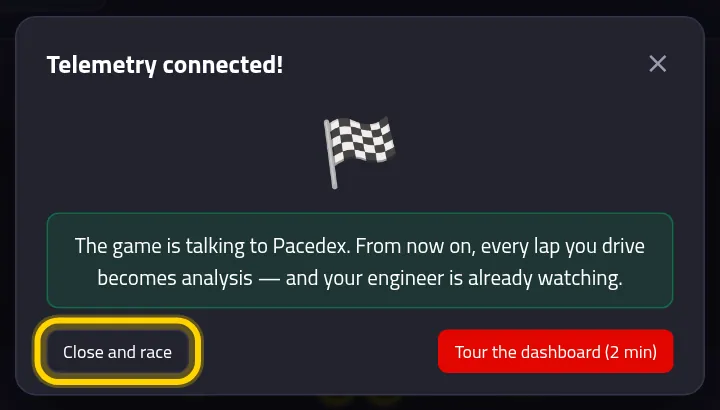
See Telemetry connected! and click Close and race
Drive. The dashboard follows you live
At the top right, the green light says Receiving. Below: weather, your car, tyre wear and the Timing tower.
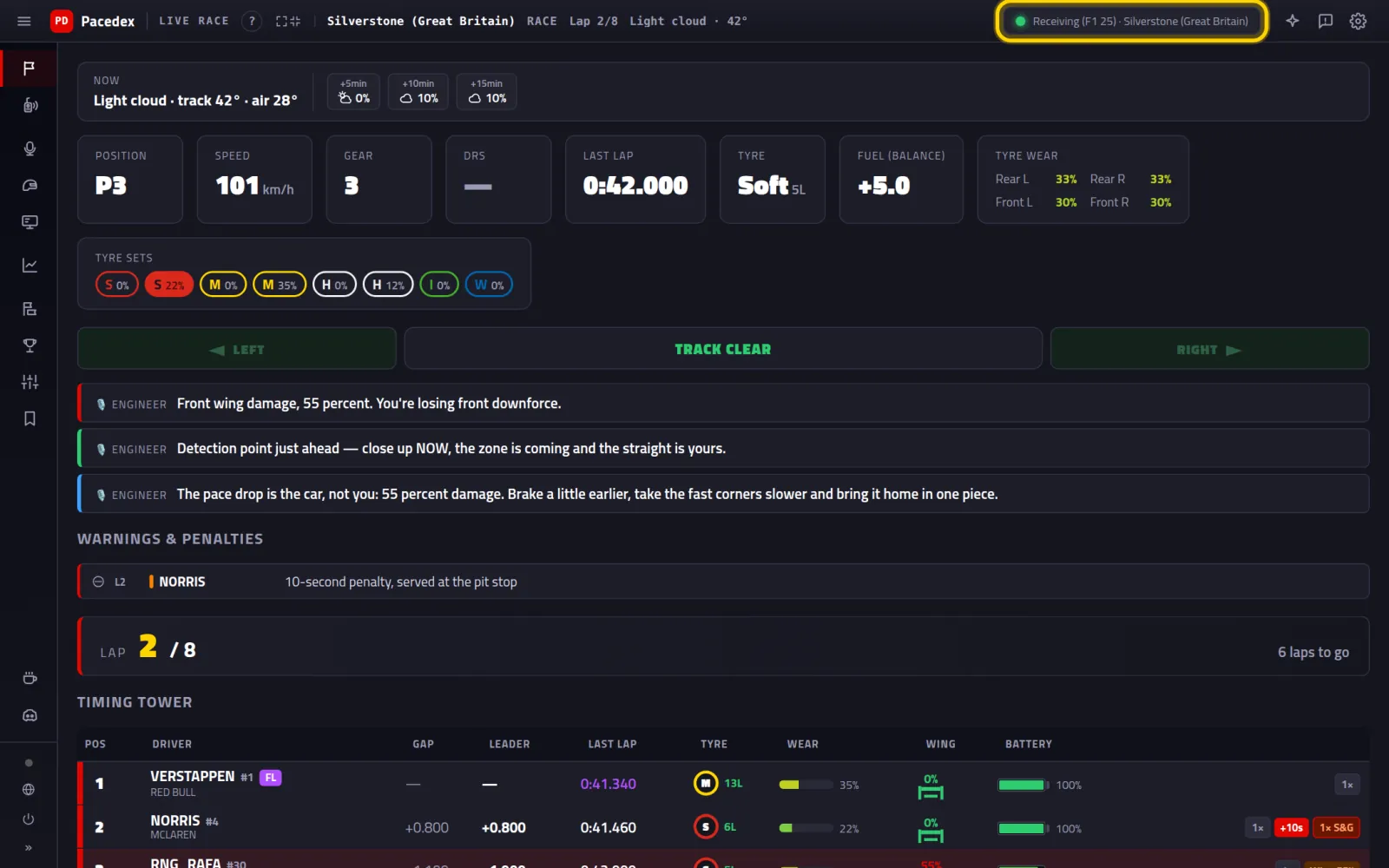
The yellow bar is gone. Every lap you drive is saved for the analysis later.
The engineer on the radio
He comes on by himself. You don't have to set anything up.
Listen: he talks in your headphones
Cars alongside, flags, tyres, pit stop, weather. Every call also appears on the screen, in the Engineer lines.
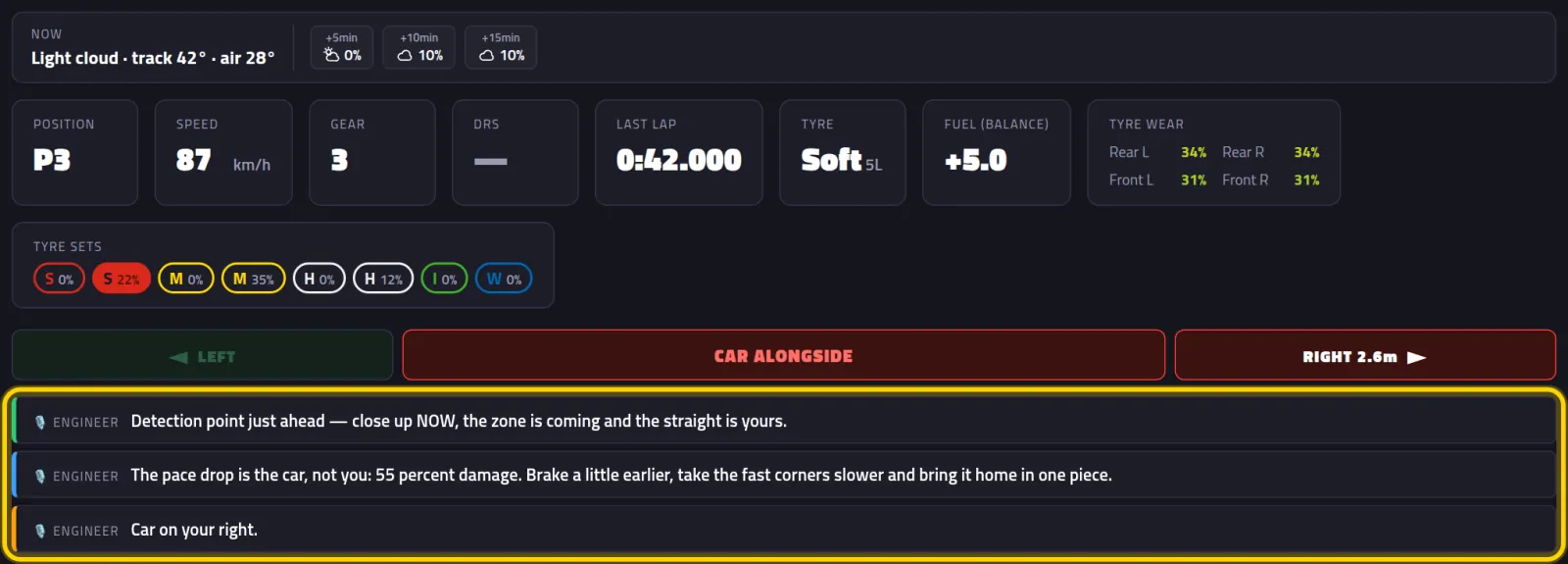
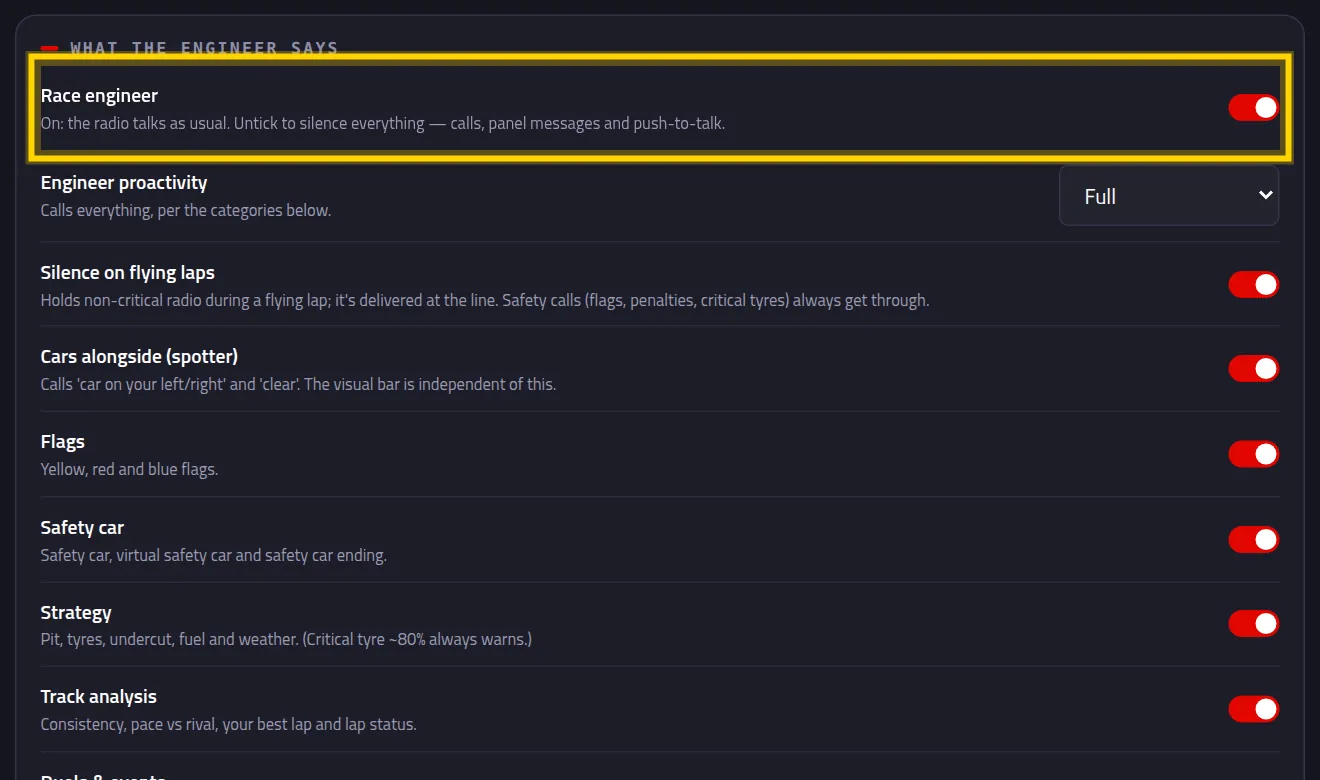
To silence him: gear (Settings) → Engineer
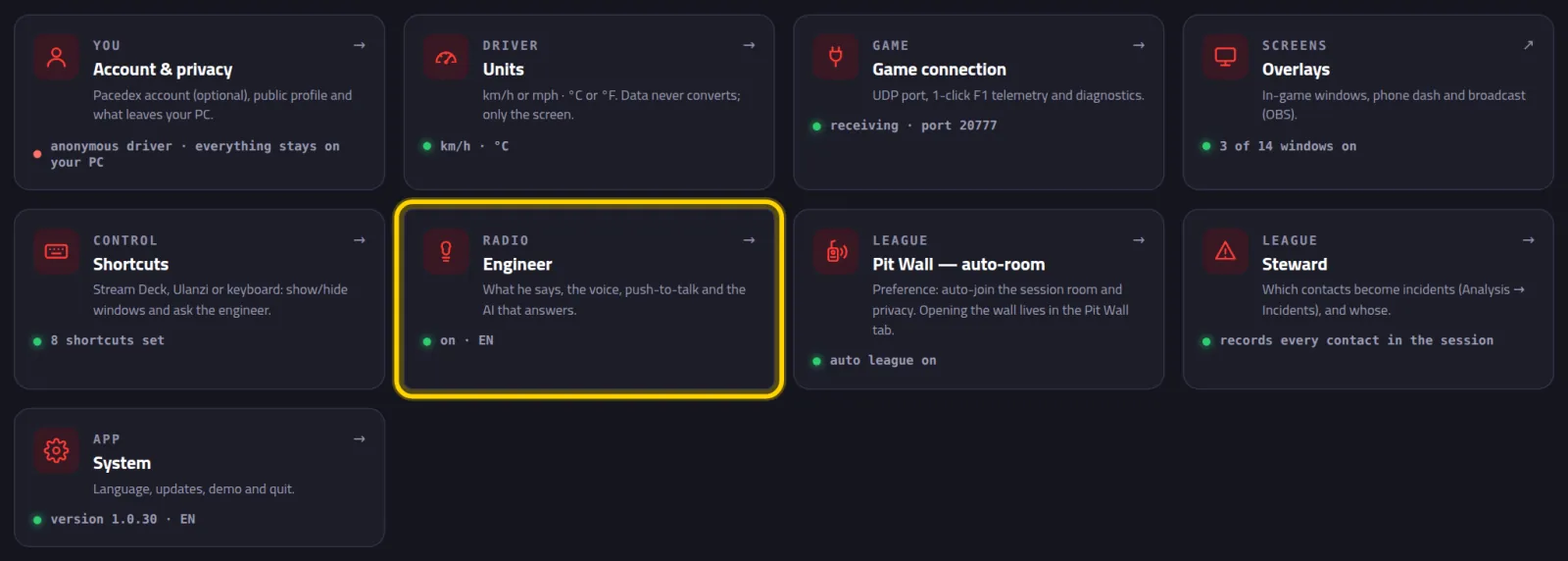
Flip the Race engineer switch
Off: the radio goes fully silent. On again: he confirms with a radio check.
Stuck?
- The yellow bar won't go away (nothing arrives): are you on track? Menus send nothing. Is telemetry on in the game (Part 4)? Is the port 20777 in the game and in Pacedex? Click ▾ how to fix on the bar: Pacedex lists the likely cause.
- Another telemetry app is open: only one program can use the port at a time. Close the other one and reopen Pacedex. Want both? The bar shows how to share it.
- Playing on console: the PC's IP in UDP IP Address, the same network, and Pacedex allowed in Windows Firewall on private networks. Your antivirus has its own firewall? It needs a permission too.
- The antivirus blocked or removed Pacedex: it's a false alarm. Restore the file from quarantine and add Pacedex as an exception. Or install from the Microsoft Store.
- The dashboard won't open: click the PD icon next to the clock → Open dashboard. Or double-click the Pacedex shortcut again: it just brings the dashboard back.
- The engineer is silent: check the Race engineer switch (Part 6) and whether Engineer proactivity is on Only when asked.
Still stuck? Post a screenshot on our Discord and we'll help.
What to learn next
Ready for your first race
Free, on your PC, for F1 24, F1 25 and the 2026 Season Pack.
Free download · Windows →