 Pace


Talk to your engineer on the radio
Your engineer already talks on his own. This is where he starts answering: hold a wheel button, ask, let go. He replies in his own voice, looking at your race. It takes about 5 minutes. In the pictures, the yellow outline shows where to click.
- Pacedex installed and the engineer already talking. Not yet? Do your first race first.
- A microphone on the PC: headset, webcam or USB earbuds.
- A spare button: on your wheel, your controller or the keyboard.
Switch on voice questions
One toggle. It ships switched off.
Click the gear (Settings), then the Engineer card
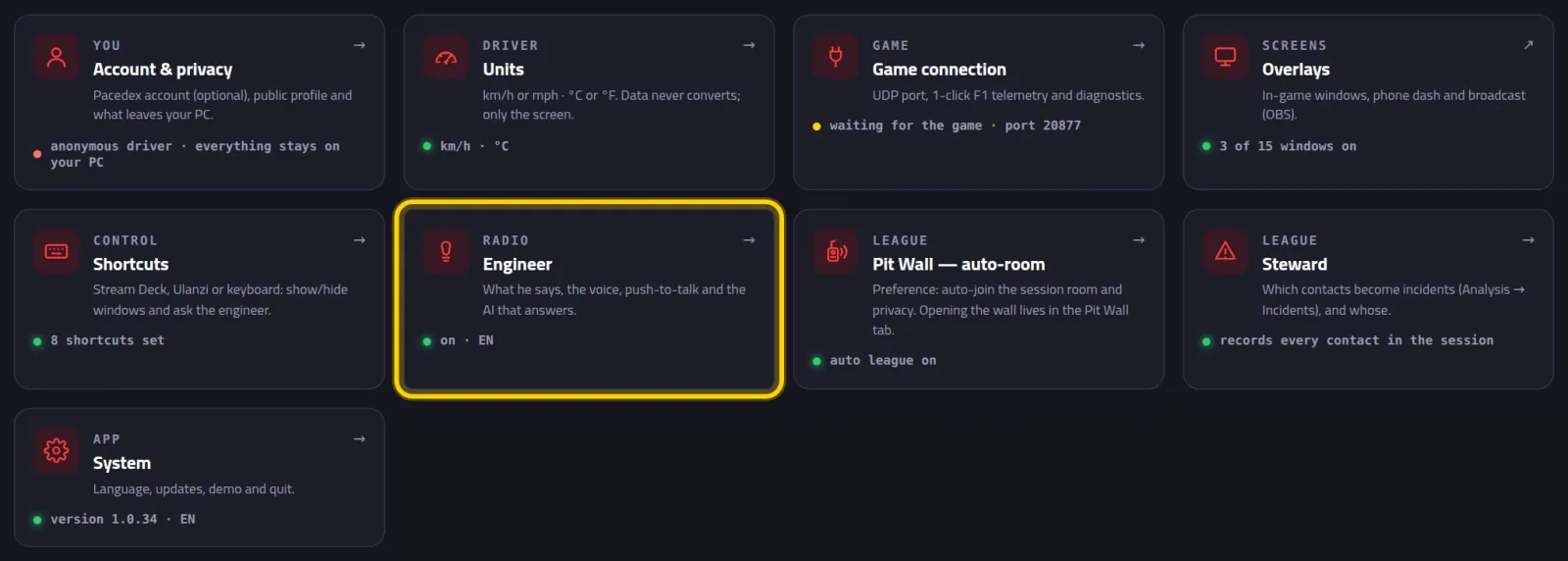
Turn on Ask by voice during the race
It's in the Talk to your engineer (voice) box. Scroll down a little to find it.
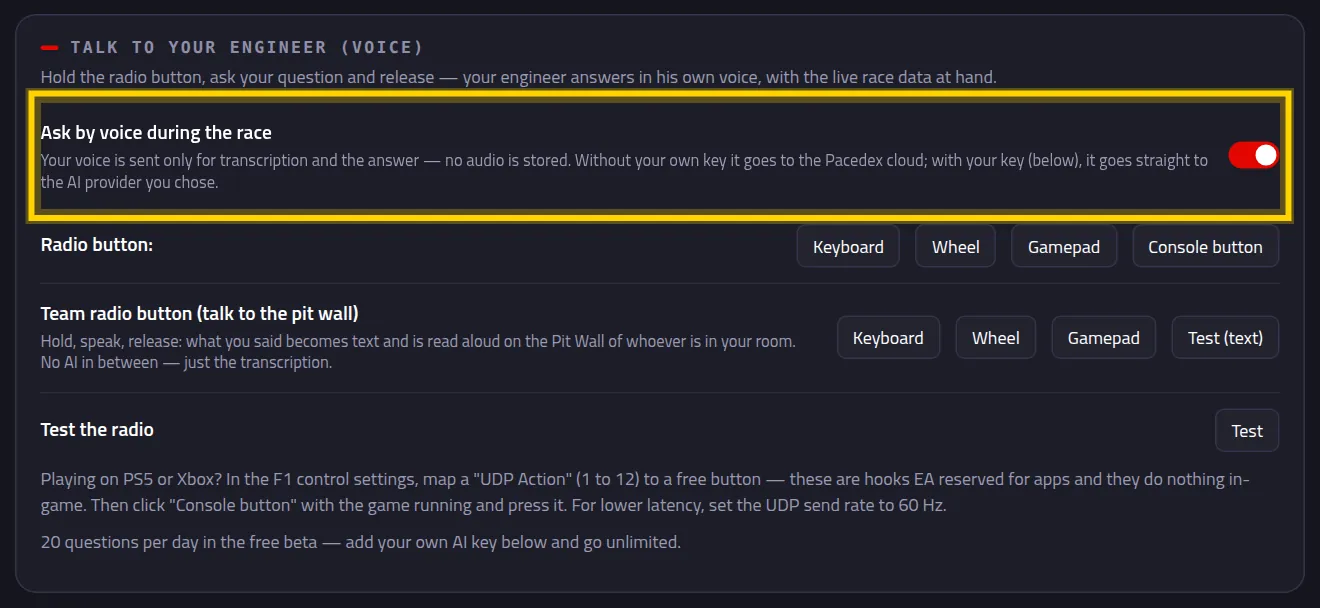
Right below sits the Radio button: row, still empty. That's the next part.
The radio button
The button you hold to talk, just like a real radio. Pick one you can reach without taking your hands off the wheel.
On the Radio button: row, click Wheel
Using something else? Keyboard for a key, Gamepad for an Xbox controller. On console, see the tip at the end of this part.

The message Now press the button you want to use…
Press the wheel button you picked
You have 8 seconds.

Button set: and its name, for example Wheel · B7.
Under Test the radio, click Test. Hold the button and say something

All good: button detected and voice captured. If not, the message tells you where it got stuck: the button, the microphone or muted sound.
Wheel not showing up?
- “No button was pressed”: some wheels have buttons Windows doesn't expose. Use Console button: there the game itself reads the button, so it works with any wheel.
- Playing on PlayStation or Xbox: in F1, under Settings → Controls, map a UDP Action (1 to 12) to a spare button. Then, out on track, click Console button and press it. The microphone is still the PC's.
Who answers
Without doing anything, you already get 20 questions a day free through the Pacedex cloud. Want unlimited? Paste your own AI key. Google's Gemini is free, no card needed.
Scroll to the bottom and pick the provider under Provider and model
It's in the Engineer AI (your key) card, right below Talk to your engineer (voice). To start, pick Gemini (Google) — free.
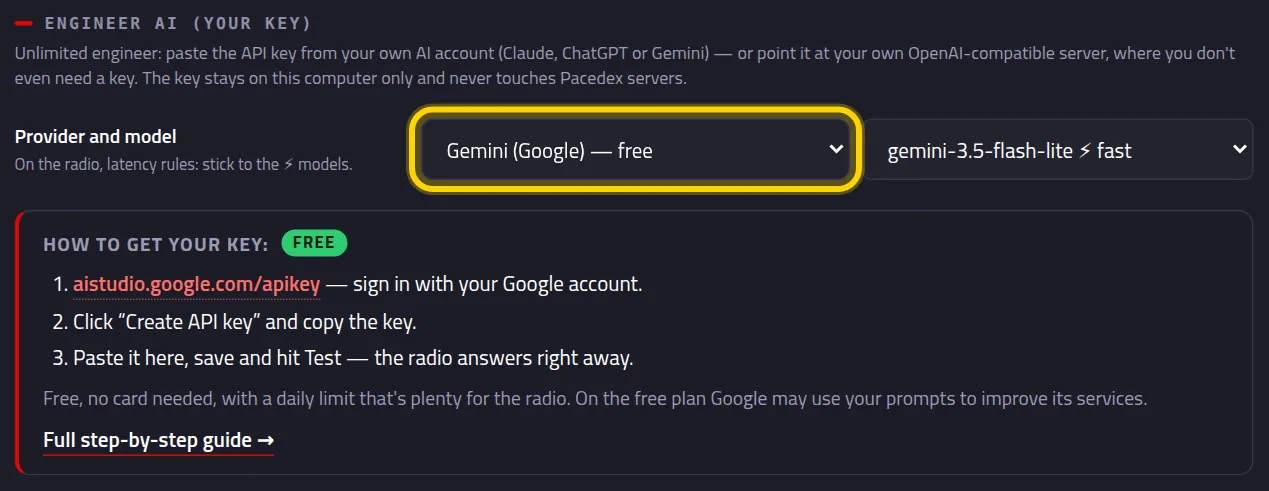
The How to get your key: box with the 3 steps for that provider. Claude and ChatGPT work too.
Get the key on the provider's site
Click the link in the box (for Gemini, aistudio.google.com/apikey), sign in and create the key. Copy it.
Paste the key into API key and click Save key

The key stays on this PC only. It never goes through Pacedex servers.
Click Test

answered in and the time. Under 2 seconds turns green: good for the radio. The box above now says Unlimited — using your own AI key.
A model on your own PC
Running Ollama, LM Studio or another OpenAI-compatible server? The engineer can ask it instead. No key, no limit. Skip this if it means nothing to you.
Under Provider and model, pick OpenAI-compatible (your server)
Next to it, type the name of the model you loaded, for example llama3.1:8b.
In Server address, paste its address and click Test
For Ollama it's http://localhost:11434. The /v1 is added for you.
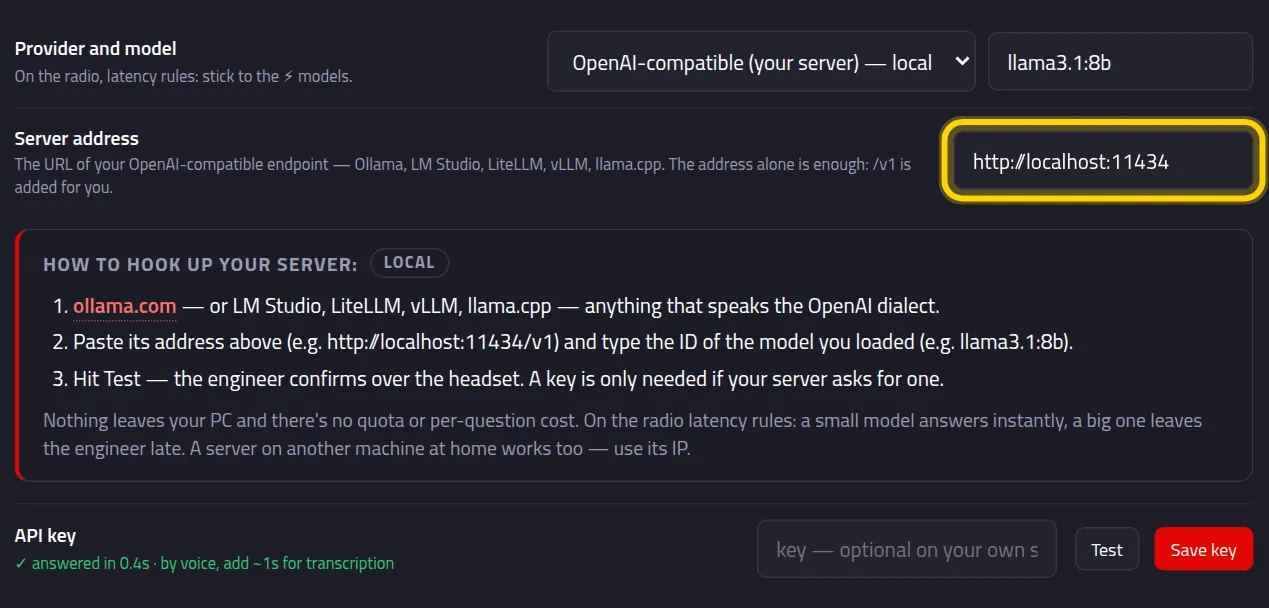
answered in and the time. Leave the key empty unless your server asks for one.
The engineer's voice
The same voice he uses for his own calls. Change it whenever you like.
In the Neural engineer voice (offline) box, pick the Engineer's voice
Each language has male and female voices. The one you pick downloads once (about 60 MB). With Engineer's language, the radio can speak a different language from the dashboard.
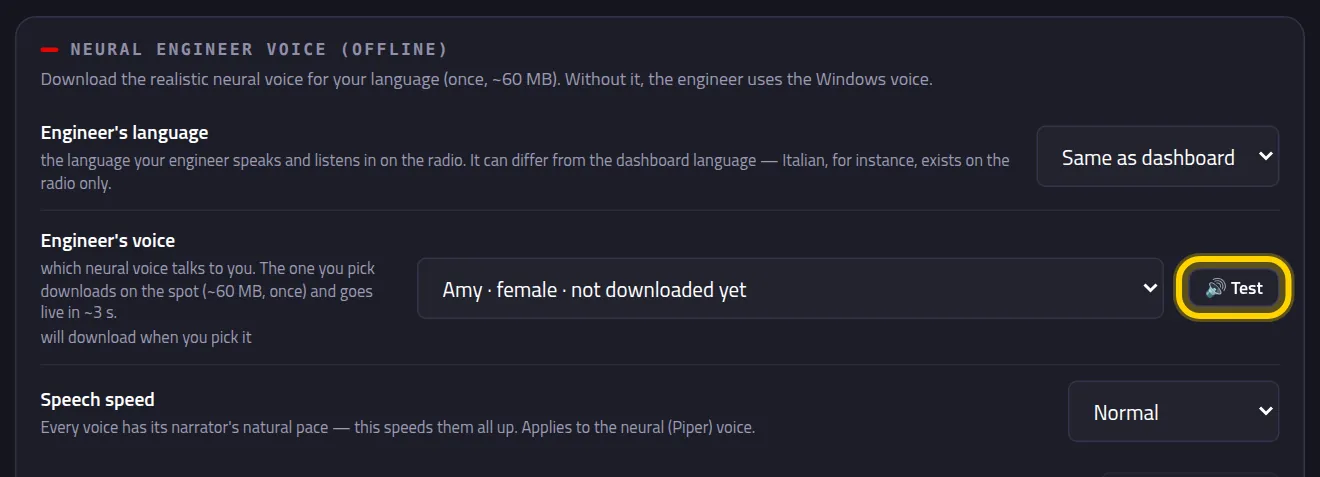
Click 🔊 Test
He does a radio check in your headphones. Too fast or too slow? Adjust the Speech speed.
Ask on track
Now just drive. Every question uses your race data at that moment: tyres, gaps, fuel, weather and the pit plan.
Hold the radio button, ask your question, let go
Talk normally, the way you'd talk to an engineer. For example:
“How many laps have these tyres got left?” · “When do I pit?” · “What's the gap to the car ahead?” · “Is it going to rain?”
Hear the answer in your headphones
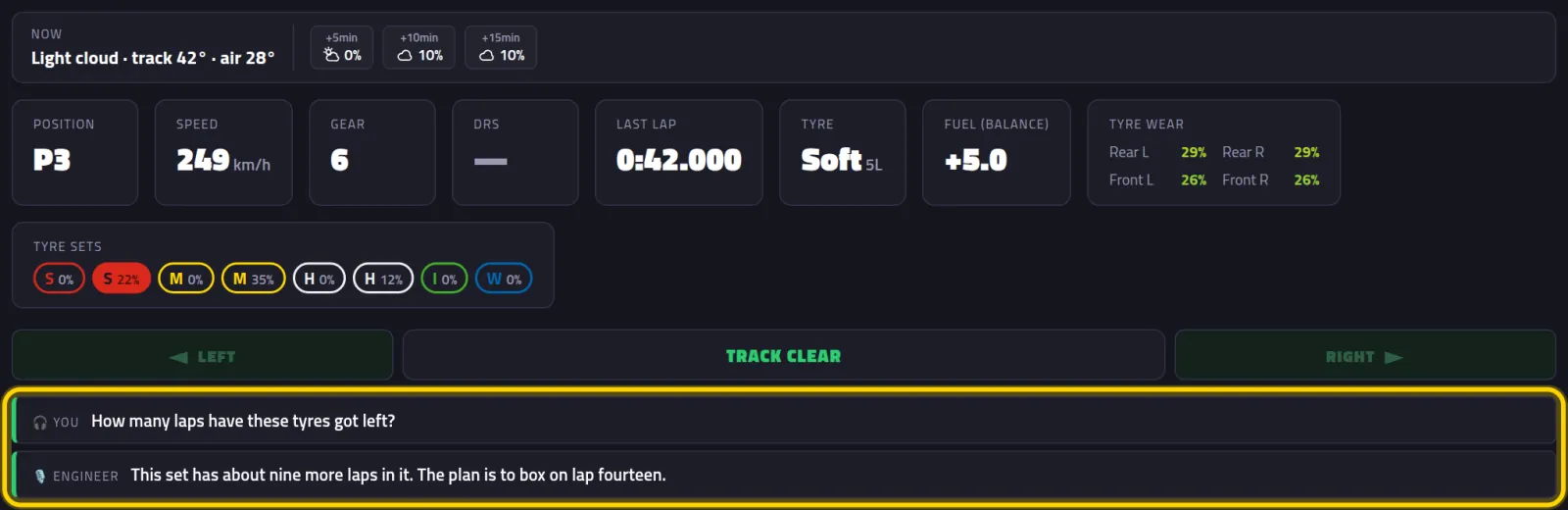
It all shows up in writing on the dashboard too: your question on the You line and the answer on the Engineer line.
No microphone? Ask with a button
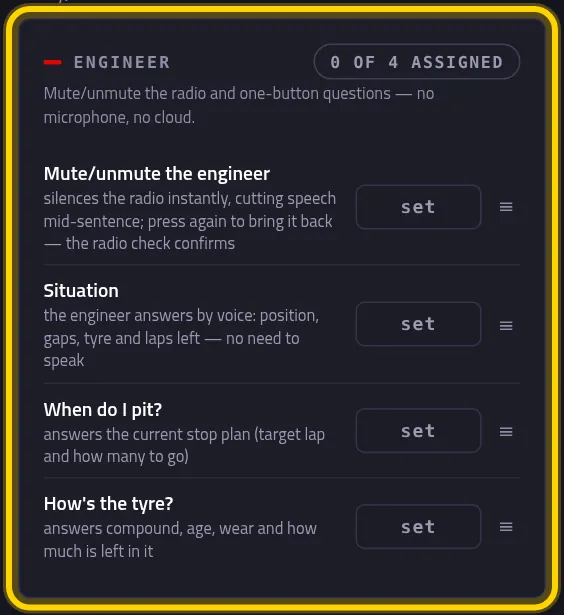
In Settings → Shortcuts, the Engineer card has ready-made questions: Situation, When do I pit? and How's the tyre?. Click set and press a button. On track he answers right away. No microphone, no internet.
Something went wrong?
- I hear nothing: click 🔊 Test in Part 5. Check the Engineer voice volume and, under Radio audio output, the right headphones (or Windows default).
- I press the button and nothing happens: click Test under Test the radio. Pick the button again (Part 2). Seeing On, but no button.? You haven't picked one yet.
- “No microphone on this computer”: Pacedex listens through the PC. On console, your headset is plugged into the console. Plug a microphone into the PC.
- Invalid key or no credit: Test tells you why. Double-check the key on the provider's site. Claude and ChatGPT need credit on the API account.
- The local model doesn't answer: Nothing answered at that address means the server is off or the address is wrong. Start Ollama (or your server) and check the host and port.
- He stopped answering: without a key, the day's 20 questions are used up. Paste your own key (Part 3) to go unlimited.
Still stuck? Post a screenshot on our Discord and we'll help.
What to learn next
An engineer who answers back
Free, on your PC, for F1 24, F1 25 and the 2026 Season Pack.
Free download · Windows →