 Pace


Your race, broadcast-style, in OBS
The timing tower, battles, safety car and league standings over your game, TV-style. You copy one address from Pacedex, paste it into OBS and you're done. Takes about 5 minutes. In the pictures, the yellow outline shows where to click.
- Pacedex installed and receiving the game. Not yet? Do your first race first.
- OBS Studio installed on the same PC as Pacedex (free, at obsproject.com).
- An OBS scene with your game capture.
Find the overlay
Everything that goes to OBS lives in one place in Pacedex: the Studio.
In the left menu, under Broadcast, click Overlays
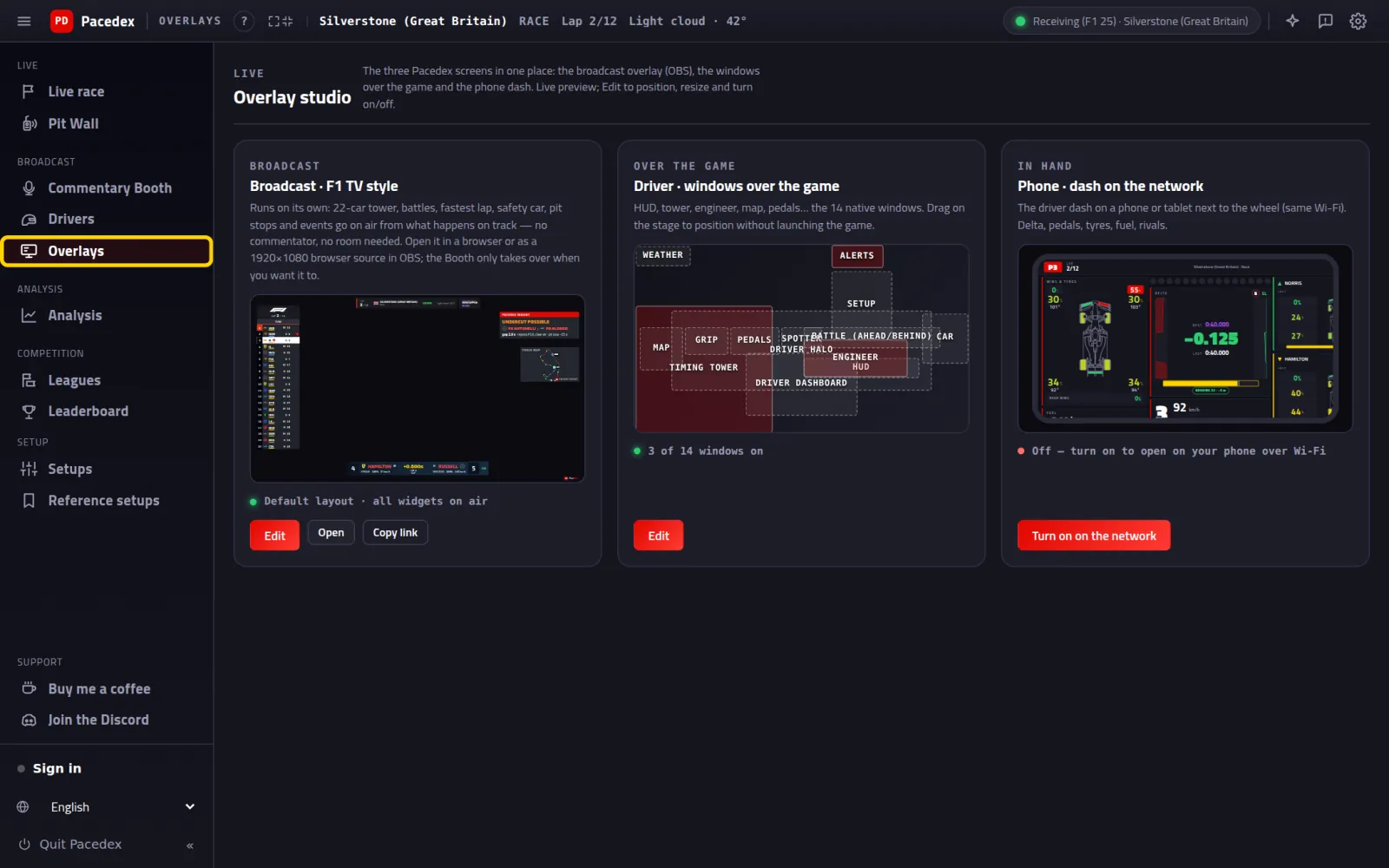
The Overlay studio, with three cards. The first one is the broadcast, with a live preview.
On the Broadcast · F1 TV style card, click Edit
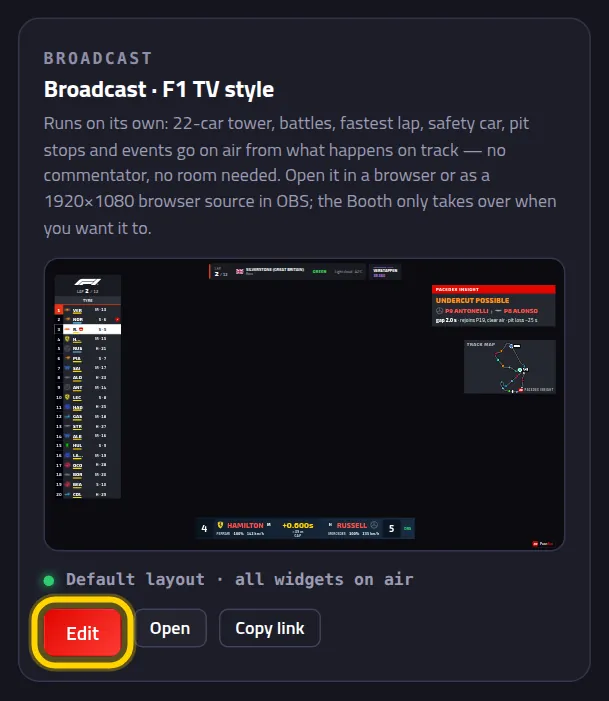
Click Copy OBS URL

The address is on your clipboard. It looks like this: http://127.0.0.1:8086/broadcast?lang=en
Add it to OBS
Two ways. One click needs OBS 28 or newer. By hand works in any OBS.
Way 1 · one click
Pacedex talks to OBS and creates the source for you, already at the right size.
In OBS, turn on the WebSocket server
Tools menu → WebSocket Server Settings → tick Enable WebSocket server → OK.
In Pacedex, under Add to OBS, click the Add to OBS button
It's just below the editor bar. OBS asked for a password? Open OBS connection, paste it into Password and click Save connection.
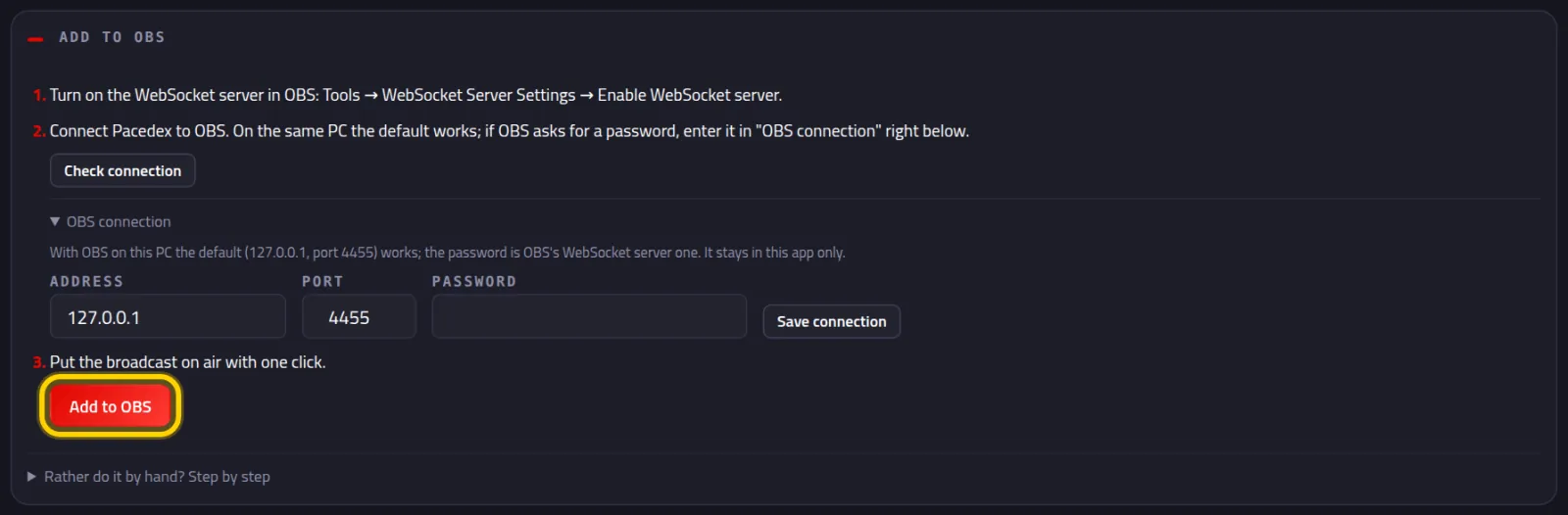
The message Done: the broadcast is now in the … scene in OBS, and the Open in OBS badge in the panel title. Jump to Part 3.
Way 2 · by hand
Works in any OBS (and in Streamlabs, which has the same fields).
In OBS, under Sources, click + and choose Browser
Give it a name, say Pacedex, and click OK.
Paste the address into URL. Width 1920, Height 1080
Leave “Shutdown source when not visible” unticked. Tick “Refresh browser when scene becomes active”. Click OK.
Drag the Pacedex source above your game capture
In the Sources list, whatever is on top shows in front.
In Pacedex, the badge on the Add to OBS panel goes from Not in OBS yet to Open in OBS.
See it on air
The broadcast runs itself. Nobody has to press anything.
Go out on track (or join the lobby as a spectator)
During the race, graphics come and go with what happens on track.
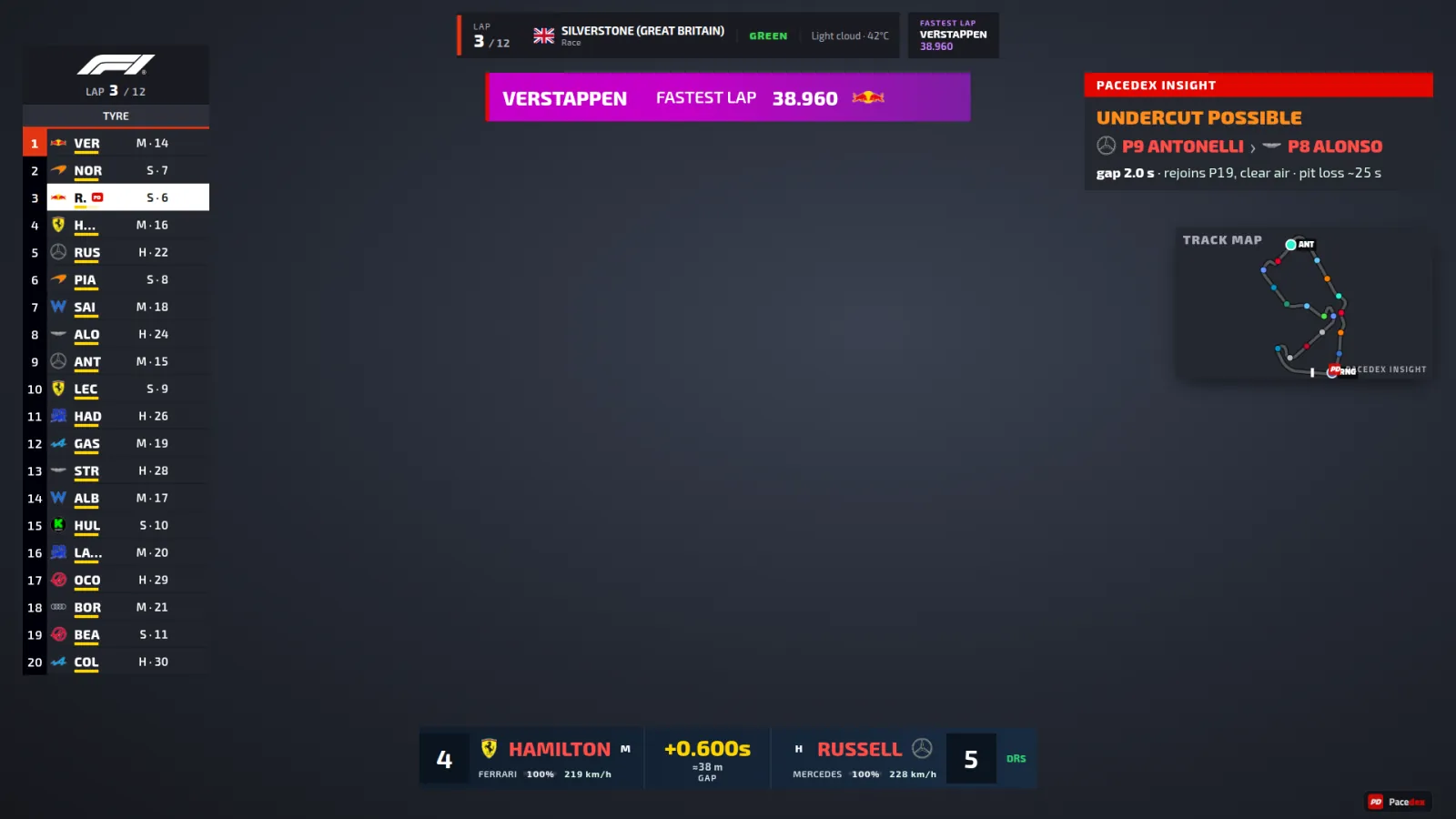
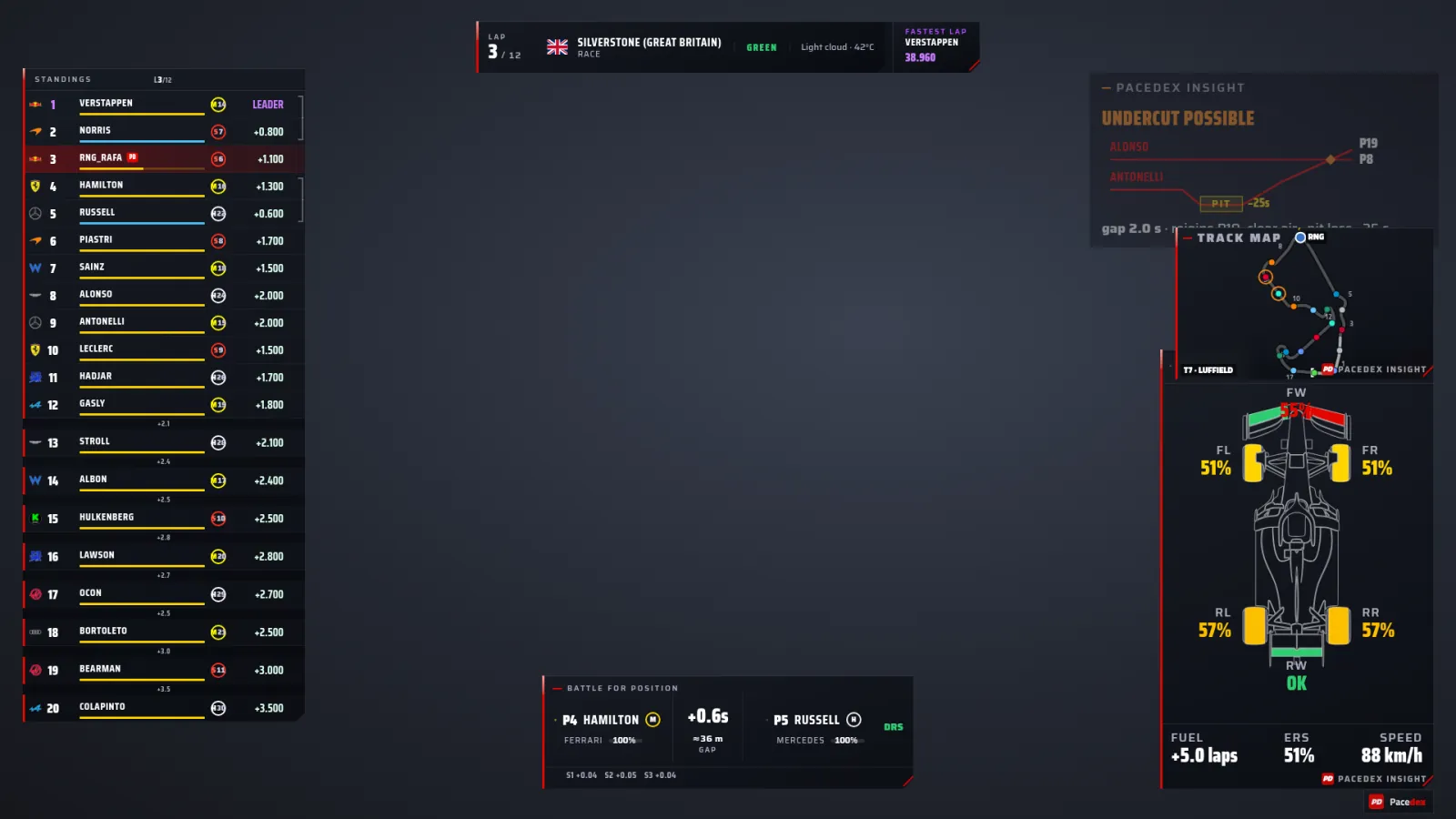
The timing tower, the lap counter, an event card up top (safety car, fastest lap…), Pacedex Insight, the map and the battle at the bottom. The grey background is just for the picture: in OBS, your game sits behind it.
Look and layout
All in the same editor from Part 1. OBS follows on its own once you save.
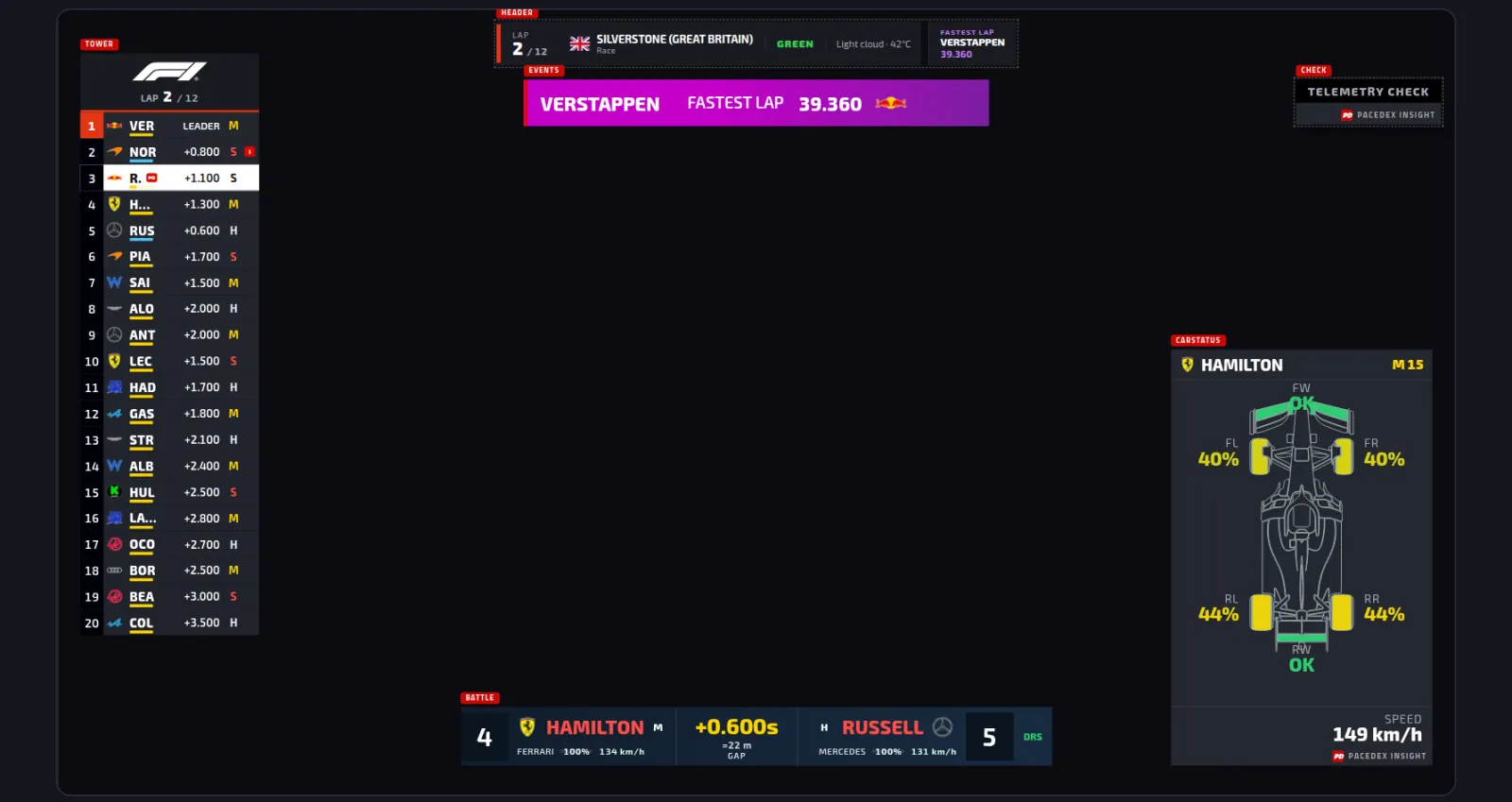
Pick the Skin: F1 TV (replica) or Pacedex

OBS switches straight away. This is the Pacedex skin:
Drag a graphic on the stage to move it
The stage is your OBS screen. Click a graphic to select it. The red tag shows its name.
Below the stage, adjust Size and Background
Background at zero leaves just the text, no dark box.

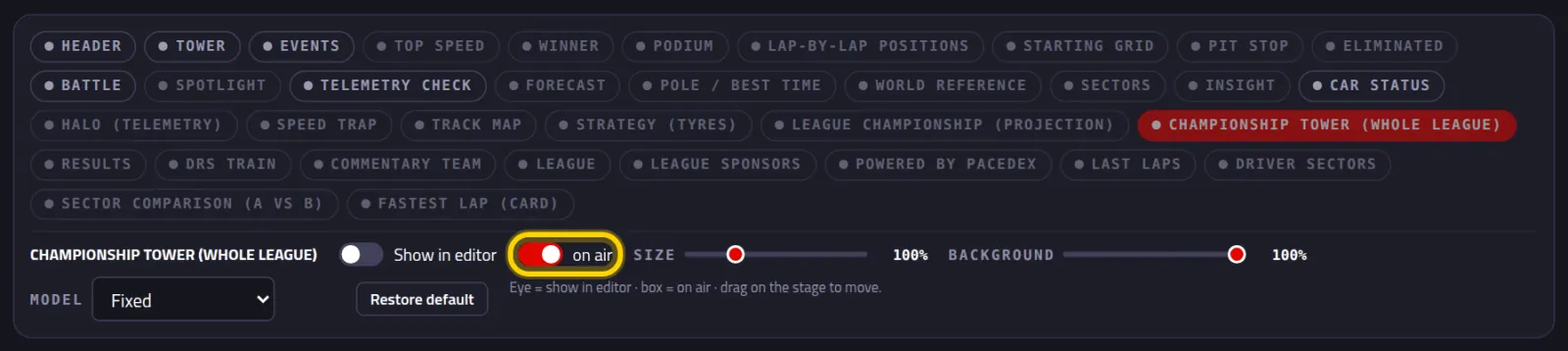
Don't want a graphic? Switch off on air
Pick the graphic in the list (the tags above the controls) and flip the switch. Green dot = on air.
Click Save

Saved — this PC's /broadcast (and OBS) now use this layout. OBS picks up the change within 10 seconds.
One graphic per source
Want the tower in one scene and the league standings in another? Make one Browser source for each and tell the address what to show.
Add &show= to the end of the address
After show=, the graphic names, separated by commas. Just the tower and the map:
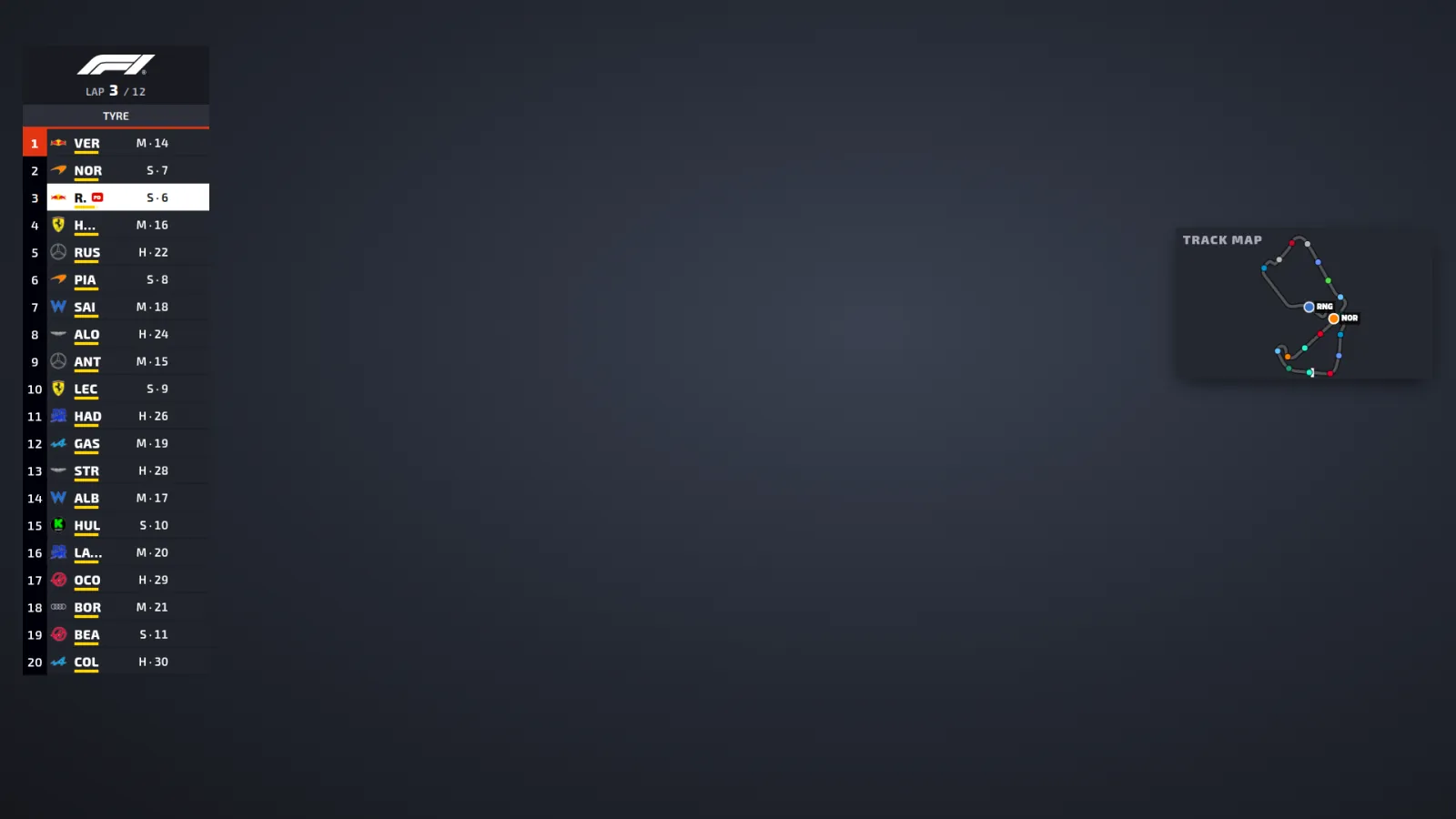
Pick the names from this list
tower | The timing tower, all 22 cars. |
header | The top strip: lap, track, flag, weather and fastest lap. |
events | The top cards: safety car, fastest lap, penalty, retirement. |
battle | The battle at the bottom, with the gap between two cars. |
map | The track map with the cars. |
carstatus | Tyres, wing and damage for the car in focus. |
halo | Telemetry for the car in focus: speed, gear, pedals. |
strategy | Everyone's tyres and stops. |
pitstop | The pit stop card. |
insight | Pacedex Insight: undercut on, pace, tyres. |
forecast | The weather forecast. |
grid | The starting grid. |
results | The classification at the end of the session. |
podium | The podium. |
champtower | The Championship tower (whole league): the live league table. |
champ | A quick card with the championship top 6. |
sponsor | The league's sponsors. |
The names are in English whatever your language. The full list is on the red tags on the stage (Part 4).
To position things before the race, use &force=
Lots of graphics only show when something happens. force= shows them right now, so you can line them up in OBS:
Change the language with lang=
lang=en, lang=pt or lang=es. It's the language of the text on the broadcast.
The championship tower
Your league table, “as it stands”, next to the timing tower. The points this race is paying show in green.
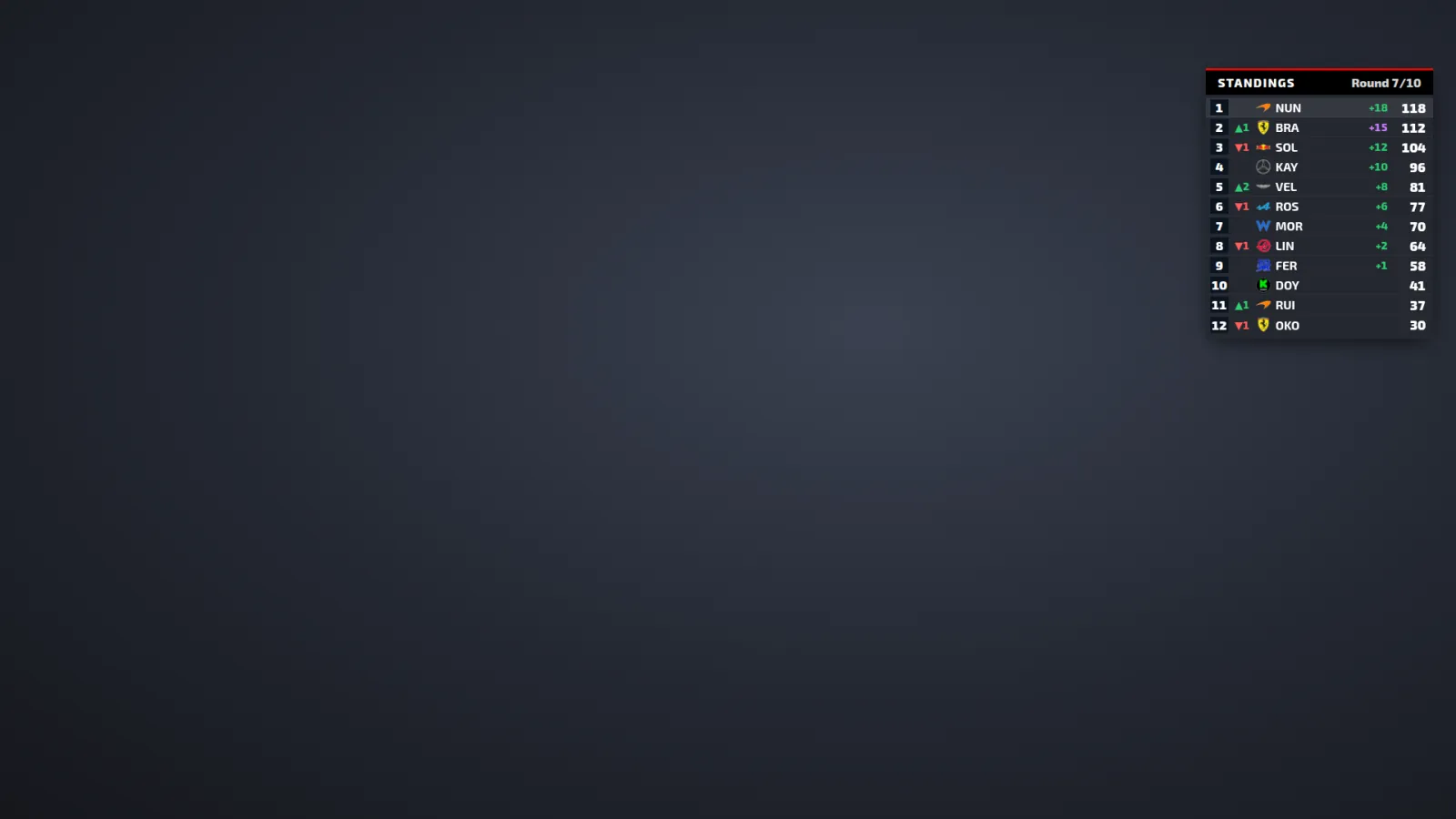
- It only shows in the race of one of your league's rounds: the race has to be at that round's track, around the time on the calendar. How to set up the league →
- It starts switched off: in the editor, pick Championship tower (whole league), turn on on air and click Save (Part 4).
- In a source of its own: &show=champtower at the end of the address.
The league and drivers in the picture are made up.
Something wrong?
- The source is empty (see-through): is Pacedex open? Is the game sending data (are you on track)? Paste the address into your browser to test it. Outside a race, all you get is Waiting for the race… — that's normal.
- Wrong size or cropped: the source must be Width 1920 and Height 1080. Smaller canvas? Right-click the source → Transform → Fit to screen.
- The layout didn't reach OBS: did you click Save? Give it 10 seconds. Still nothing? In the source properties, click Refresh cache of current page.
- OBS is on another PC: 127.0.0.1 only works on the Pacedex PC. For another PC, use the Booth and the address pacedex.com/live/<code>. Booth tutorial →
- “Couldn't reach OBS” error: when you clicked Add to OBS, Pacedex couldn't find OBS. The OBS WebSocket server is off (Part 2, step 1) or the password is wrong. Or do it by hand (Way 2).
- The championship tower doesn't show: is on air switched on? Is it the race (not practice or qualifying)? Is the race one of the rounds on the league calendar?
Still stuck? Post a screenshot in our Discord and we'll help.
What to learn next
Your race, looking like TV
Free, on your PC, for F1 24, F1 25 and the 2026 Season Pack.
Free download · Windows →