 Pace


Commentate your league, booth in hand
You watch the race on your PC and pick, in one click, what goes on the broadcast: a driver's name strap, the fastest lap, a pit stop. And you can bring in a co-commentator from another city. In the screenshots, the yellow outline shows where to click.
- Pacedex installed and receiving the game. Not yet? Do the first race first.
- F1 running on the same PC, in the league lobby, as a spectator.
- The overlay already in OBS (optional, but it's what goes on air). See the overlay tutorial.
Open the booth
The commentator watches, not drives. Pacedex reads the whole race from the game, in spectator mode.
Join the league lobby as a spectator
With Pacedex open. It notices by itself.
The Spectator mode banner at the top of the dashboard. Watched races go to a separate history and the engineer stays quiet.
In the left menu, under Broadcast, click Commentary Booth
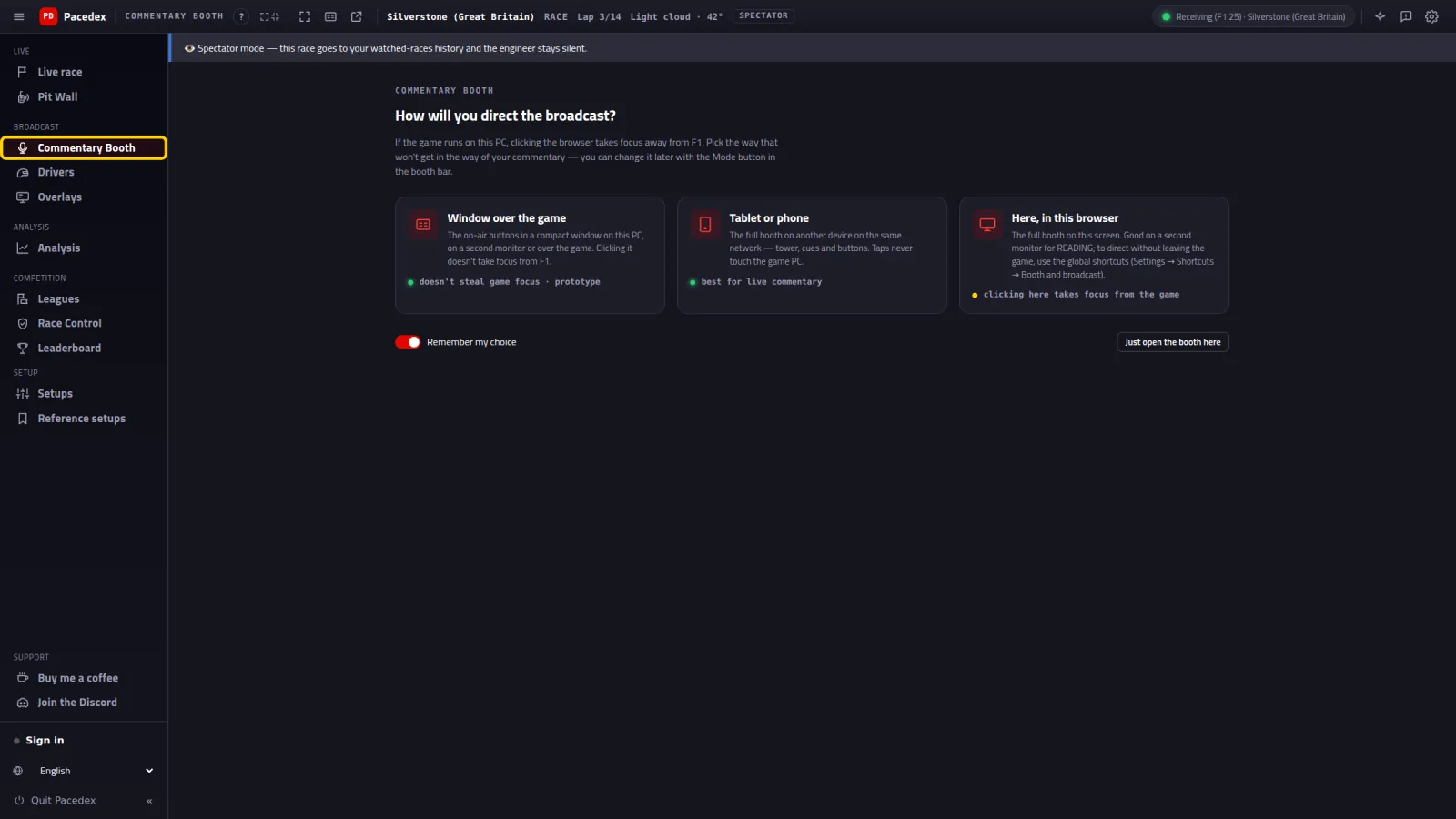
The question How will you direct the broadcast?, with three options.
Window, tablet or here
The catch: with the game on the same PC, clicking the browser takes focus away from F1. Each option gets around that differently.
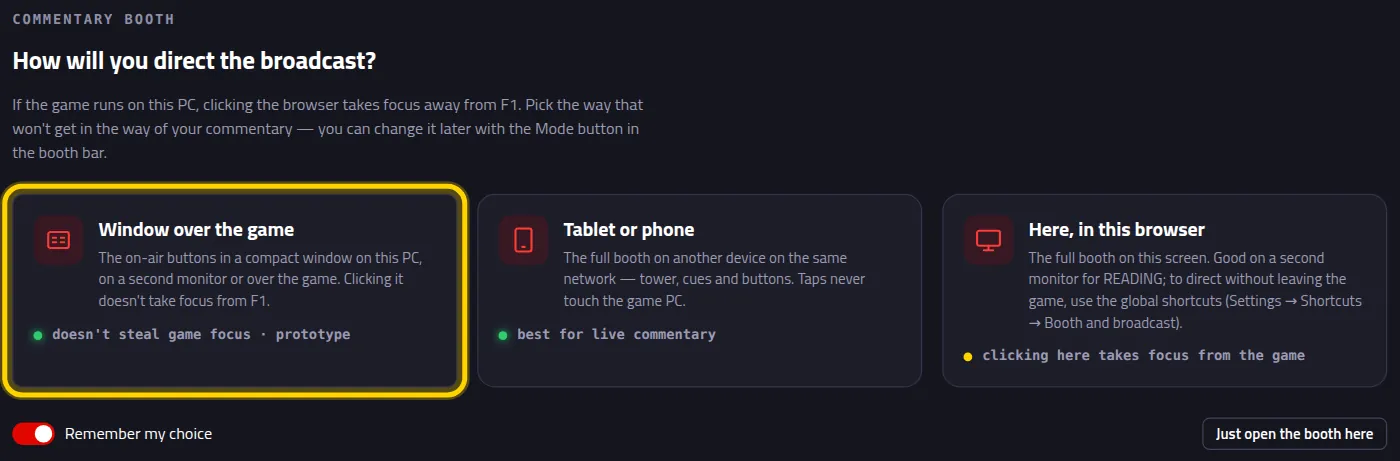
Option 1 · Window over the game (one monitor)
A compact Pacedex window, over the game or on a second monitor. Clicking it does not take focus from F1. Windows only.
Click Window over the game
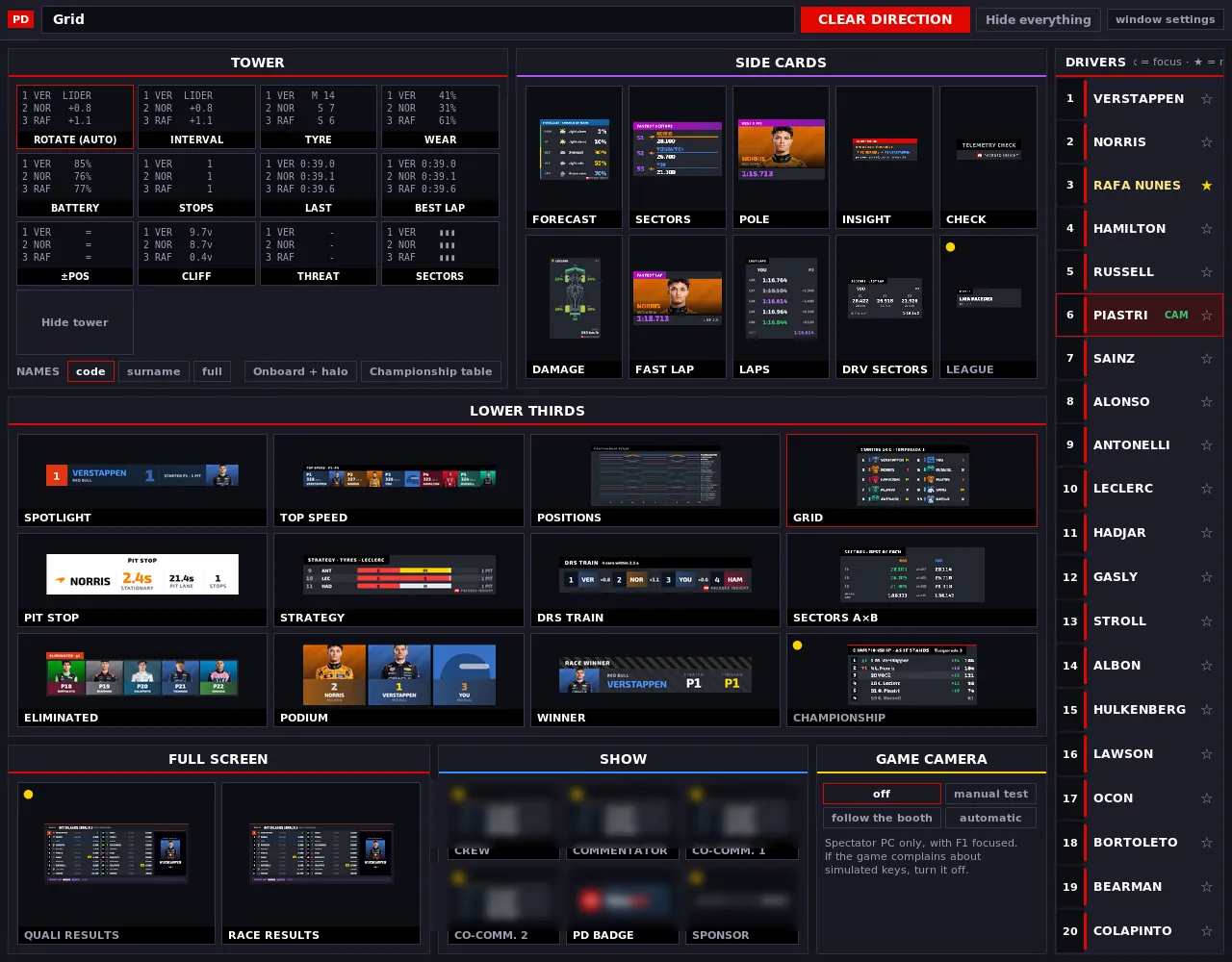
The compact booth. Each card shows what the graphic looks like. Click a card and it goes on air.
Option 2 · Tablet or phone (best for commentary)
The full booth on a device next to you. Tapping it never touches the game PC.
Click Tablet or phone, then Turn on network access

First time only. It's the same access the phone dash uses.
Point the tablet's camera at the QR
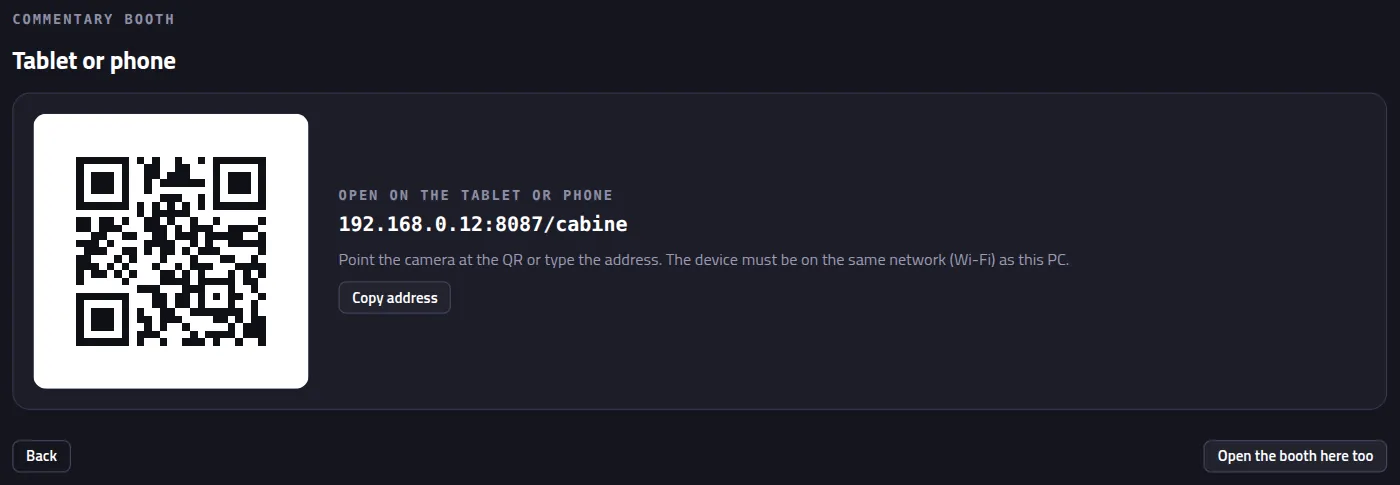
The booth opens on the tablet. It must be on the same Wi-Fi as the PC.
Option 3 · Here, in this browser (two monitors)
The full booth right in the dashboard. Great for reading on a second monitor. To direct without taking focus from the game, use keys: Settings → Shortcuts → Booth and broadcast (keyboard, Stream Deck or a wheel button).
Changed your mind? Click the mode button in the top bar

It's Booth mode (window, tablet or here). The question comes back.
Put it on air
The full booth (tablet or here). Every click becomes a graphic on the OBS broadcast.
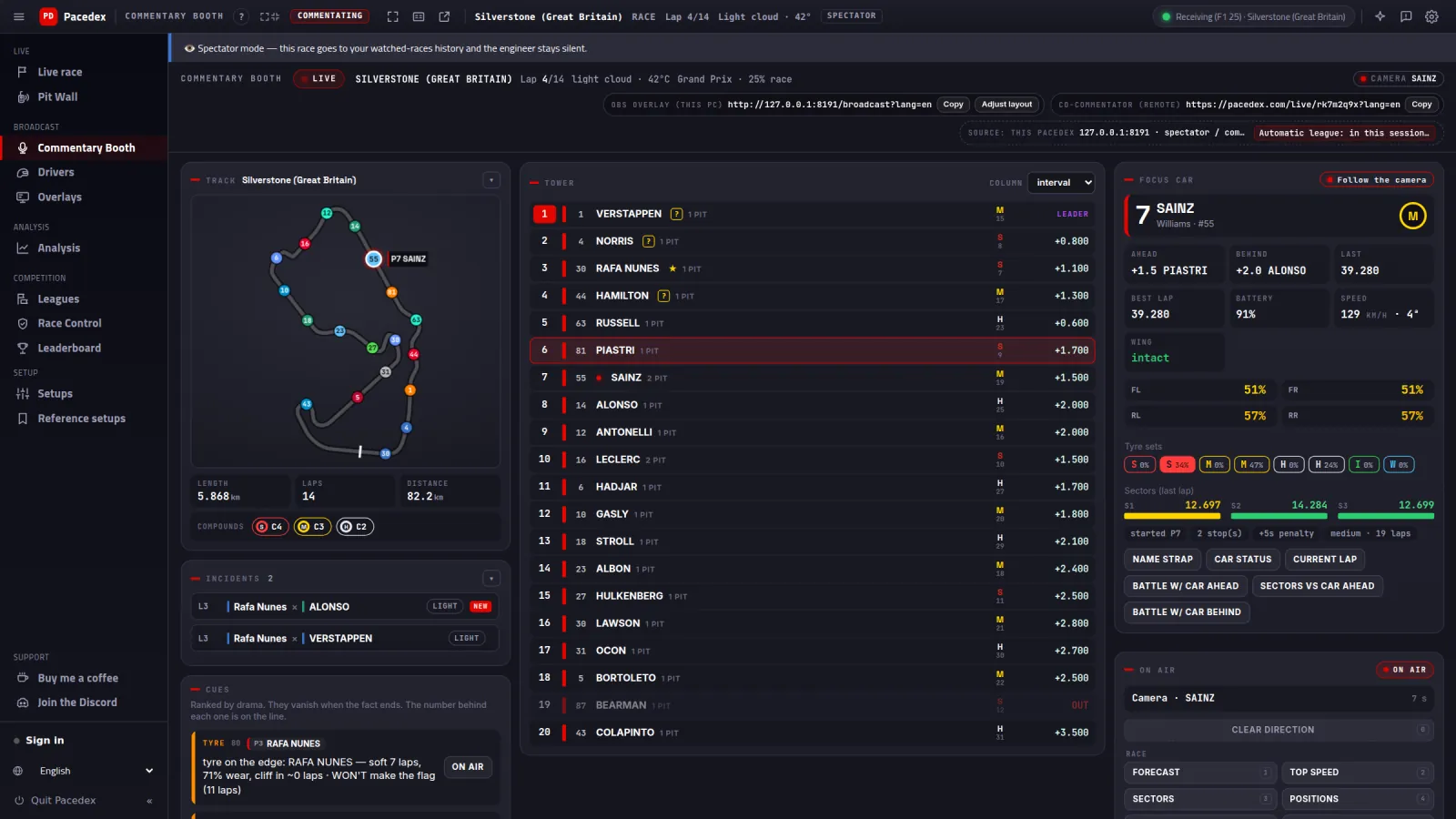
Three columns: Cues (what's happening), Tower (every car) and, on the right, Focus car and On air.
Read the Cues. Like one? Click On air
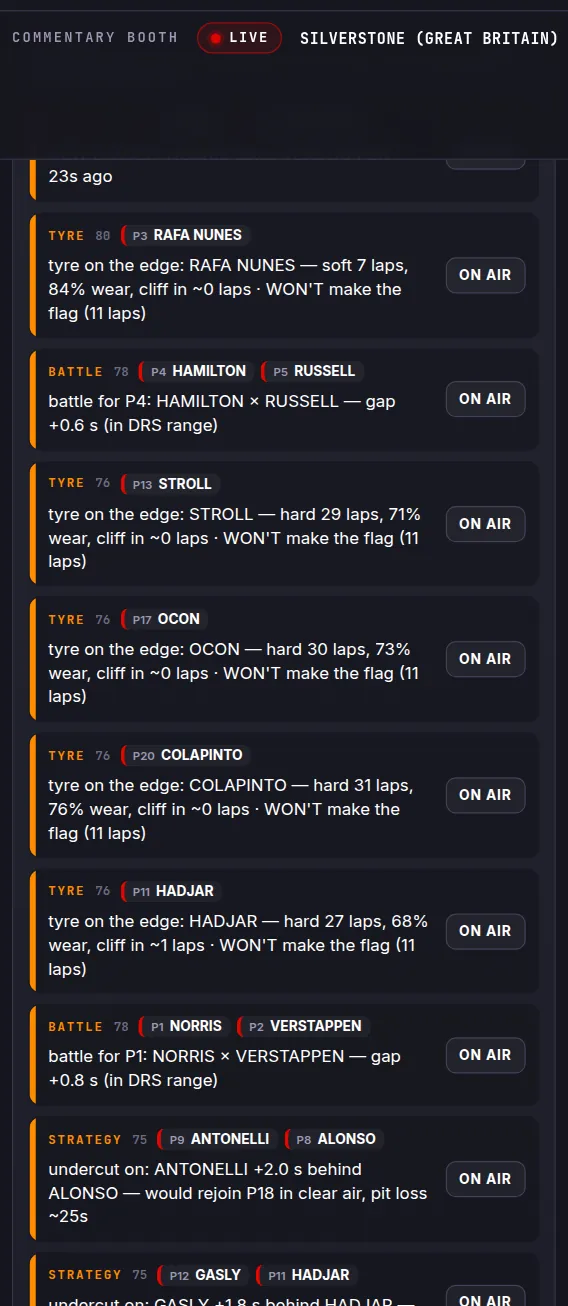
The hottest stay on top. They vanish by themselves when the moment is over.
Click a driver in the Tower
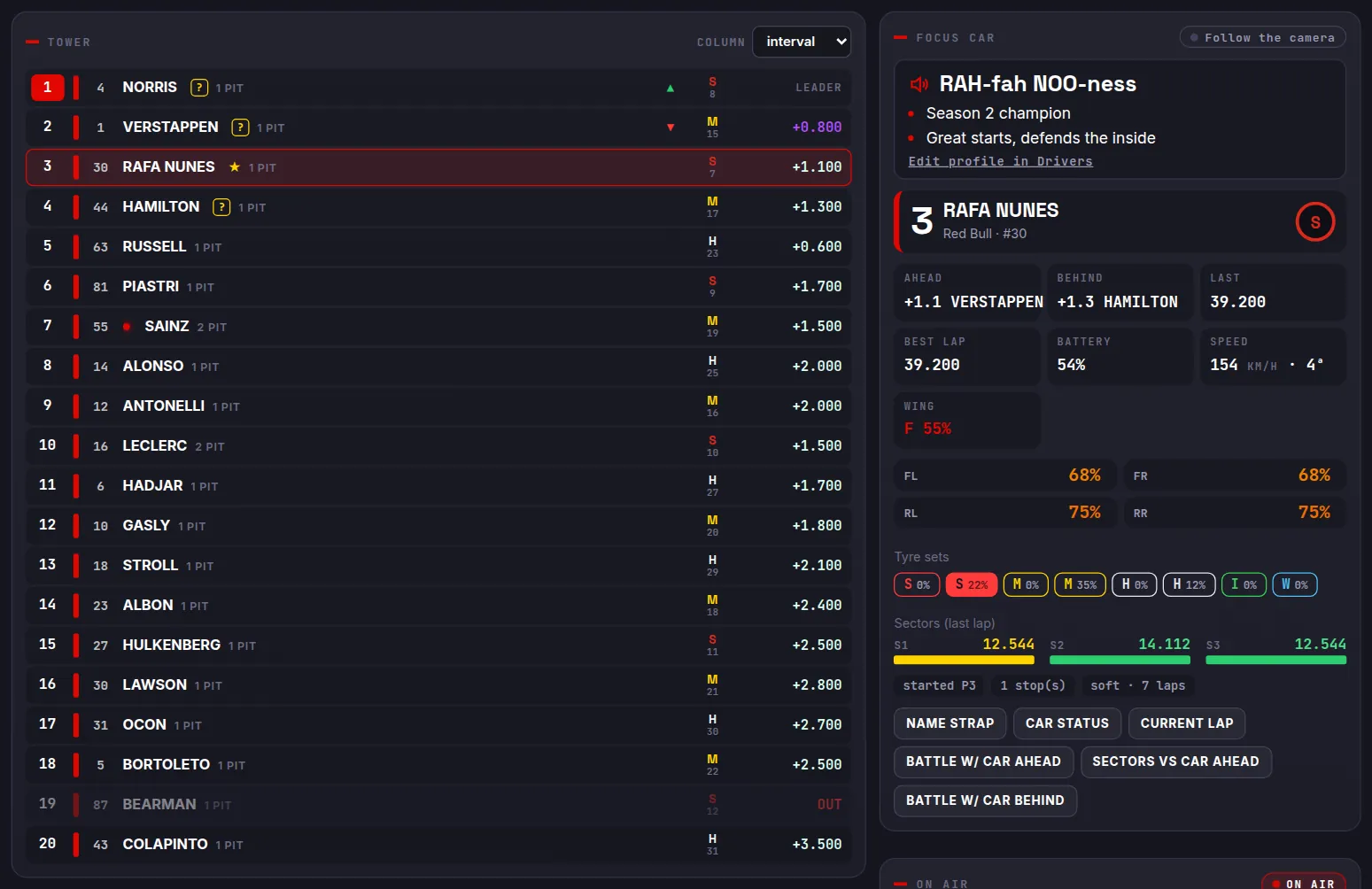
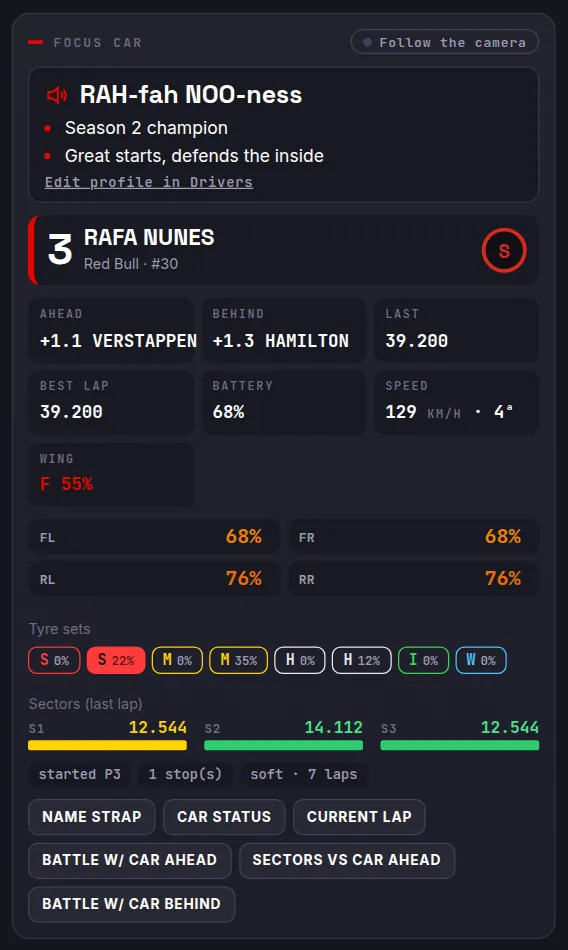
They become the Focus car: tyres, intervals, sectors and the Tyre sets they have left, with the wear of each (the fitted one highlighted). On top, their pronunciation and notes (only you see them).
Under Focus car, click Name strap
The driver's name strap goes on the broadcast, bottom left:
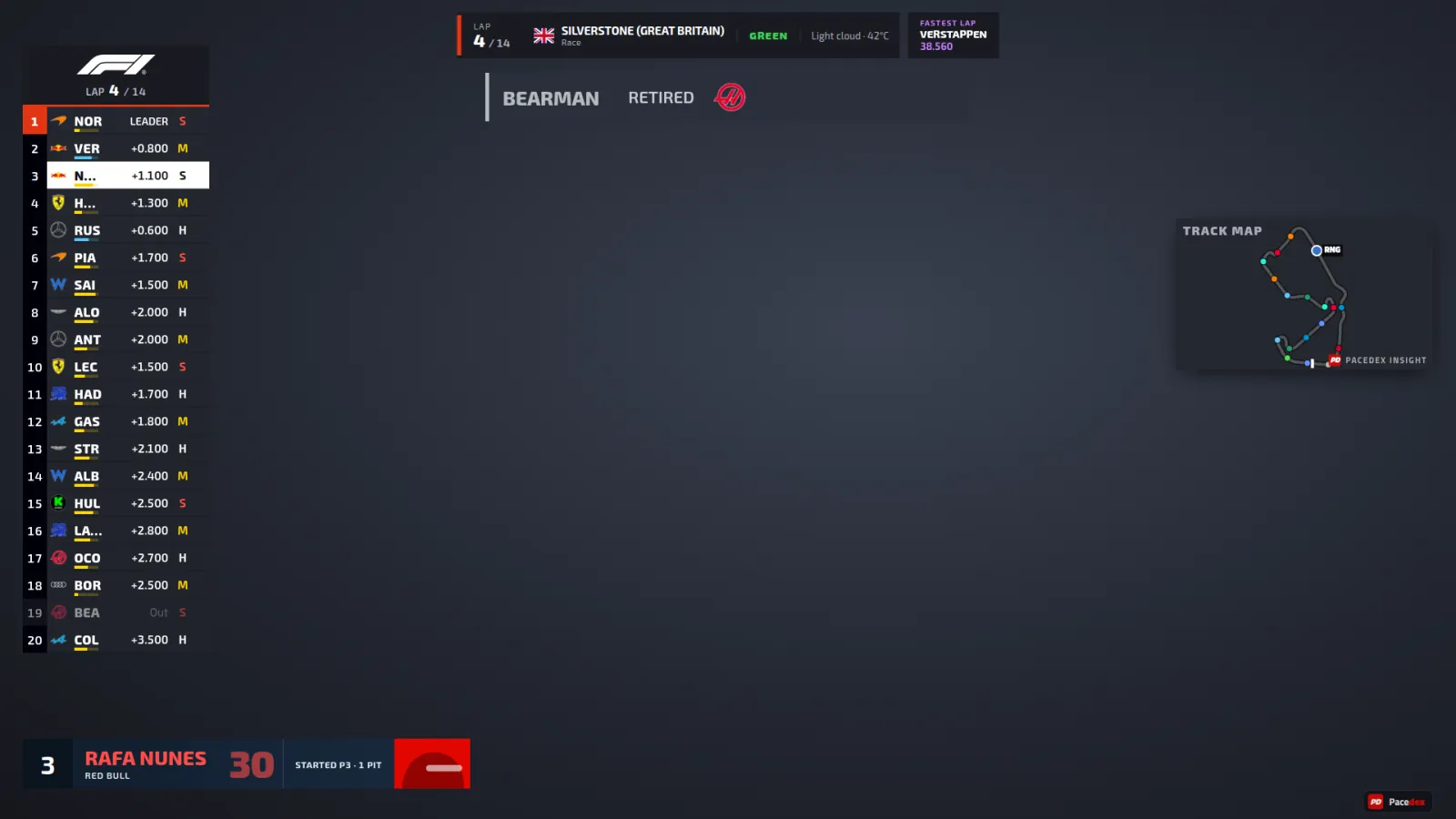
The other buttons work the same way: Car status, Current lap, battle with the car ahead or behind.
To take it off air, click Clear direction (or press Esc)
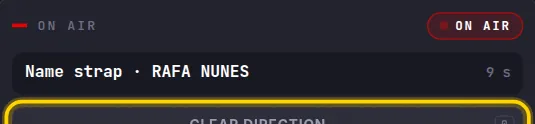
If you don't clear it, the graphic leaves by itself after a few seconds. At the top, On air tells you what's on screen and for how long.
Under On air, click Fastest lap
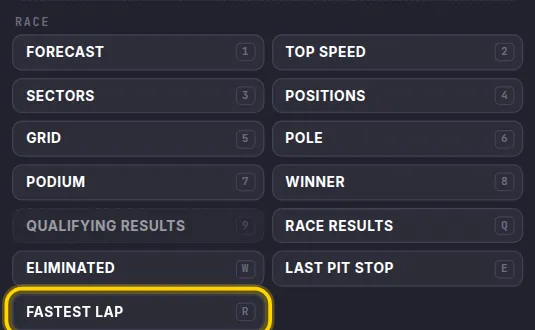
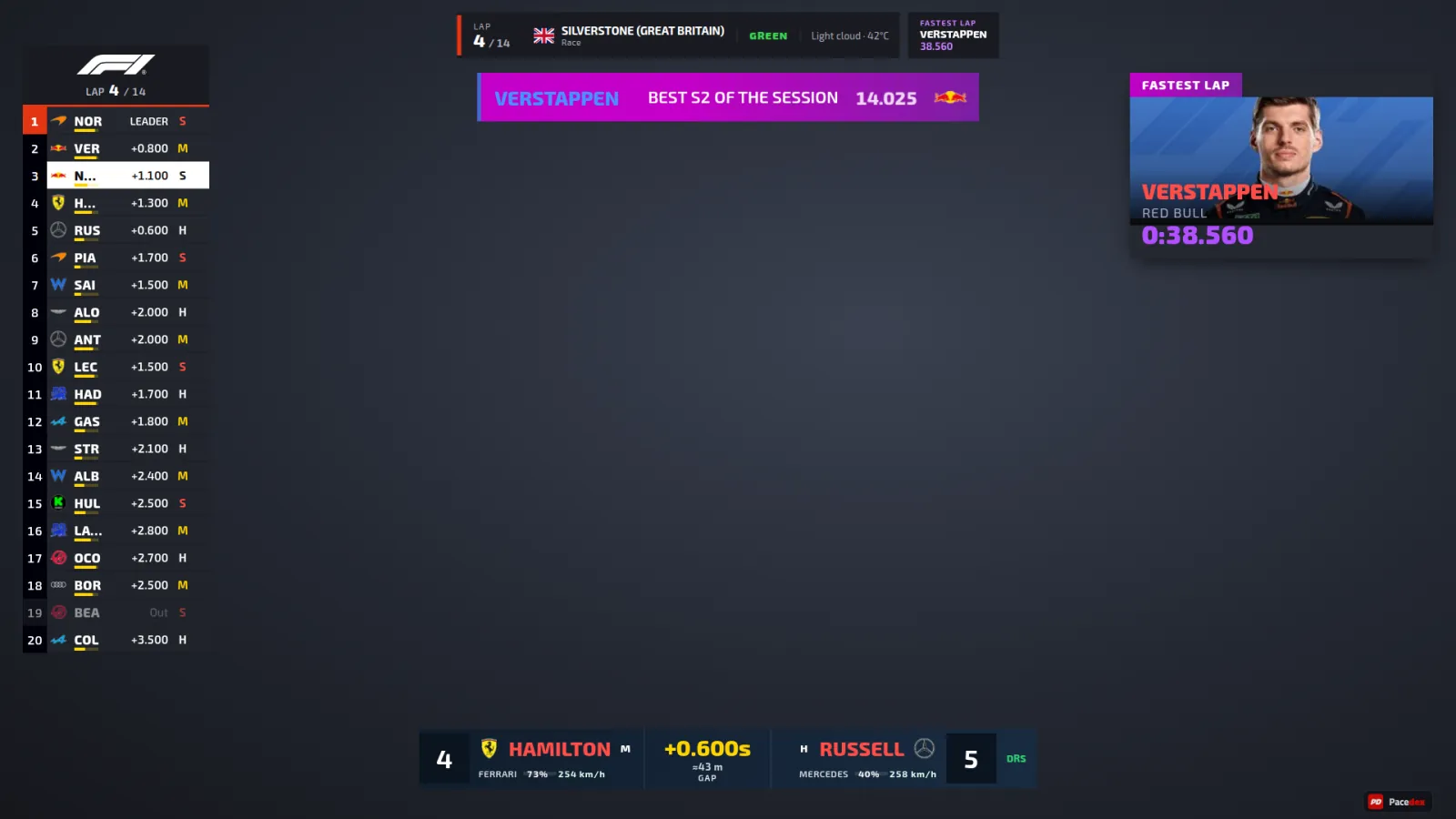
The fastest-lap card comes in at the corner of the broadcast:
The buttons come in groups: Race, Focus car and drivers and Broadcast. The number in each one's corner is its key.
Pick the Tower column, below the buttons
Interval, tyre, wear, stops… or rotate (auto). Nobody directing? The Auto-director cuts to the battles and pit stops by itself. Your click always wins.
Names and pronunciation
Ugly gamertag on screen? Sort it out before the race, in Drivers (Broadcast menu).
In Drivers, pick the driver and click Edit profile
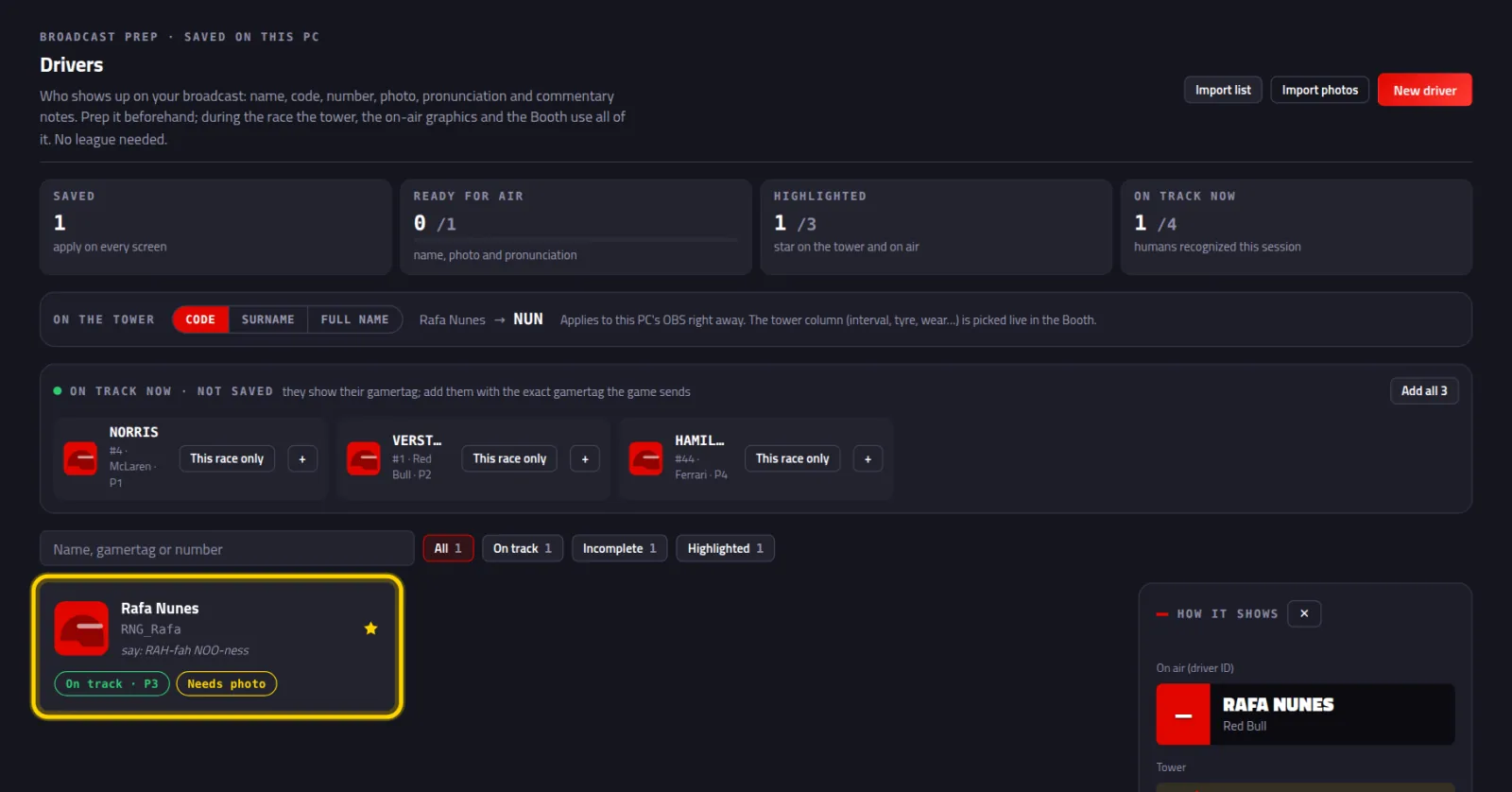
Nobody there yet? With the game running, whoever is on track shows up there to add, or use New driver. Got a list ready? See the league tutorial.
Fill in Name on screen, Tower code and Pronunciation. Click Save
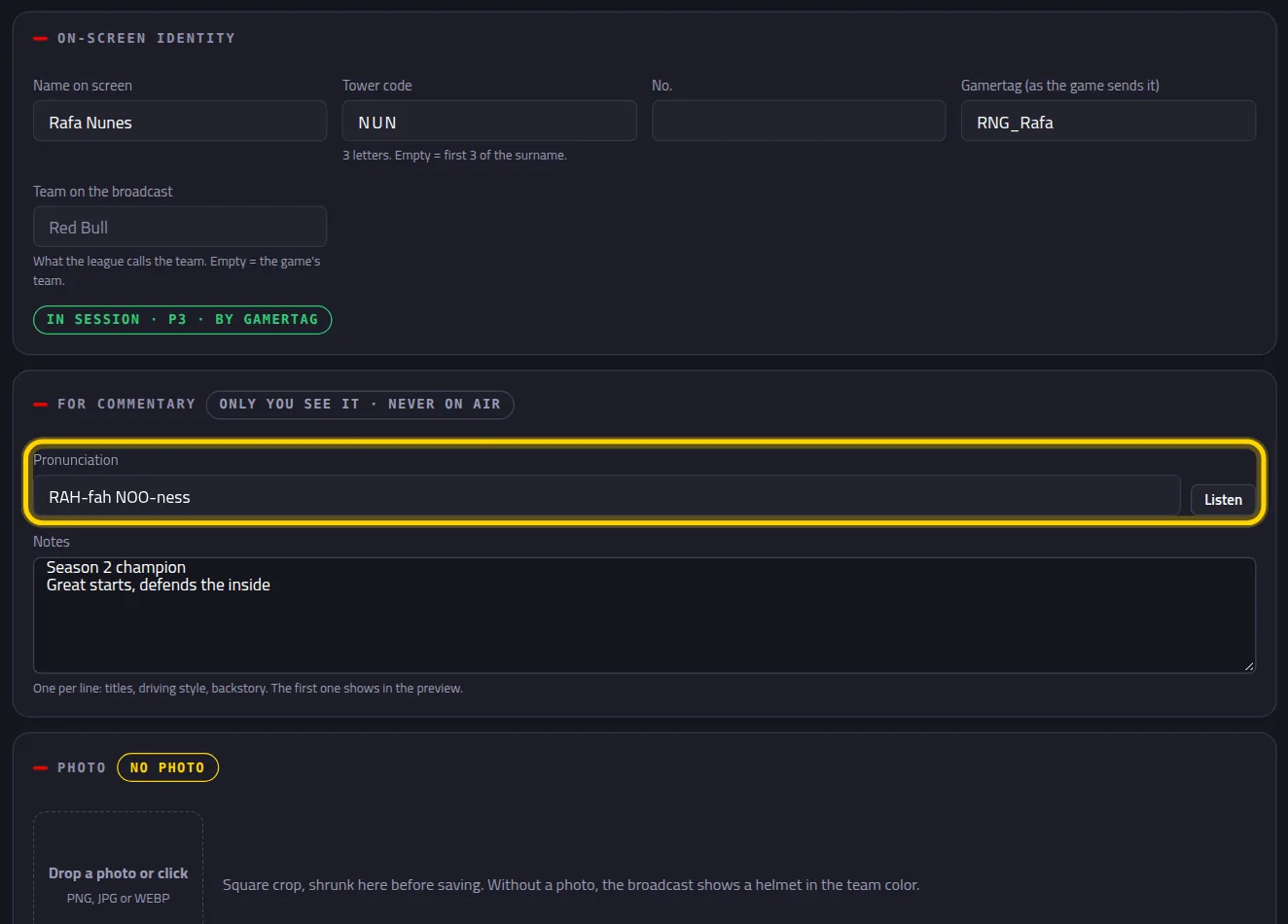
The broadcast shows Rafa Nunes, not the gamertag. Pronunciation and Notes stay in your booth only: Only you see it · never on air.
Remote co-commentator
A friend commentates with you from another city. They see the same graphics you put on air, without installing anything.
At the top of the booth, under Co-commentator (remote), click Copy

The link is pacedex.com/live/<code>. Send it to them in chat.
The co-commentator opens the link in their browser (or their OBS)
In OBS: a Browser source, Width 1920, Height 1080, as in the overlay tutorial.
The same graphics as your broadcast (like the name strap in Part 3), about half a second behind. When you click in the booth, their screen changes too.
Video for the co-commentator, without Discord
The easiest way is screen sharing on Discord. Without Discord, there are two free routes.
pacedex.com/live/…VDO.Ninja · unlisted streamVDO.Ninja: free, in the browser, almost no delay
Open vdo.ninja in the PC's browser, choose to share your screen and send the co-commentator the viewing link it gives you. Nobody installs anything.
Want to send the OBS output, graphics included? In OBS 30 or newer: Settings → Stream → Service: WHIP, and paste the publishing address VDO.Ninja gives you for OBS.
An unlisted stream on YouTube or Twitch
Run a test stream that only people with the link can see, on the lowest latency setting the platform offers. There's more delay (a few seconds): your co-commentator will hear about a move a little late.
Something wrong?
- The Co-commentator (remote) chip doesn't show: your Pacedex isn't in a room. Check Settings → Pit Wall — auto-room and make sure Automatic league (same game session) is on. It only joins with 2 or more human drivers in the session. A solo practice has no room.
- The co-commentator link stopped working: with the automatic league, the code changes every session (practice, quali, race). Copy it again and resend. The league room has a fixed code.
- The booth is empty: is the game sending data? Are you in the lobby, in a session? Outside a session, the tower is empty.
- I clicked and the game paused / lost focus: clicking the browser takes focus from F1. Use the Window over the game, the tablet or shortcuts (Part 2).
- A button is dimmed: that graphic has no data right now (nobody has pitted yet, the race hasn't started…). Hover over it to see why.
- The graphic doesn't show in OBS: is the overlay in this PC's OBS? See the overlay tutorial.
- Tyres, battery and damage empty for one driver: they have telemetry set to Restricted in the game. Require Public in your league rules.
Still stuck? Post a screenshot in our Discord and we'll help.
What to learn next
Your league, with TV-style commentary
Free, on your PC, for F1 24, F1 25 and the 2026 Season Pack.
Free download · Windows →