 Pace


A friend as your race engineer, on your radio, from anywhere
You drive. A friend opens a link on their phone, sees your car live (tyres, fuel, gaps, the tower) and talks to you on team radio. They don't install anything and don't need a lobby slot. In the screenshots, the yellow outline shows where to click.
- Pacedex installed and receiving the game. Not yet? Do your first race first.
- Internet on your PC and on your friend's device.
- A friend with a phone, tablet or PC. That's all on their side.
Open the wall
Nothing leaves your PC until you click. You open it, and only for this session.
In the left menu, under Live, click Pit Wall
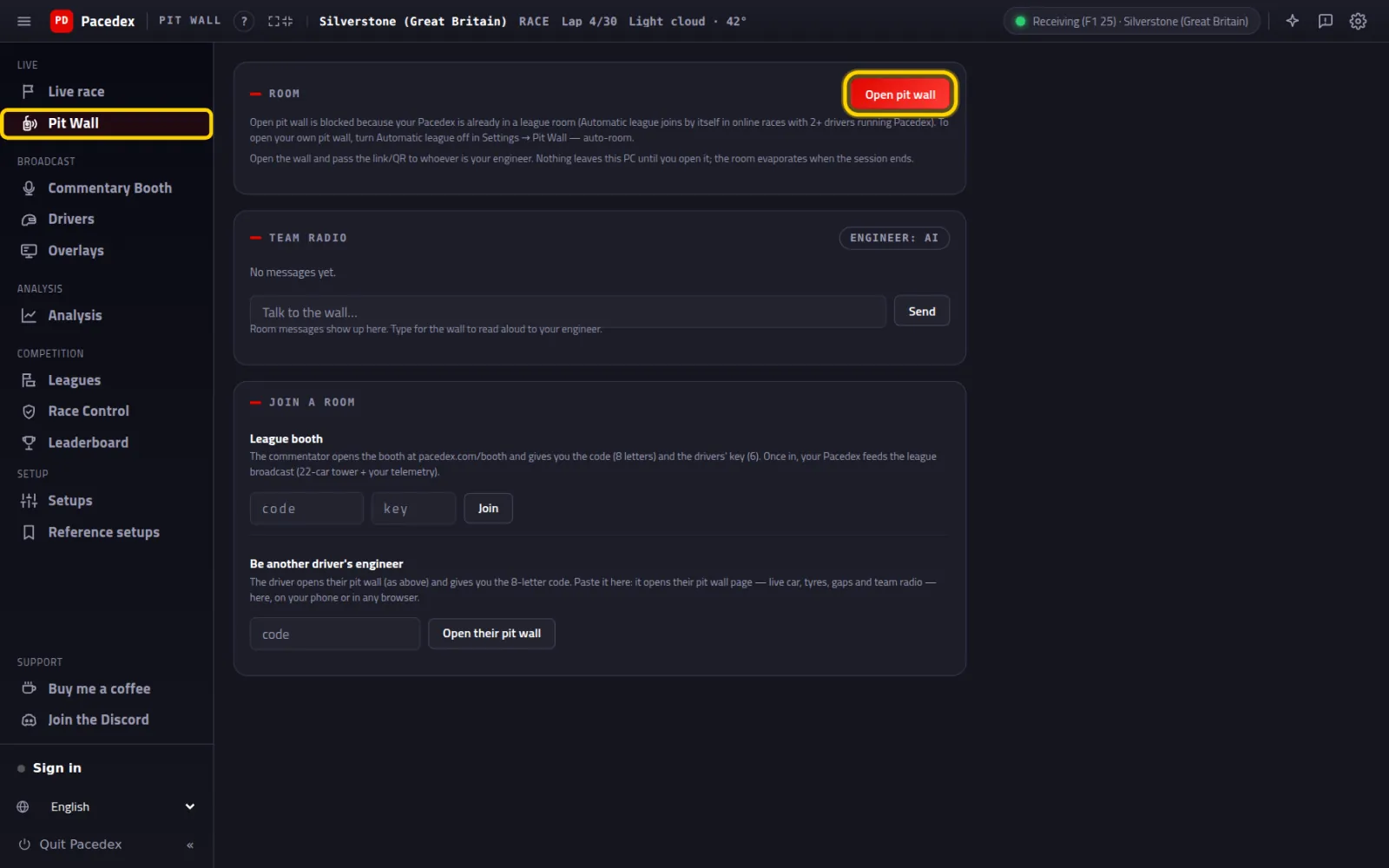
Three boxes: Room, Team radio and Join a room.
Click Open pit wall
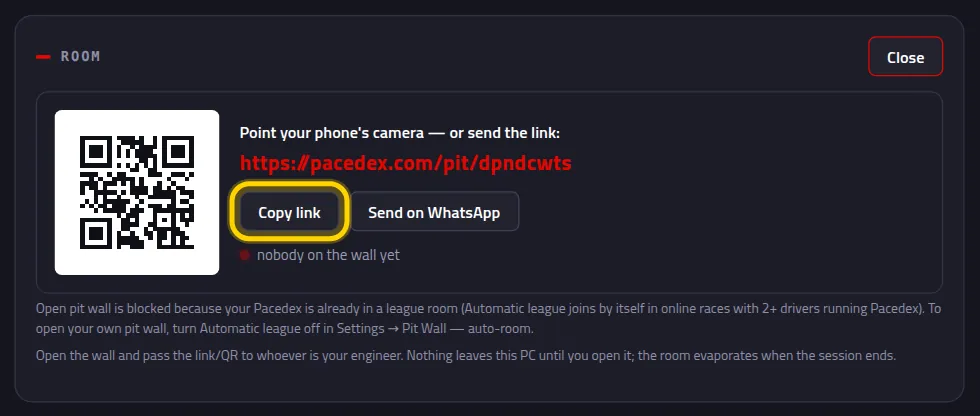
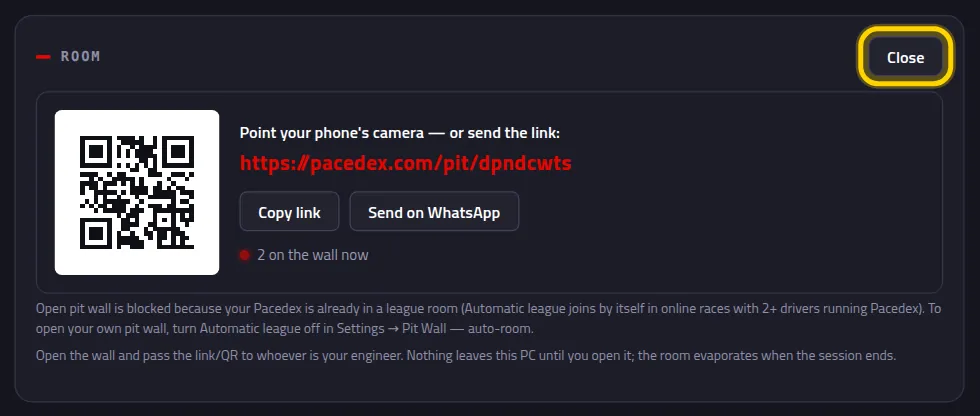
A QR code and your pit wall link: pacedex.com/pit/<code>. The code is 8 letters and digits.
Click Copy link and send it to your friend
Paste it into whatever chat you use. Or click Send on WhatsApp, which writes the message for you. If they're sitting next to you, they can just point their phone camera at the QR.
Your friend opens the link
In the browser on a phone, tablet or PC. No account, nothing to install.
They tap the link you sent
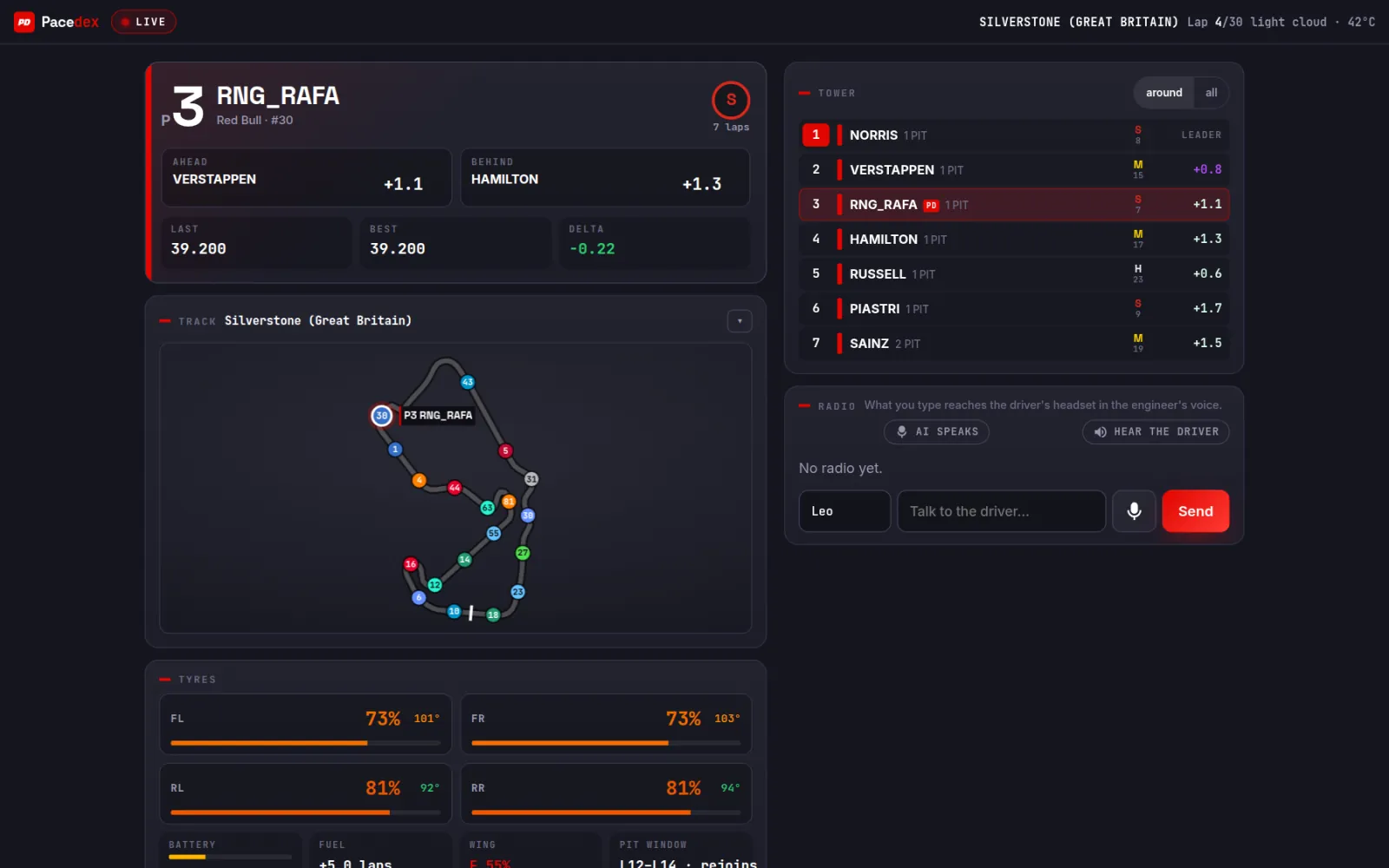
The LIVE badge at the top and your car, half a second behind you: position, who's ahead and behind, the Track with your car highlighted, all four tyres, Battery, Fuel, Wing, Pit window, the Tower, the Radio and the Weather. At the bottom of the page: Battery & time (step 3).
On a phone it's the same page, in one column
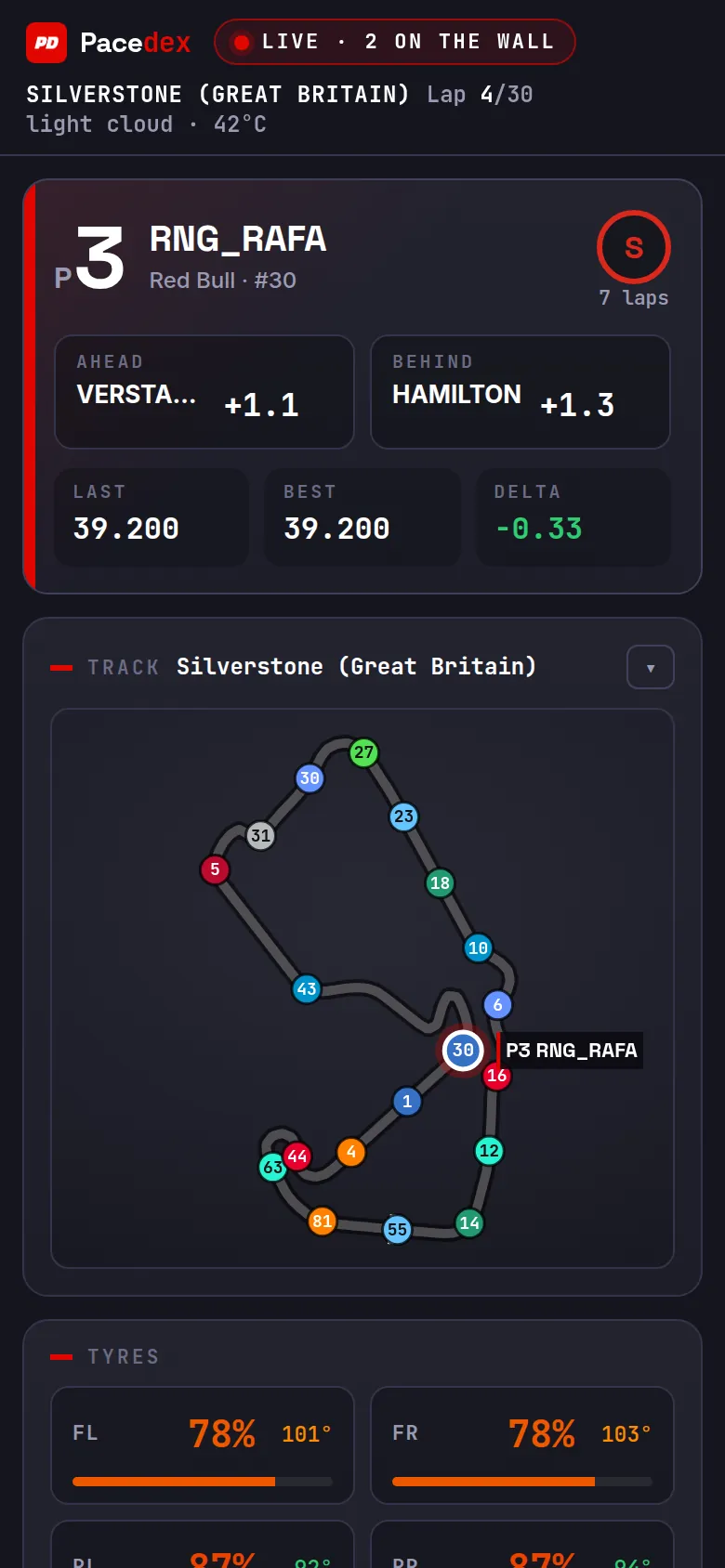
Scroll down for the tyres, the tower, the radio and, at the bottom, Battery & time.
In Battery & time, they compare two laps
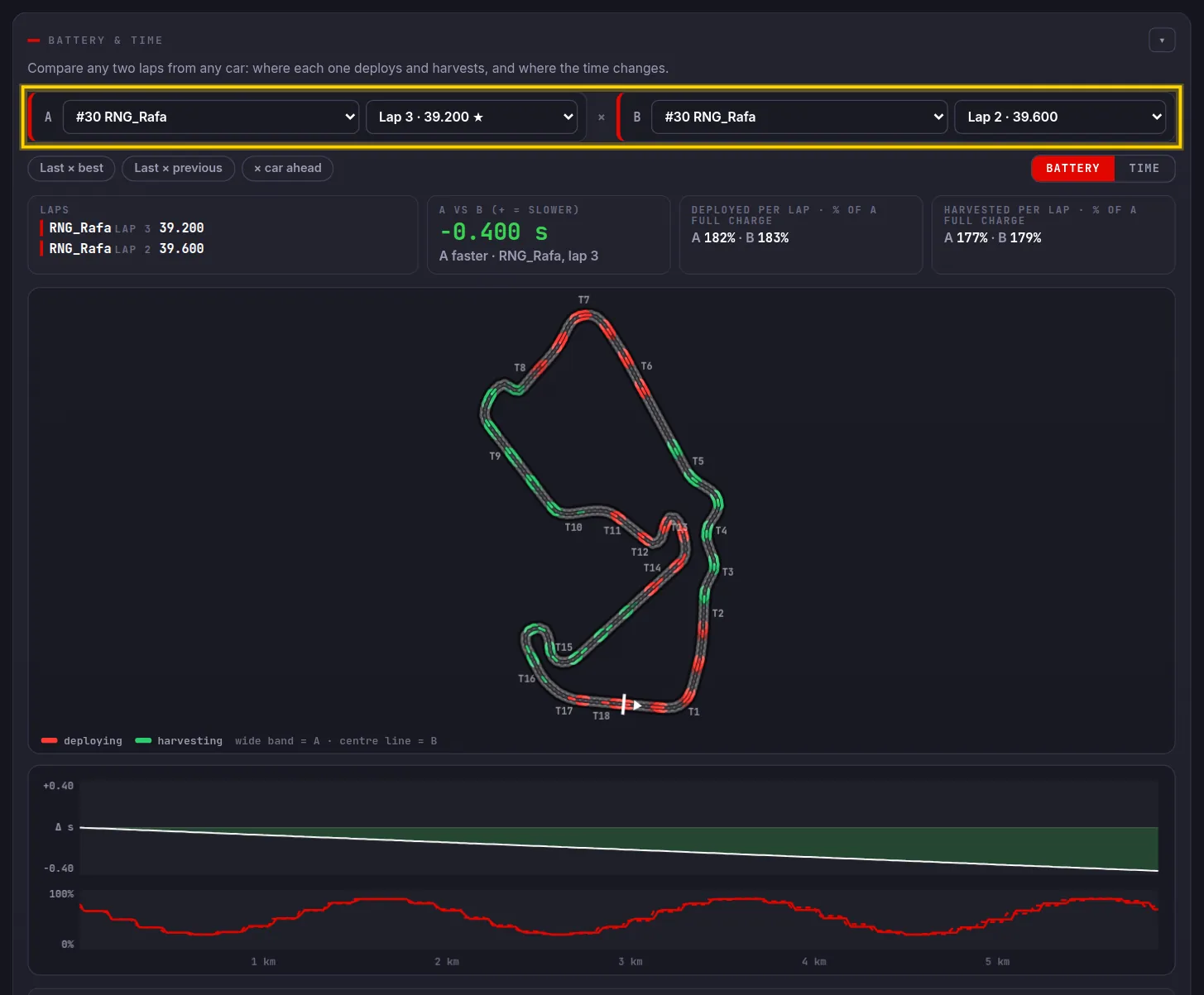
They pick lap A and lap B, from any car, or tap a shortcut: Last × best, Last × previous or × car ahead.
In Battery, the map shows where each lap deploys and harvests. In Time, where A gains and loses. Underneath, the delta trace and, further down, a corner-by-corner table.
On your dashboard, you see who joined
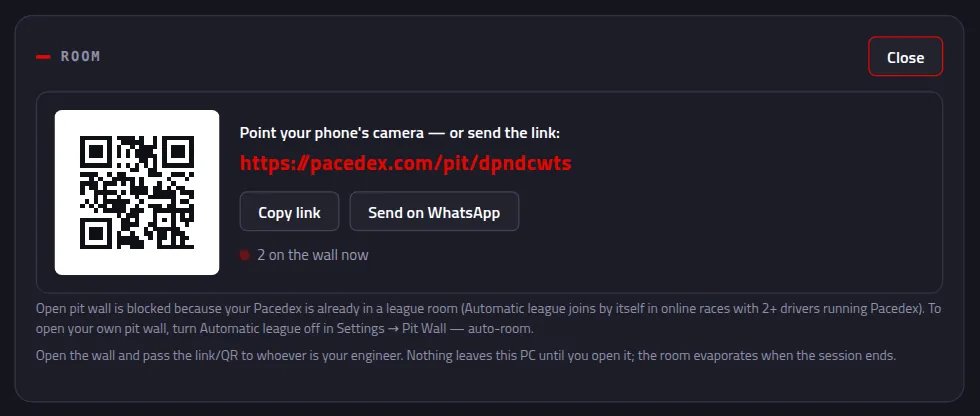
Under the link: 1 on the wall now (2 in the screenshot: your friend's PC and phone).
They talk, you hear
Whatever they type reaches your headset in the engineer's voice, with the radio effect.
They type their name, the message, and tap Send
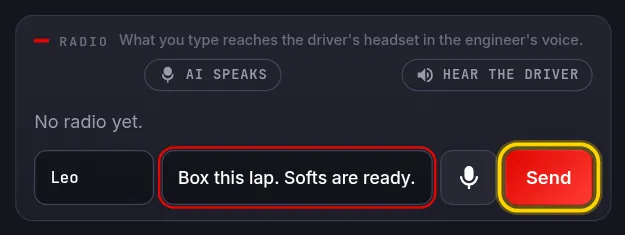
Their name goes on every message. The page remembers it for next time.
The message gets the in the headset tag
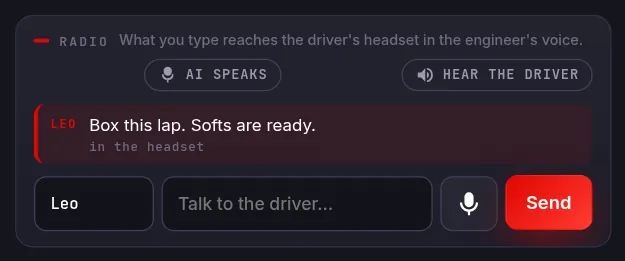
First sent, then in the headset: your Pacedex got it and the engineer is about to say it.
You hear it in your headset. And see it on the dashboard
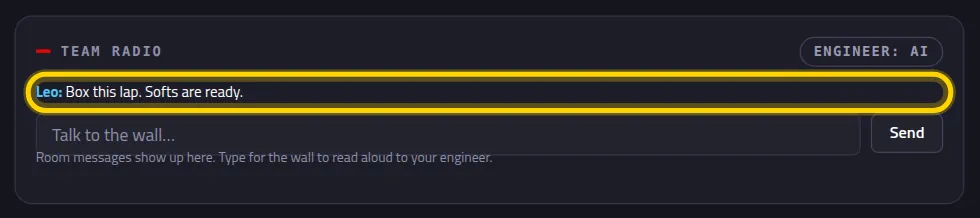
In the Pit Wall tab, under Team radio. And in the radio strip of Live race, with the pit wall's blue edge:

It also shows in the overlay's radio window, on top of the game.
You reply
By typing on the dashboard or, on track, with a wheel button.
Type in Talk to the wall… and click Send
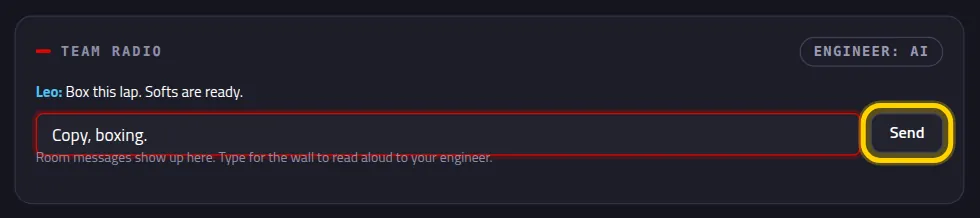
Handy in the garage or between sessions.
Your friend sees your reply, with your name
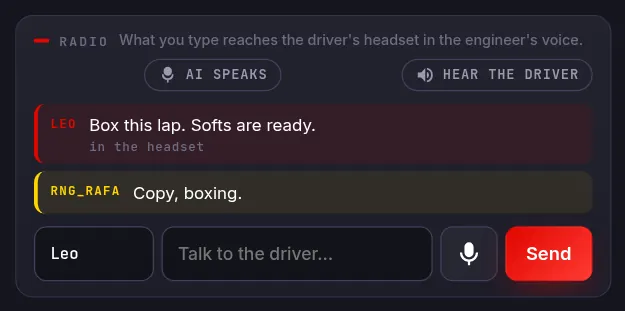
With Hear the driver on, the page reads your reply out loud to them.
On track: put team radio on a button
In Settings → the Engineer card, find the Team radio button (talk to the pit wall) row. Click Wheel (or Keyboard, or Gamepad) and press the button you want to use.

The button's name appears next to the row title. From then on: hold, speak, release. Your friend hears your voice and reads what you said.
They take over the radio
Your AI engineer and your friend talking over each other is a mess. Your friend can mute the AI.
On the wall, they tap AI speaks

The button turns into AI muted · you're the engineer.

On your dashboard, the badge changes to engineer: human
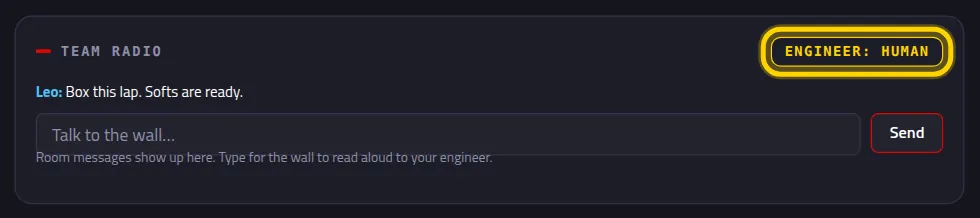
The AI goes quiet. And your usual ask-the-engineer button now talks to your friend instead. To hand it back, they tap the button again.
Close the wall
Done? Close it. The room goes away and nobody sees your car anymore.
In the Pit Wall tab, click Close
Your friend sees Session ended
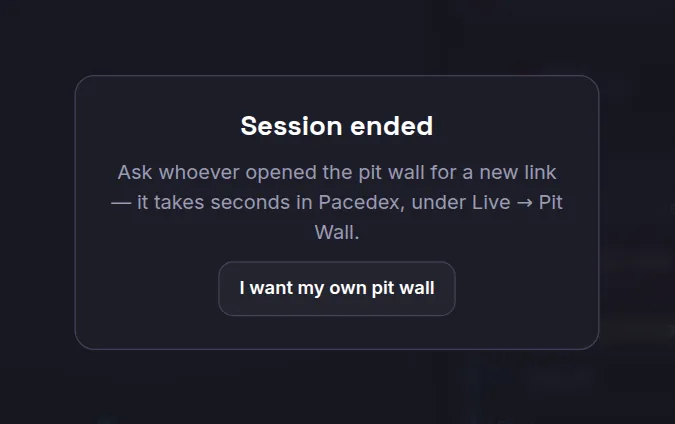
The old link stops working. Next race, Open pit wall again: you get a new code, so send the new link.
Pit wall, booth and automatic league: which is which?
The pit wall is your car for your engineer, with radio. The booth is the whole race for the league's commentator, and the automatic league links drivers in the same lobby without anyone typing a code: see the booth tutorial. One at a time: while your pit wall is open, Pacedex doesn't join a league or booth room.
Something went wrong?
- The link opens and says there's no room with this code: the wall was closed or the code is from another time. Click Open pit wall and send the new link.
- The link opens and sits on Room open · waiting for the driver: your Pacedex isn't sending. Is it open? Does the Pit Wall tab show the link? If it says no connection to the service — retrying…, it's your PC's internet.
- The wall shows Driver signal lost: your internet dropped or Pacedex closed. It comes back by itself when the connection does.
- The link says No connection to the service: that's your friend's internet. The page keeps retrying.
- No car on the page (The driver isn't on track yet): you're in the game menus. Get into the session and wait a few seconds.
- The message stays on sent and never turns into in the headset: your Pacedex didn't get it. Check your PC's internet.
- It showed on the dashboard but you didn't hear it: the voice in your headset is the Pacedex engineer, which starts with the app. Check your PC volume and test the voice in Settings → Engineer. Pit wall messages are spoken even with Race engineer turned off.
- Your friend can't hear you: they need to turn on Hear the driver on the wall. On a phone, the volume must be up and the screen on. Did you set the team radio button? Try Test (text).
- Delay: the wall runs about half a second behind the car; typed messages reach your headset within a few seconds (the engineer finishes the sentence it's on). That's normal.
- The Open pit wall button is greyed out: your Pacedex is already in a league room. In an online race with other human drivers, the Automatic league (same game session), on by default, puts you in the session's room. To use the pit wall, go to Settings → the Pit Wall — auto-room card, turn off Automatic league (same game session) and come back to Open pit wall. In a booth you joined with a code, click Leave booth.
Still stuck? Post a screenshot in our Discord and we'll help.
What to learn next
Put someone on your pit wall next race
Free, on your PC, for F1 24, F1 25 and the 2026 Season Pack.
Free download · Windows →