 Pace


Pacedex alongside SimHub, MOZA Pit House or another PC
Want Pacedex and SimHub (or MOZA Pit House) reading the same race? You can. Change one port in the other app and flip one switch in Pacedex. Takes 2 minutes. In the screenshots, the yellow outline shows where to click.
- Pacedex already receiving the game. Not yet? Do your first race first.
- The other app installed: SimHub, MOZA Pit House, or a telemetry app on another PC.
- The game sending to port 20777 (the default).
Why only one app receives
The game sends telemetry to one port. Only one app at a time can listen on a port.
The problem: two apps on the same port
Windows hands each packet to just one of them. One works, the other sits idle. Sometimes they swap mid-race.
The fix: Pacedex receives first and forwards
The game stays as it is, sending to 20777. Pacedex listens on 20777 and sends a copy of every packet to the other app, on a port of its own: 20888.
Change the port in the other app
The other app moves off 20777 and listens on 20888. We don't have screenshots of these apps: the pictures below are diagrams.
In SimHub: set the F1 port to 20888
Open SimHub and go to the F1 game you play (F1 24 or F1 25). In the game settings, find the UDP port. It's 20777 by default. Change it to 20888.
In MOZA Pit House: same thing, port 20888
In Pit House's telemetry settings for the F1 game, change the port from 20777 to 20888.
Turned on UDP Forwarding in the other app before? Turn it off
Before, the other app forwarded to Pacedex. Now it's the other way round. If both forward, packets bounce back and forth.
Turn on forwarding in Pacedex
One switch and one number.
Click the gear (Settings) → Game connection
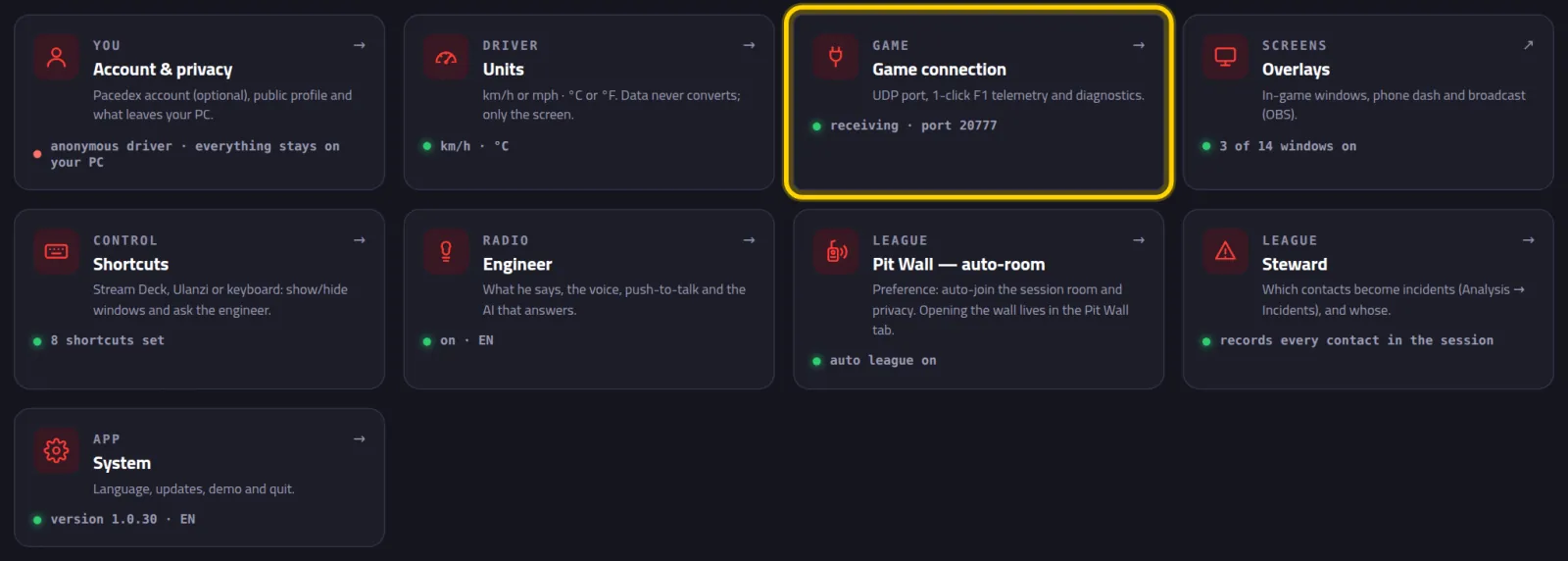
The card says receiving · port 20777: Pacedex stays on the game's port. Leave it alone.
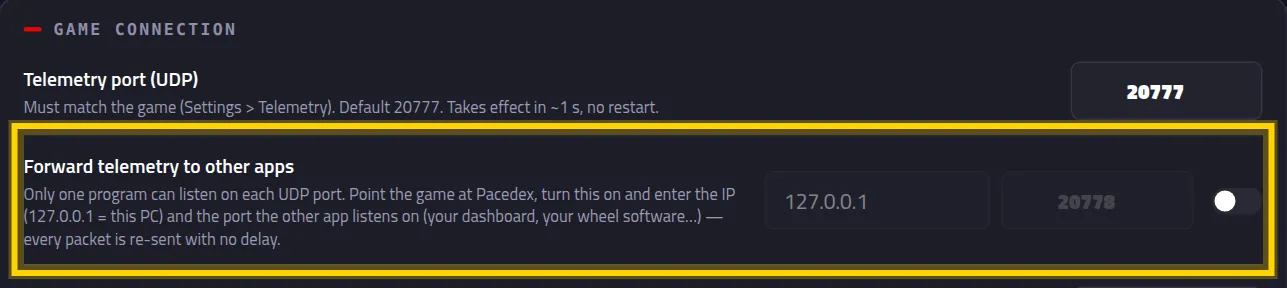
Find the Forward telemetry to other apps row and flip the switch
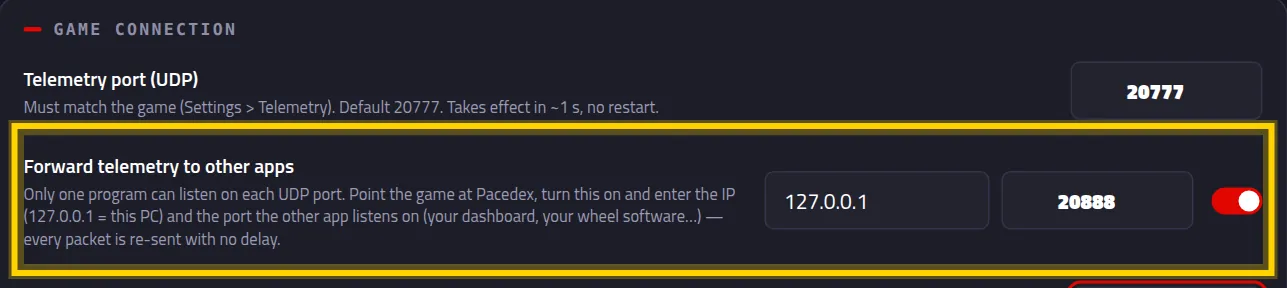
Keep the IP 127.0.0.1 and type port 20888
127.0.0.1 means this PC. Click outside the box: it saves by itself.
Check it works
Get on track. Both apps should move together.
Look at Pacedex: receiving · port 20777
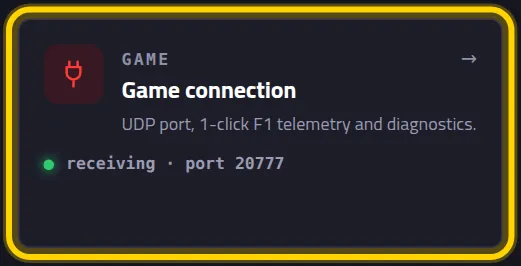
The green light stays on. The live dashboard carries on as normal.
Open SimHub (or Pit House) and watch the data move
Speed, gear, revs: all moving with the car. Every packet reaches both, instantly.
Another PC on the network
Telemetry app running on another computer? Pacedex sends it there.
Find the other PC's IP
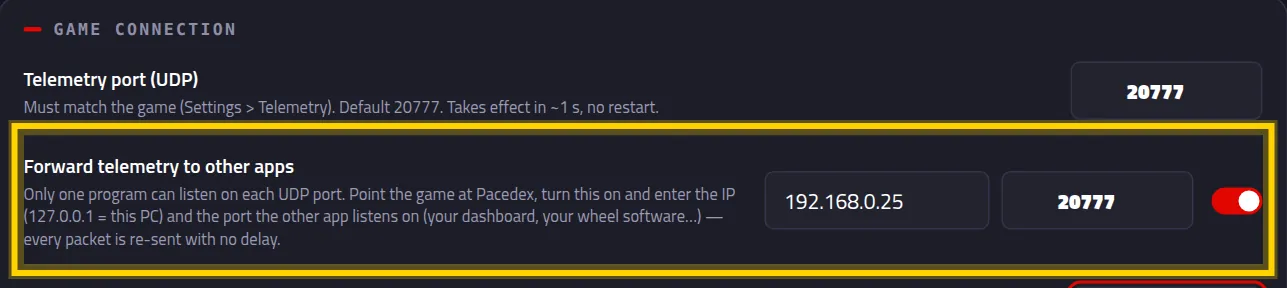
On the other PC, open Command Prompt and type ipconfig. Note the IPv4 Address, something like 192.168.0.25.
In Pacedex, swap in the other PC's IP and the port its app listens on
Port 20777 is free over there, so it can be that one.
Two apps at once?
The screen has room for one destination. Pacedex accepts up to 5, but the extra ones only via the config file:
- Close Pacedex: the PD icon by the clock → Quit.
- Open the %APPDATA%\pacedex folder and the overlay_config.json file in Notepad.
- Make the forwarding line look like this, one destination per app, and save:
Open Pacedex again. Careful: touching the boxes on screen afterwards brings it back to a single destination.
Something went wrong?
- The other app gets nothing: is the port the same in Pacedex and in the other app (20888)? Is the forwarding switch on? Are you on track? The game sends nothing from the menus.
- Pacedex stopped receiving (yellow bar): the other app is still on 20777 and grabbed the port. Change its port (Part 2) and reopen both.
- The game's port changed: some app reconfigured the game. In F1: Settings → Telemetry Settings → UDP Port back to 20777.
- Everything stutters or data repeats: the other app is also forwarding to Pacedex. Turn its UDP Forwarding off. One forward only: Pacedex's.
- Lag in the other app: Pacedex forwards the instant a packet arrives. On the same PC there's no delay. For another PC, use a cable rather than Wi-Fi.
Still stuck? Post a screenshot on our Discord and we'll help.
What to look at next
Both apps, the same race
Free, on your PC, for F1 24, F1 25 and the 2026 Season Pack.
Free download · Windows →