 Pace


Your race dash on your phone
Delta, tyres, fuel and the cars ahead and behind, live, on a phone or tablet next to your wheel. No second monitor needed. There are two ways to do it: pick yours below. In the pictures, the yellow outline shows where to click.
- Phone and game (or PC) on the same home Wi-Fi.
- A phone mount near the wheel helps a lot.
Hook the phone up to the PC
Is Pacedex already getting the game on your PC? Not yet? Do your first race first. After that, about 2 minutes.
In the left menu, under Broadcast, click Overlays
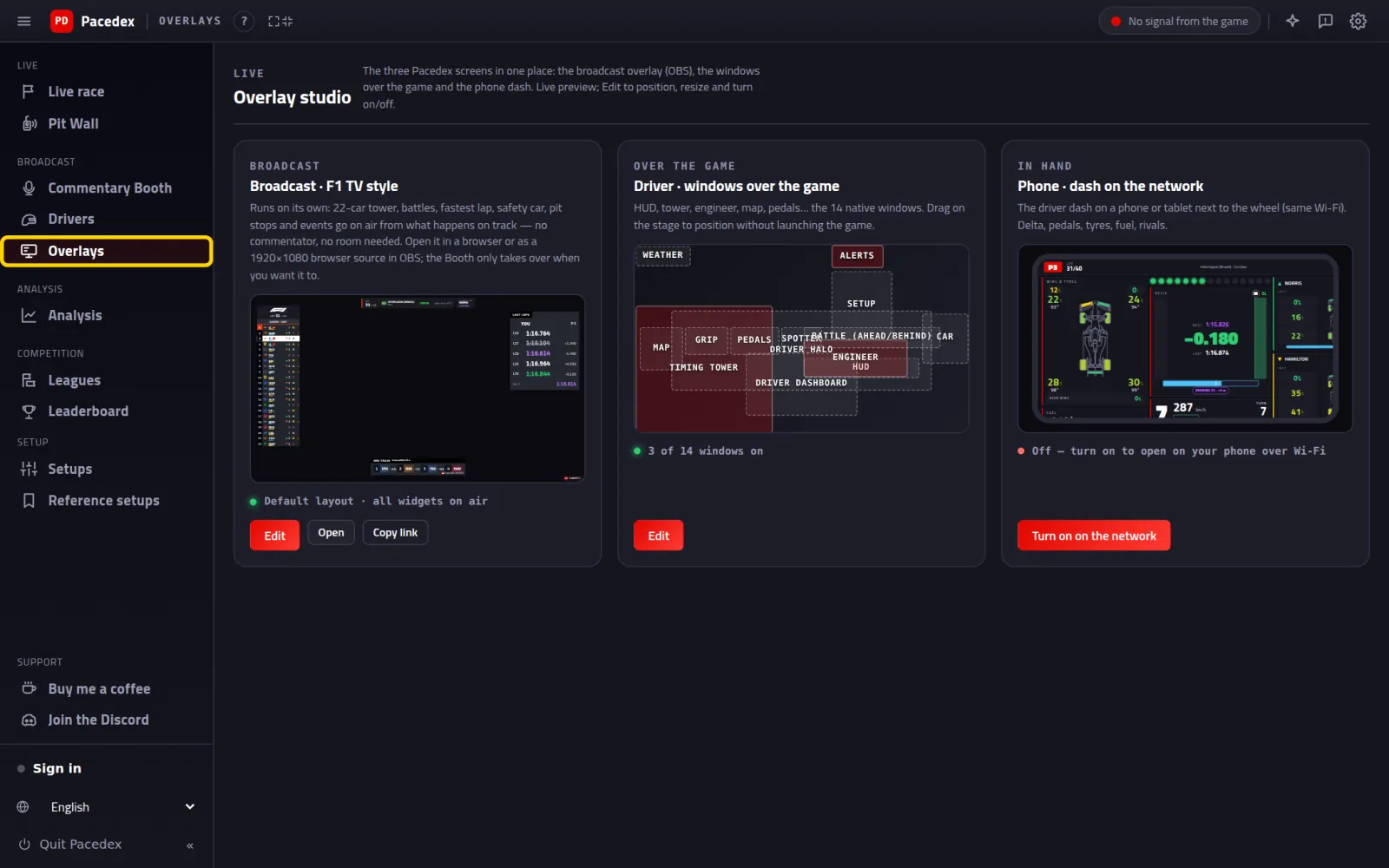
The Overlay studio, with three cards. The phone one is on the right.
On the Phone · dash on the network card, click Turn on on the network
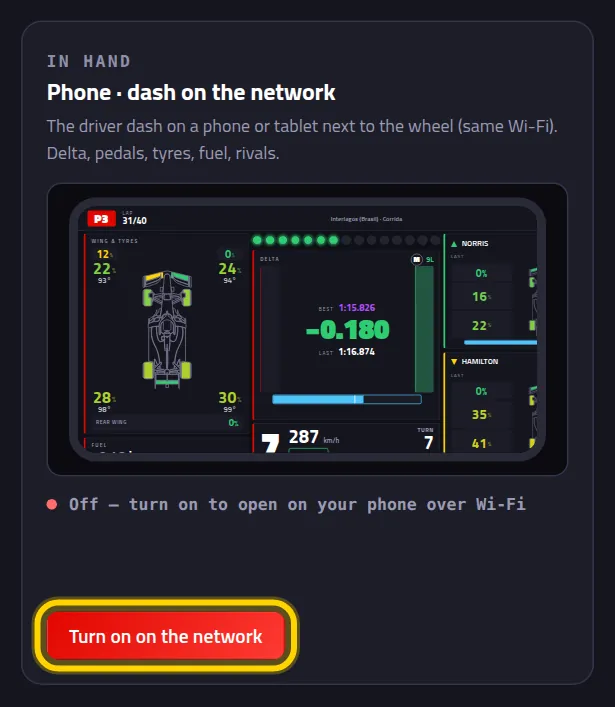
A green line, On · open on your phone: plus the address, and a QR code right below.
Got a Firewall warning? Click Allow in the firewall (asks for admin)
It happens the first time. Windows asks whether Pacedex may make changes: click Yes. No warning? Skip this step.
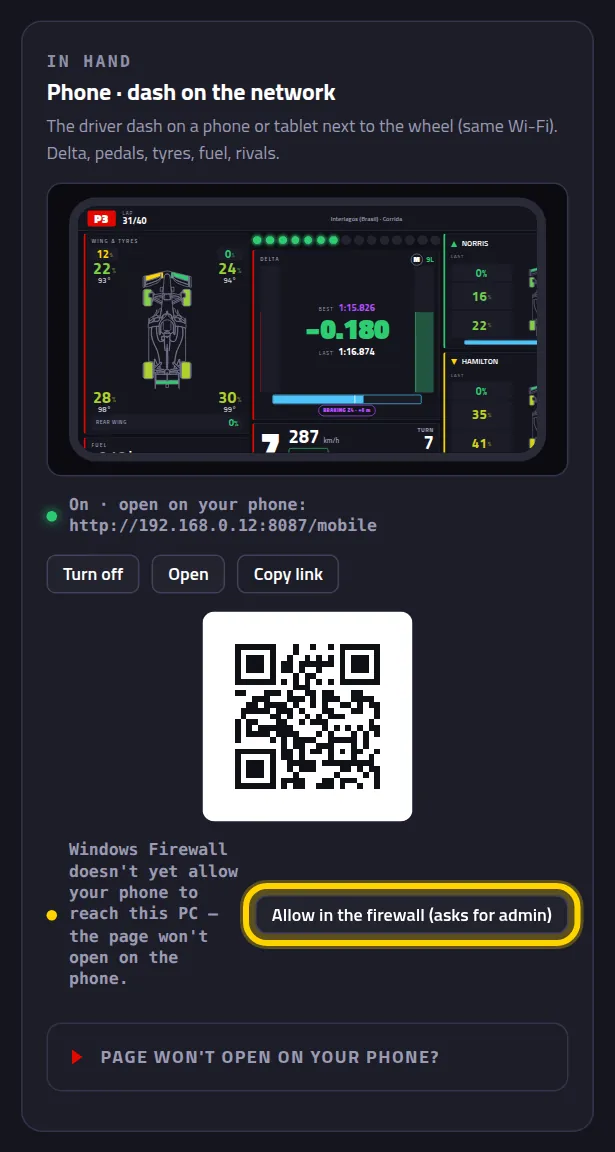
The yellow warning goes away. Without this, the phone shows “This site can't be reached”.
Point your phone's camera at the QR code
Tap the link the camera pops up. No QR reader? Type the address from the green line into the phone's browser, for example http://192.168.0.12:8087/mobile.
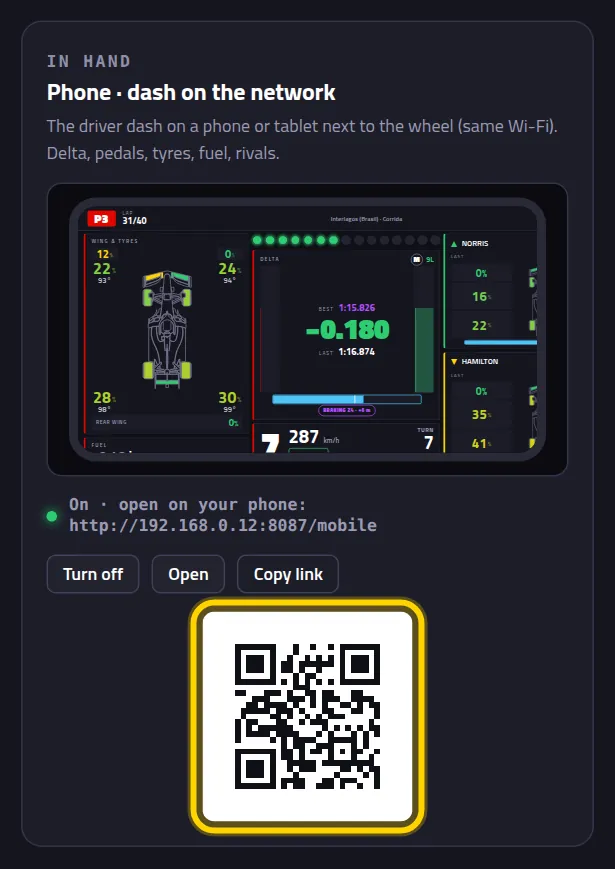
The dash opens in the phone's browser. Off track it shows Waiting for game telemetry… That's normal.
On track
Jump into a session in the game. The dash wakes up on its own.
Turn the phone sideways and tap the screen once
The dash is built for landscape. The tap goes fullscreen and stops the screen from going dark mid-race.
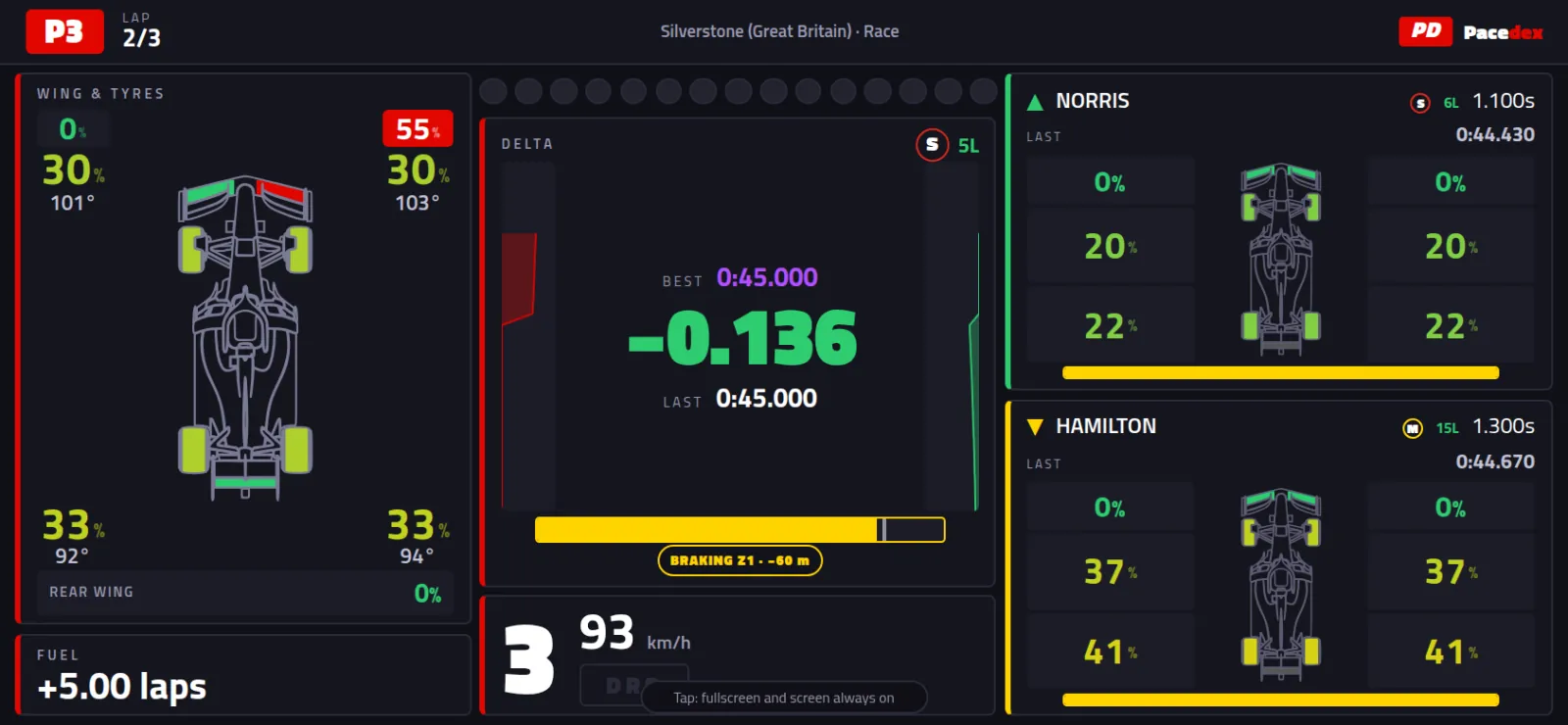
At the bottom, the hint Tap: fullscreen and screen always on. It disappears after the tap.
Drive and glance at it
On the left, the wing and all 4 tyres (wear and temperature). In the middle, the DELTA to your best lap, gear and speed. On the right, the car ahead and the car behind: gap, last lap and their tyres.
Install the app on your phone
Here the phone is the whole of Pacedex: it receives the game, shows the dash, talks on the radio and keeps your races. Made for PlayStation and Xbox players.
Install Pacedex from Google Play
On the phone, open the Pacedex page on Google Play or search for Pacedex in the store. Free, Android 8 or newer. No Play Store? Get the APK.
Open the app. It starts on Connect
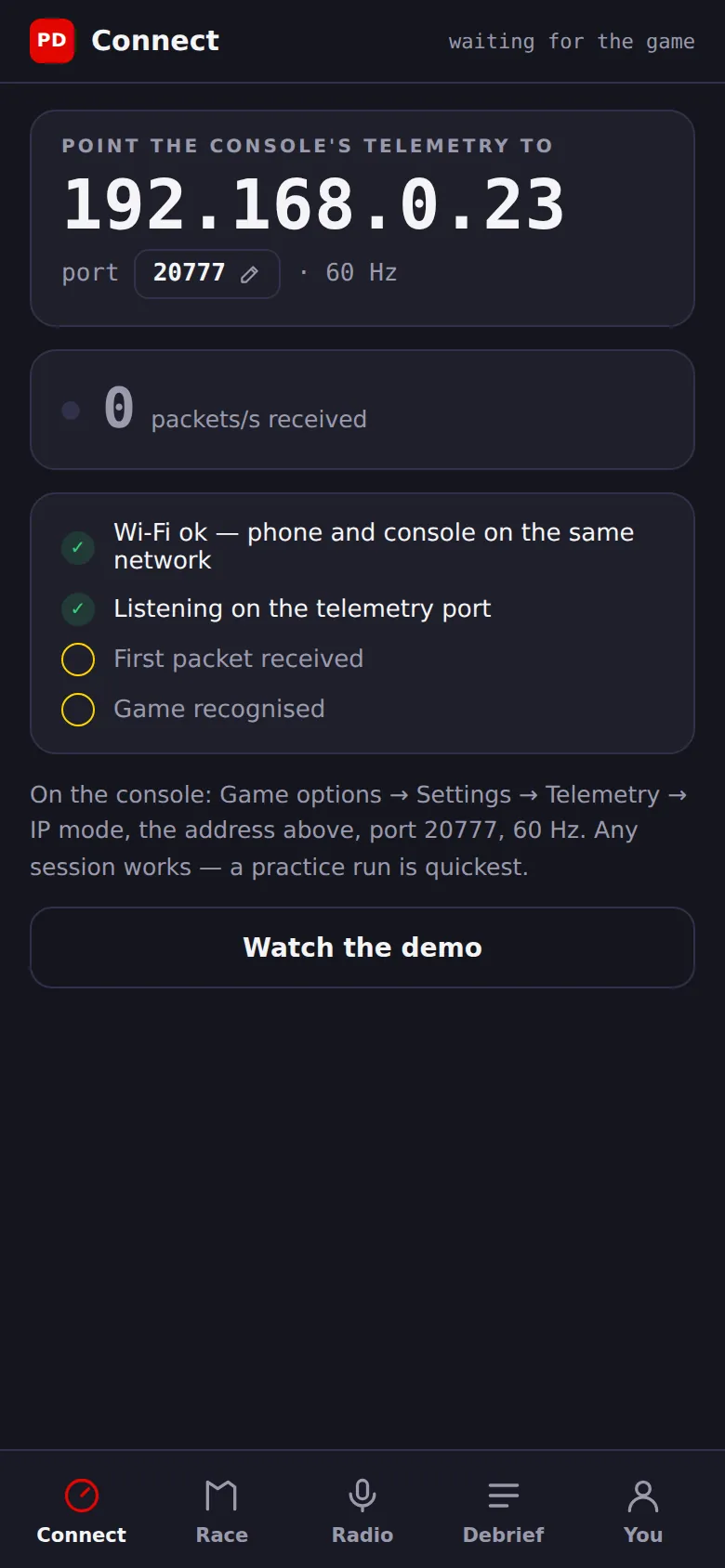
In big type under Point the console's telemetry to: the phone's IP (here 192.168.0.23) and the port, 20777. Write both down.
Send the game to the phone
Now on the console, inside F1. Just once: the game remembers it.
In F1, open Settings → Telemetry Settings
Fill it in like this
In UDP IP Address, type the number the app shows, dot by dot. The UDP Port must match the app. In UDP Format, your game's year.
Go out on track (a practice session is fine)
The game sends nothing from the menus. With the car on track, look at the phone.
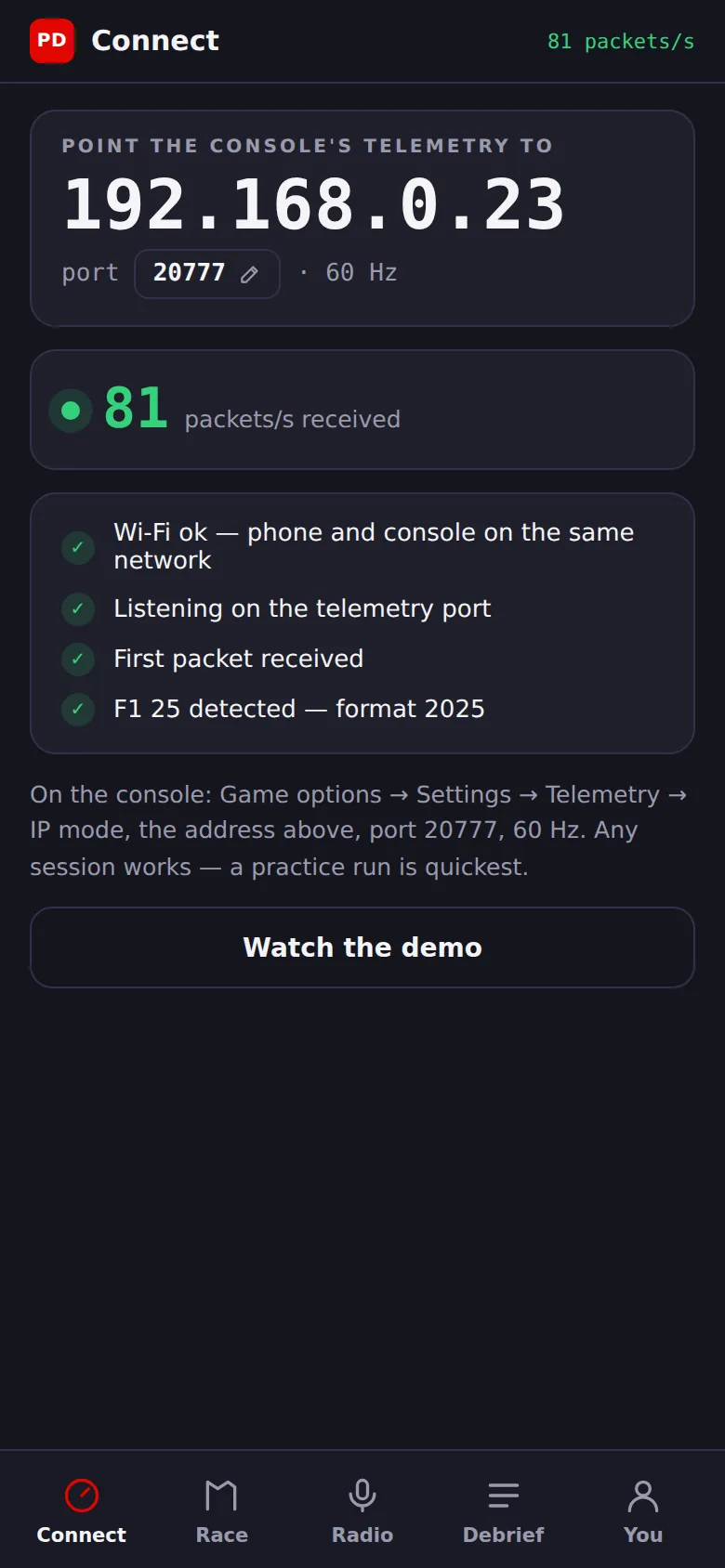
The packets/s received number turns green and all four items get a ✓, down to F1 25 detected.
The app's screens
The bottom bar has five buttons: Connect, Race, Radio, Debrief and You.
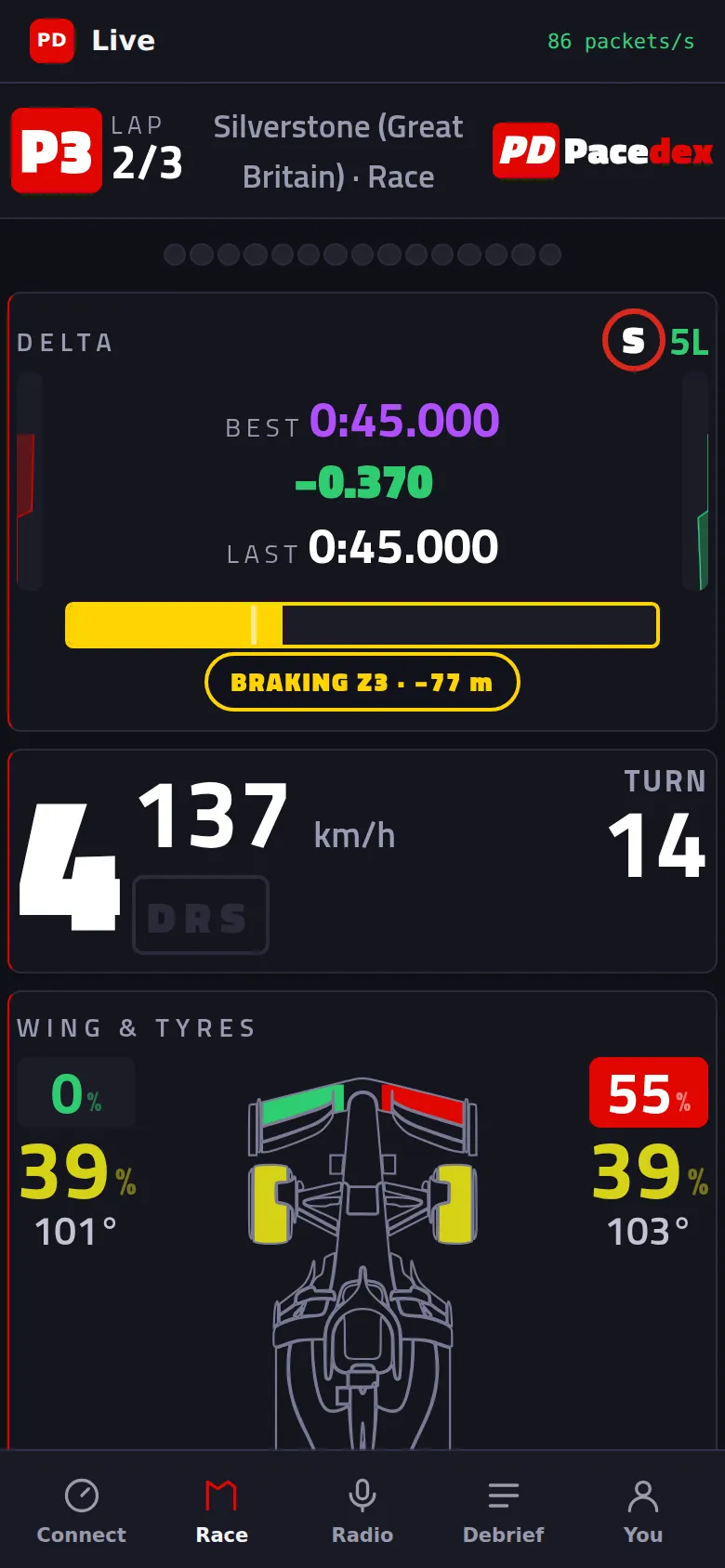
Tap Race: that's the live dash
The same dash as in option A. Turn the phone sideways to see it all at once.
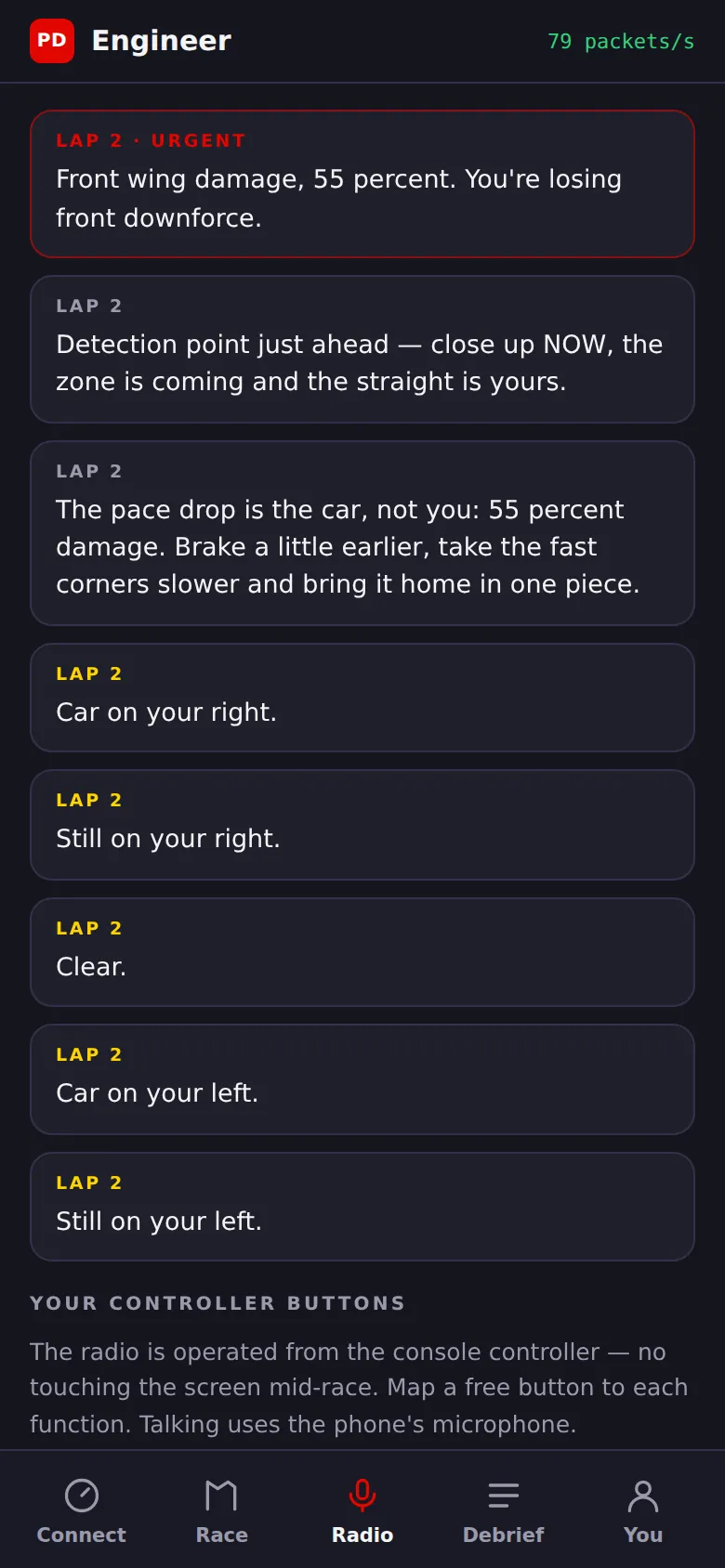
Tap Radio: everything the engineer said
Each call shows up in writing, with the lap. Urgent ones are red. Below, under Your controller buttons, you link controller buttons to Talk to the engineer, How am I doing?, When do I pit? and How are the tyres?. Tap Map and follow How to map it on the console (one time).
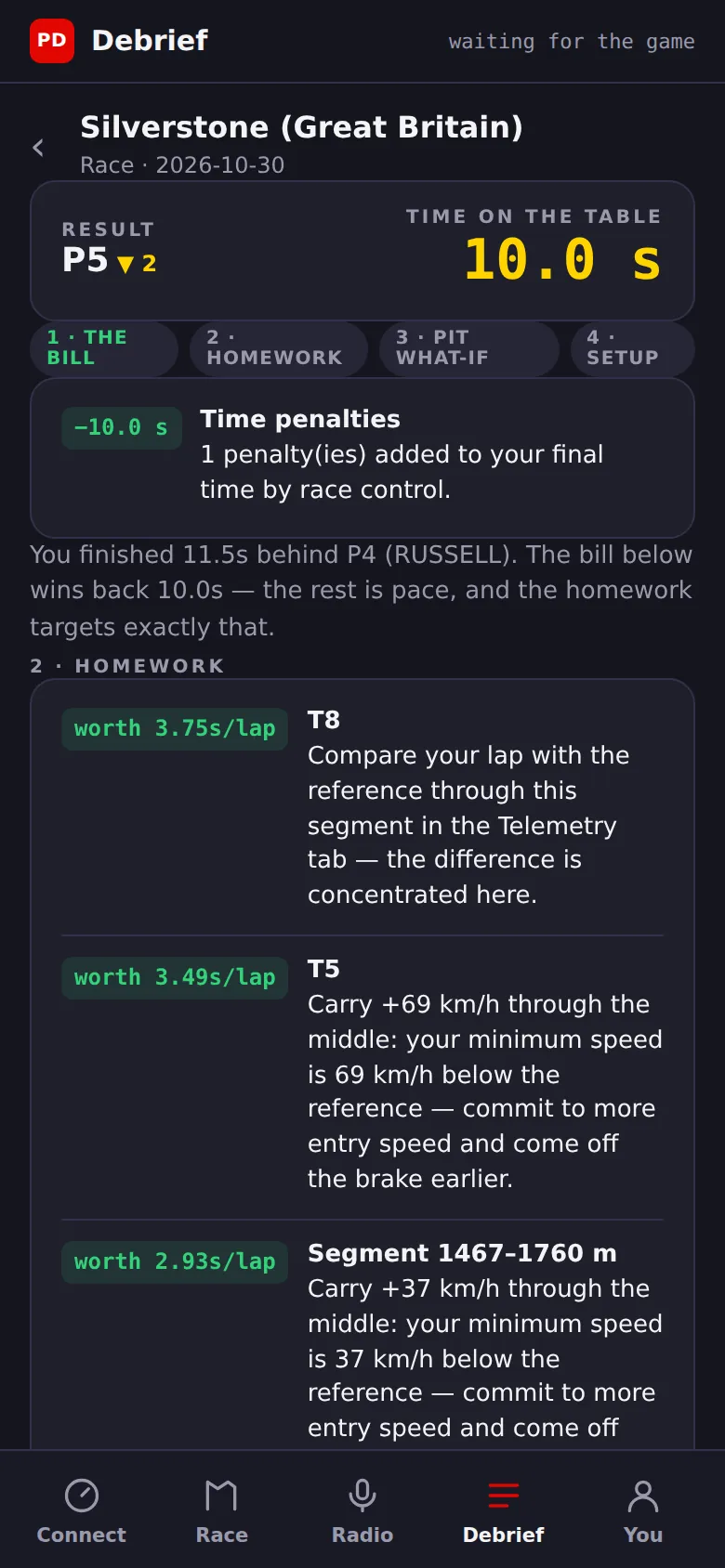
After the flag, tap Debrief and then the race
Your result, the Time on the table (what you left out there) and what to practise in each corner. At the bottom, Full analysis in the panel opens the whole Pacedex panel, the same one as on PC, on the phone.
Everything else lives in You
Account (optional), privacy, the app's and the engineer's language, km/h or mph, and the AI voice engineer.
Something went wrong?
- The QR opens but the page won't load: make sure the phone is on the same Wi-Fi as the PC (not on mobile data). Click Allow in the firewall (asks for admin) on the card and accept the Windows prompt. Still nothing? Open Page won't open on your phone? on the same card: it has the steps and a ready-to-copy command.
- Guest Wi-Fi: it keeps devices apart from each other. Put the phone on your main home network.
- Antivirus with its own firewall (Norton, McAfee, Kaspersky): it needs a separate permission, inside the antivirus.
- The screen goes dark mid-race: in option A, tap the dash once after it opens. Came back from another app? Tap again. Keeping the phone on a charger helps.
- The app gets nothing (option B): after 20 seconds it tells you. Check the IP in UDP IP Address (the app's, not the PC's), that the UDP Port matches the app and that UDP Broadcast Mode is off. A console on a cable and a phone on Wi-Fi sometimes end up on different networks on the router.
- The phone's IP changed: the router can hand out a new number after a restart. Open Connect and compare it with the game.
- You play on PC and want the app on the phone: the game sends to one address only. If the PC's Pacedex stops receiving, use option A.
Still stuck? Drop a screenshot in our Discord and we'll help.
What to learn next
A second screen that's already in your pocket
Free, for F1 24, F1 25 and the 2026 Season Pack.
Free download · Windows →