 Pace


Judge a contact with both cars' telemetry
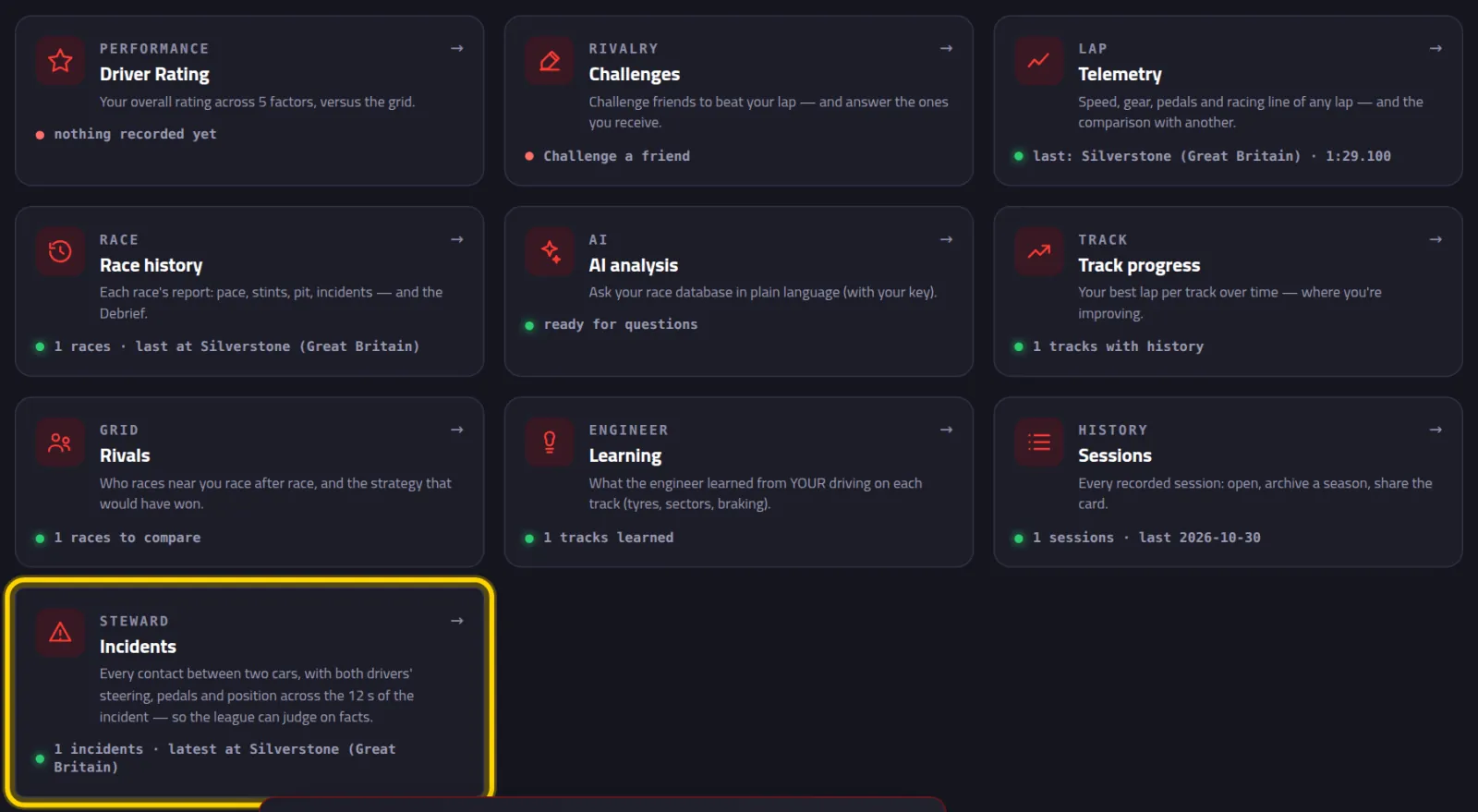
Two cars touched? Pacedex keeps the 12 seconds around the contact: steering, pedals, speed and position of both cars. You open it, look, and send it to the league. It takes about 5 minutes. In the pictures, the yellow outline shows where to click.
- Pacedex installed and receiving the game. Not yet? Do your first race first.
- Just one person in the lobby running Pacedex: you as a driver, or the steward spectating. Nobody else installs anything.
- F1 24, F1 25 or the 2026 Season Pack, on PC.
Get ready
It all ships switched on. Check it once and pick a hotkey.
Click the gear (Settings), then the Steward card
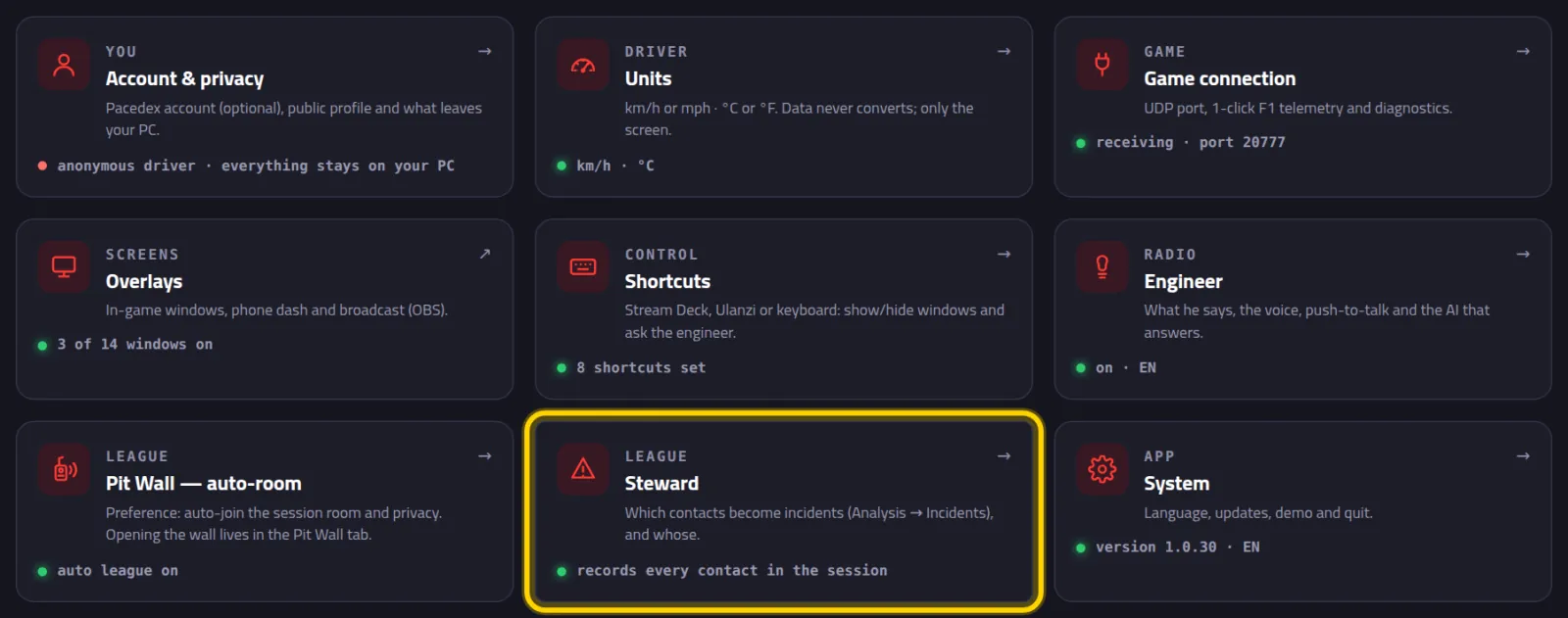
Leave Record incidents automatically on
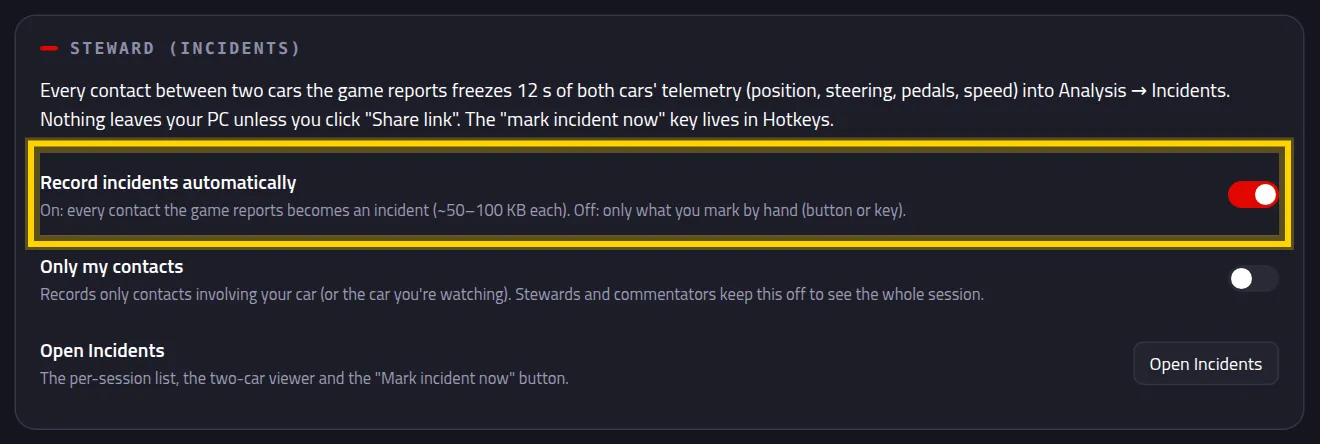
Right below it, Only my contacts. Stewards and commentators keep it off, so contacts between any two cars in the session get in.
Back in Settings, open Shortcuts and, on the Steward card, click set
It says press…. Press what you want to use: a keyboard key, a wheel button or a Stream Deck key. You have 8 seconds.
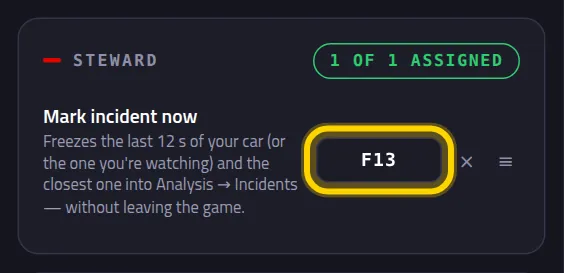
Your key replaces set (here, F13). It works with the game in front — no need to alt-tab.
In the race: a contact becomes an incident
You don't have to do a thing. But if you saw something the game didn't call a contact, mark it yourself.
Race. When the game reports a contact, it becomes an incident on its own
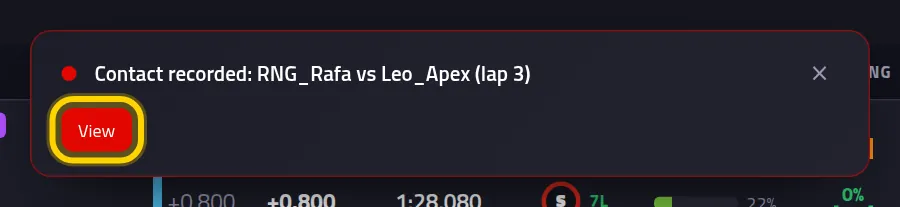
The panel shows Contact recorded: with both names and the lap. View takes you straight there.
Saw something you want to keep? Press your hotkey
It freezes the last 12 seconds of your car (or the car you're watching) and of the closest car to it.

Open the incident
During the race or afterwards, whenever you like.
Click Analysis, then the Incidents card
Pick the race under Session and click View on the contact
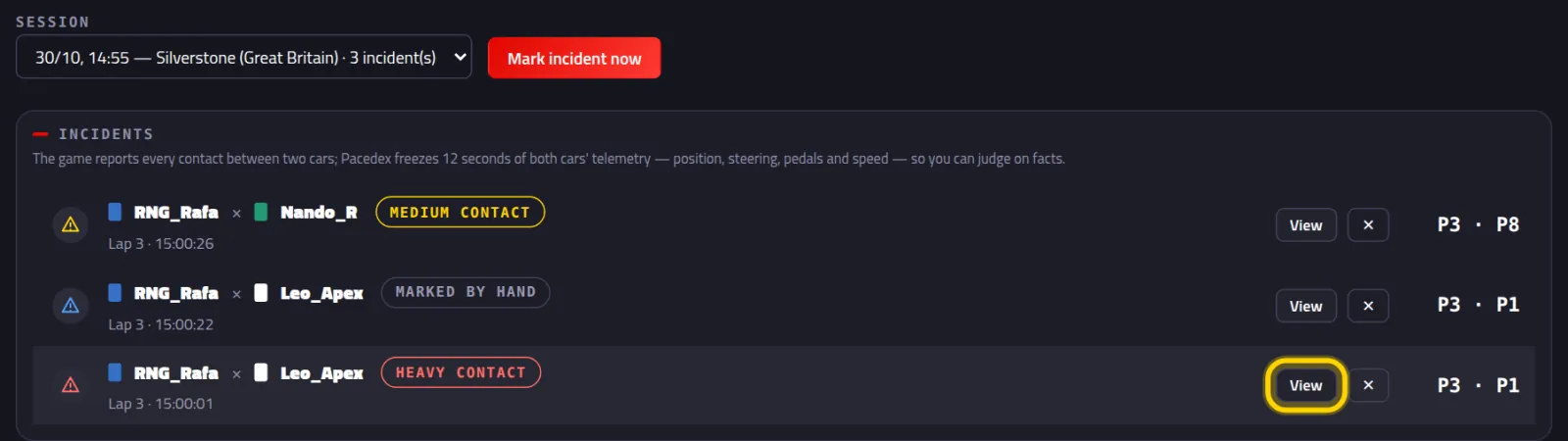
One per row: both drivers, the lap, the time and the type: Heavy contact, Medium contact, Light contact or Marked by hand. The ✕ deletes it.
Read the screen
Everything here is a fact measured by the game. Pacedex gives no verdict: that's for your league's stewards.
Start with the boxes at the top
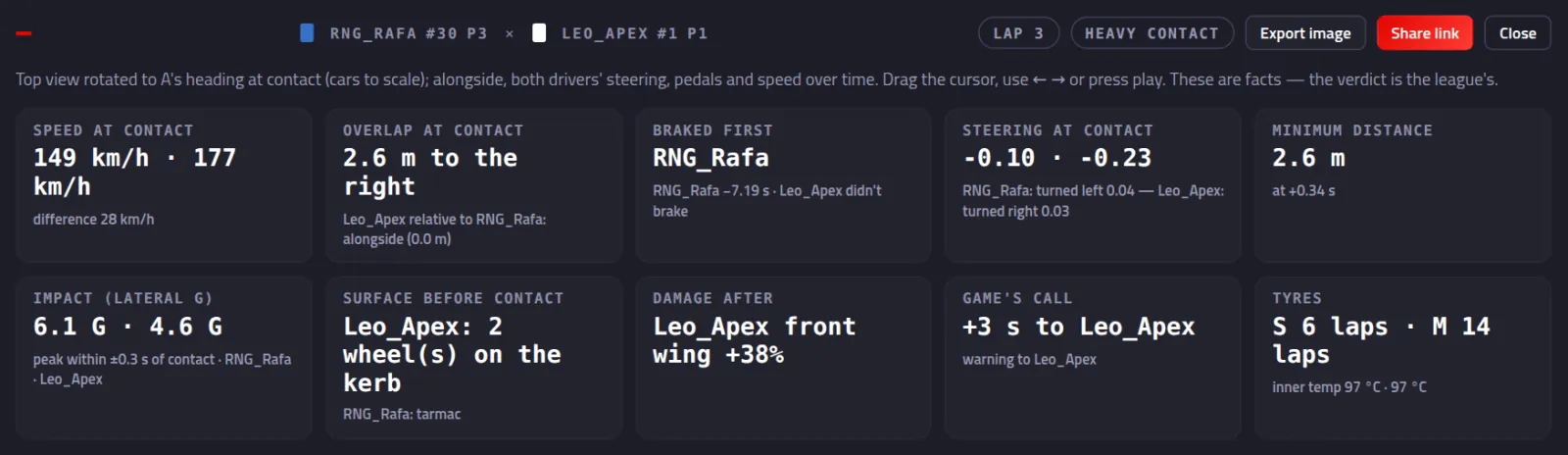
Overlap at contact: how far alongside one car was. Braked first: who braked or lifted earlier, and when. Steering at contact: which way each one turned. Surface before contact: wheels on the kerb or the grass. Game's call: the penalty the game itself handed out.
Read the Assessment · aid
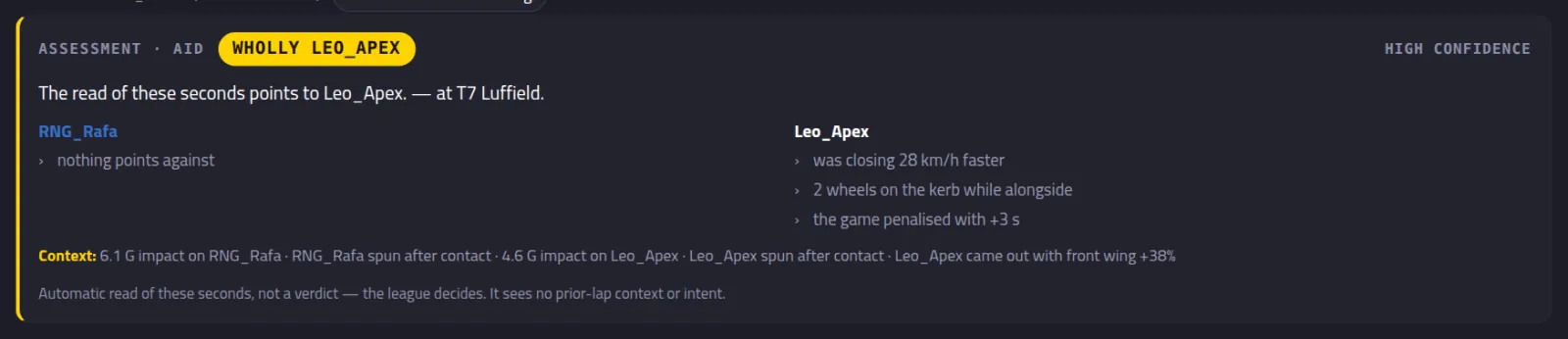
An automatic read of those 12 seconds, with the reasons on each side. It says so itself: not a verdict. It doesn't see earlier laps or intent.
Watch the replay: click Go to contact and press play (▶)
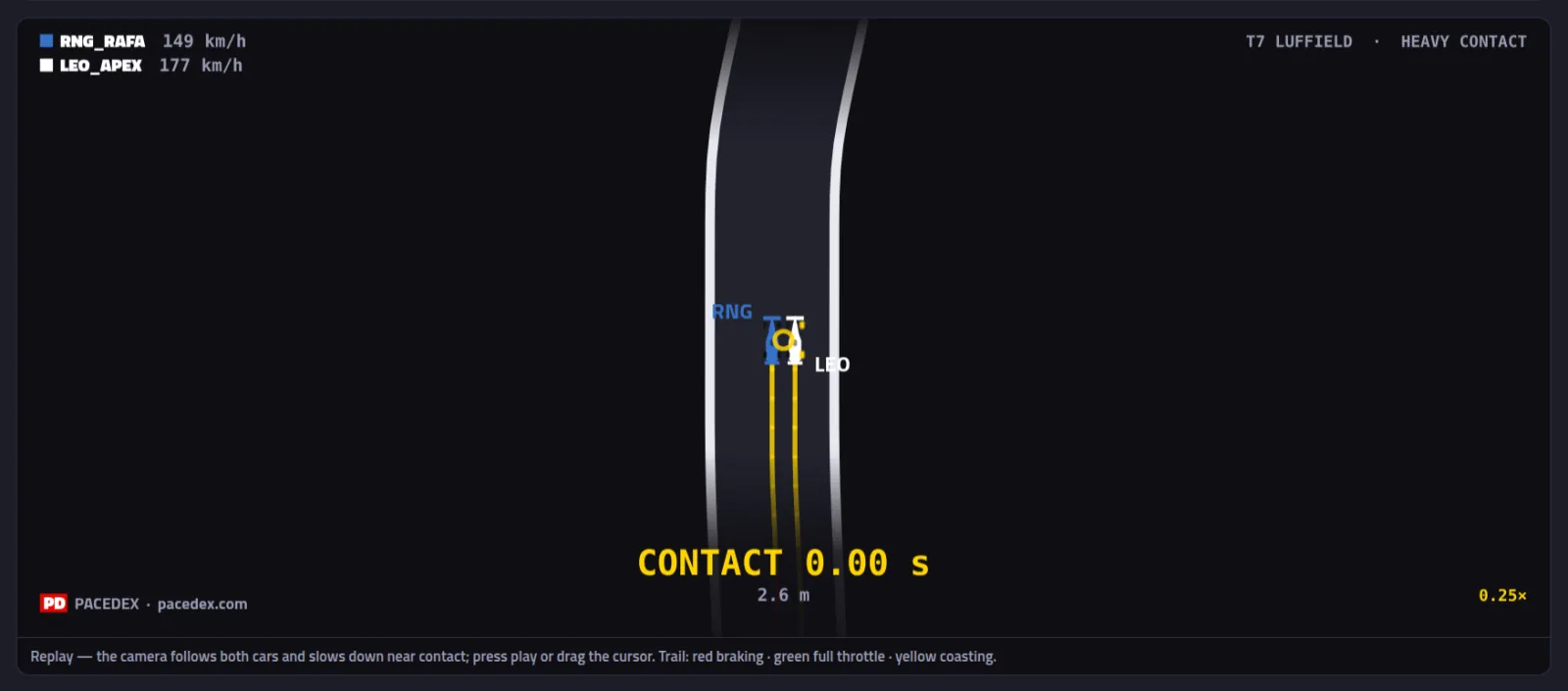
The camera follows both cars and slows down near the contact. Just below, the Contact sequence shows 5 frames from the same camera.
Drag the cursor and compare steering, pedals and speed
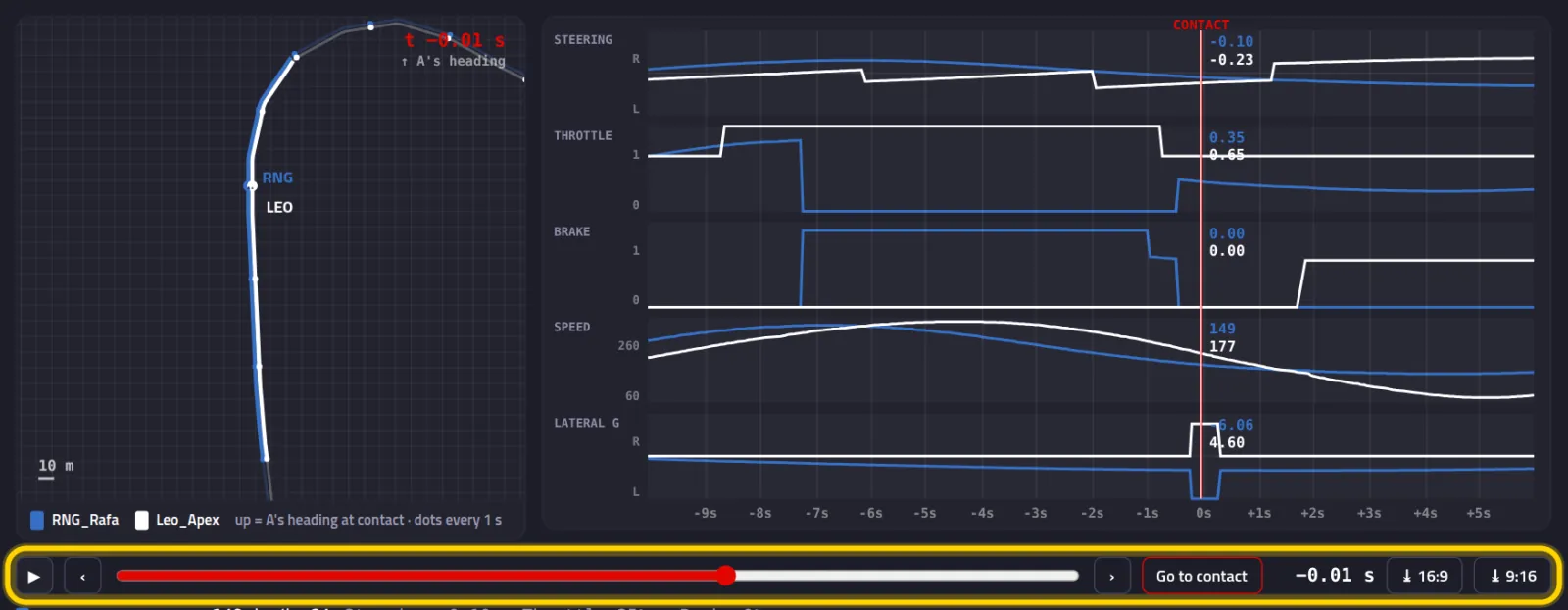
On the left, the top-down view, cars to scale. On the right, one strip per input: Steering, Throttle, Brake, Speed. Both follow the cursor. Use ‹ › or the arrow keys to step frame by frame.
Send it to the league
A picture for the group chat or a link with everything. Nothing leaves your PC until you click.
Click Export image

Image saved and copied — just paste it in the league group. It carries the title, the boxes, the top-down view and the strips.
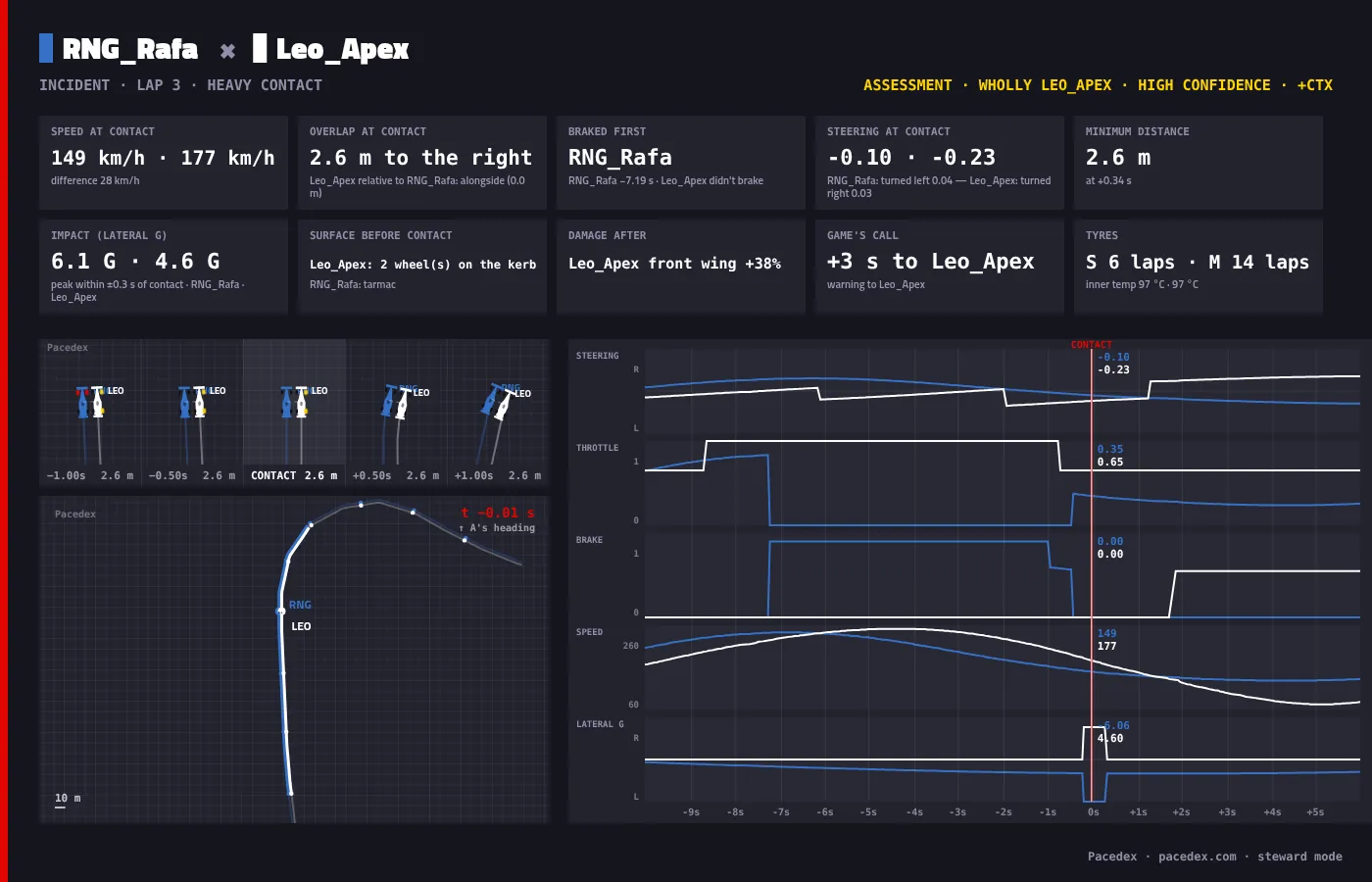
To send everything, click Share link and confirm

Pacedex asks first: the page shows both names and the telemetry, and anyone with the link can see it.
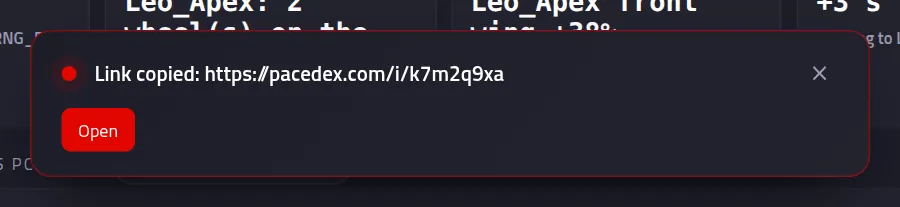
Link copied: and the pacedex.com/i/… address. Paste it in the league group.
Anyone who opens the link sees this page
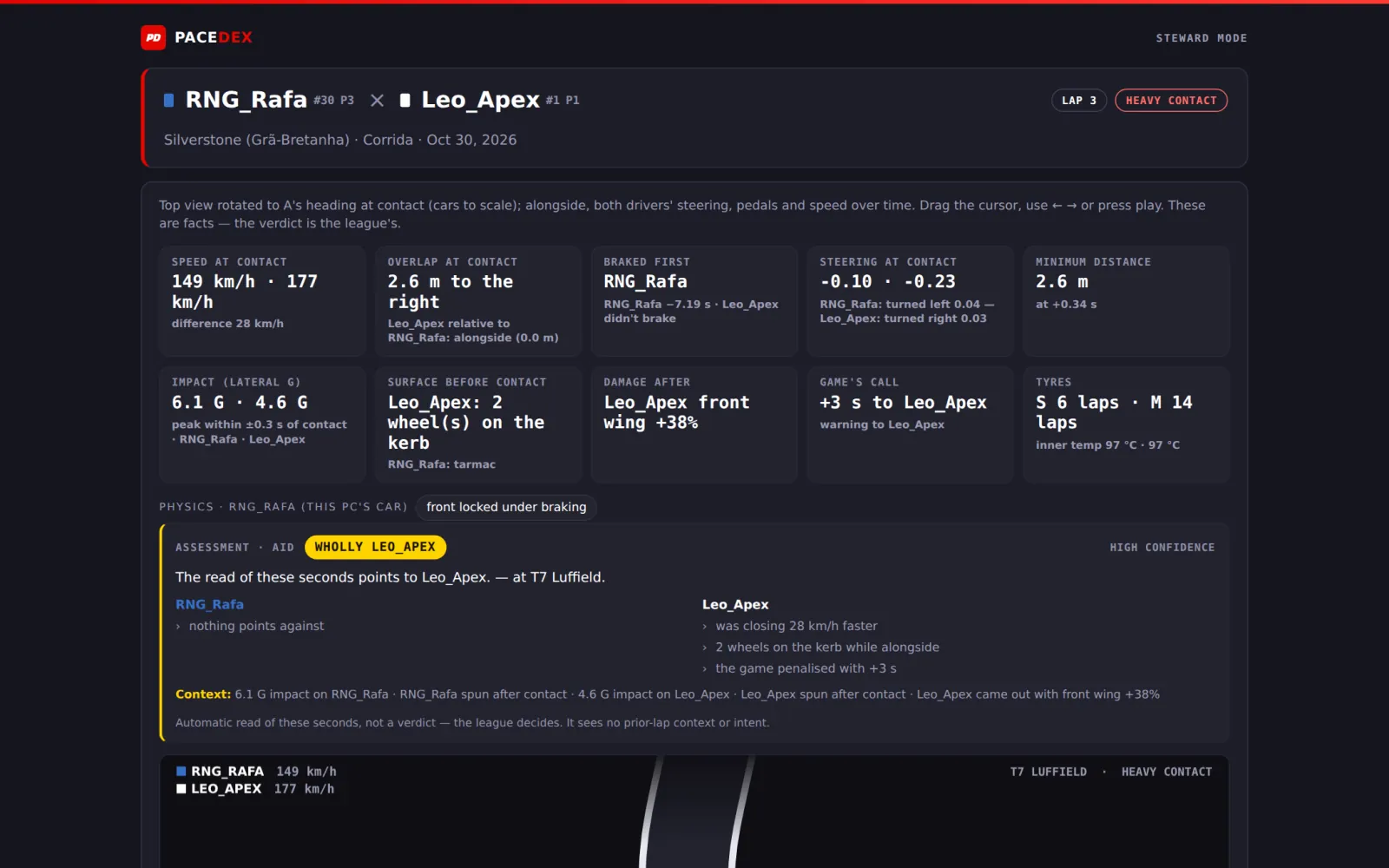
The same screen as your panel, replay and strips included. Nothing to install to view it.
Changed your mind? Click Revoke link

The page is gone. Copy link copies the same address again. In the list, a published incident wears the public tag.
“Restricted” telemetry
Steering and pedals only come from drivers who leave the game's telemetry open.
See restricted telemetry on a driver? The game didn't send their steering or pedals

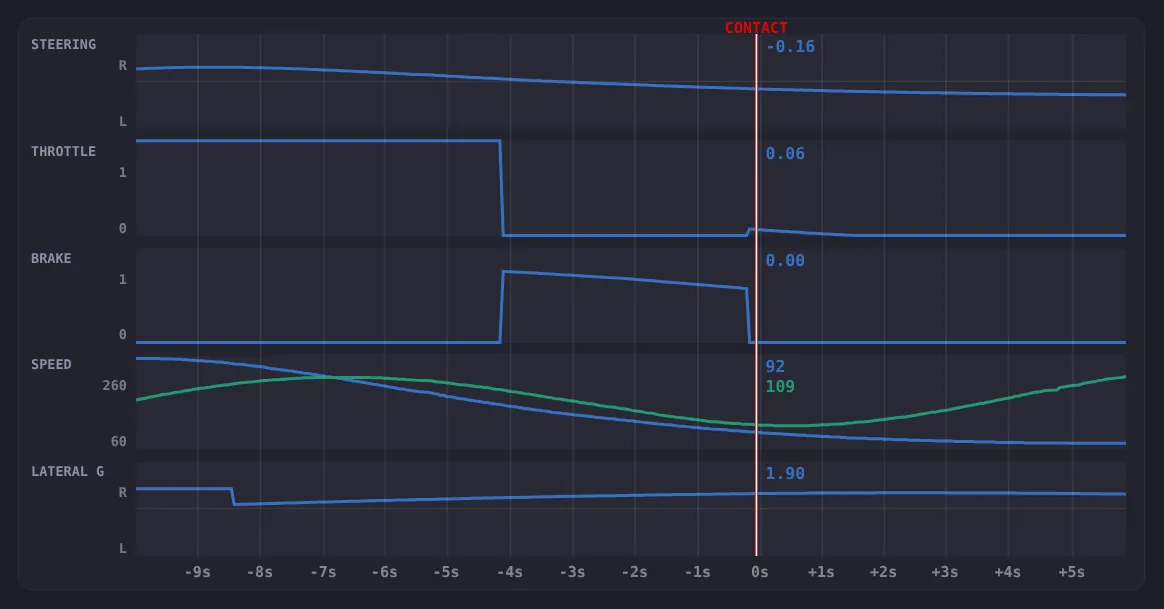
Position and speed still show. Steering and pedals are left out, instead of drawing a driver who “did nothing”.
Tell your league: everyone on Public telemetry
In the game: Settings → Telemetry Settings → Your Telemetry set to Public. Put it in your rules. It costs nothing.
Something went wrong?
- No incident shows up: check Settings → Steward and make sure Record incidents automatically is on. With Only my contacts on, contacts between other cars are skipped. Collisions must be on in the game, too.
- I can't find Mark incident now: it only shows while the game is connected. Off track, use the list.
- Steering and pedals are flat: that driver has the game's telemetry on Restricted (Part 6). It can't be recovered later: ask for Public before the next race.
- The link won't open: it was revoked, or the incident was deleted (deleting takes the page down too). Share it again. No connection to pacedex.com right now means the PC is offline: try again.
- “Demo incidents aren't published.” Contacts from the demo stay on your PC. In a real race, it works.
Still stuck? Post a screenshot in our Discord and we'll help.
What to learn next
Steward your next race with facts
Free, on your PC, for F1 24, F1 25 and the 2026 Season Pack.
Download free · Windows →